> ## Documentation Index
> Fetch the complete documentation index at: https://learn.cleftnotes.com/llms.txt
> Use this file to discover all available pages before exploring further.
# Apple Watch
> Voice notes from your wrist. Capture when your phone is in another room, transcribe on iPhone, sync everywhere
Cleft on Apple Watch is for the moments your phone isn't in your hand. Mid-run, hands in the sink, kid on your hip, sat across from someone, raise your wrist, talk for thirty seconds, and the formatted note is waiting on your iPhone next time you check it.
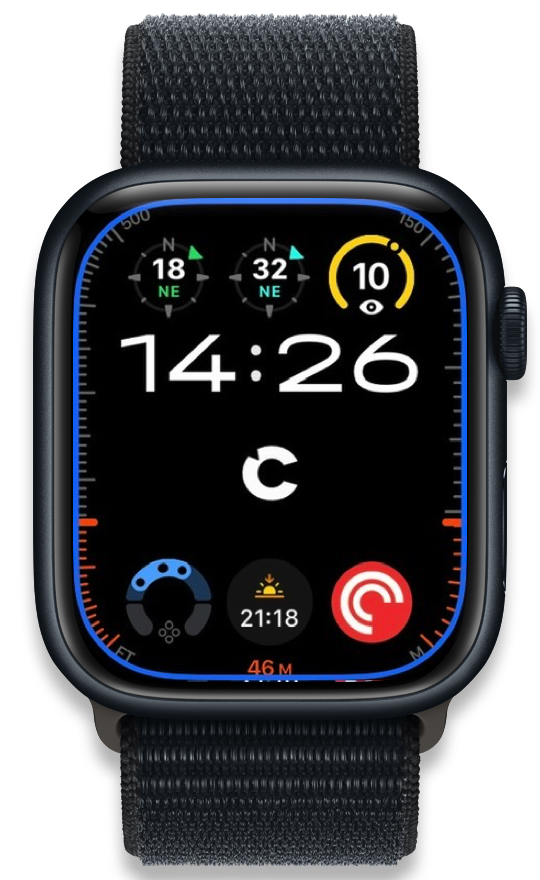
Apple Watch Series 9
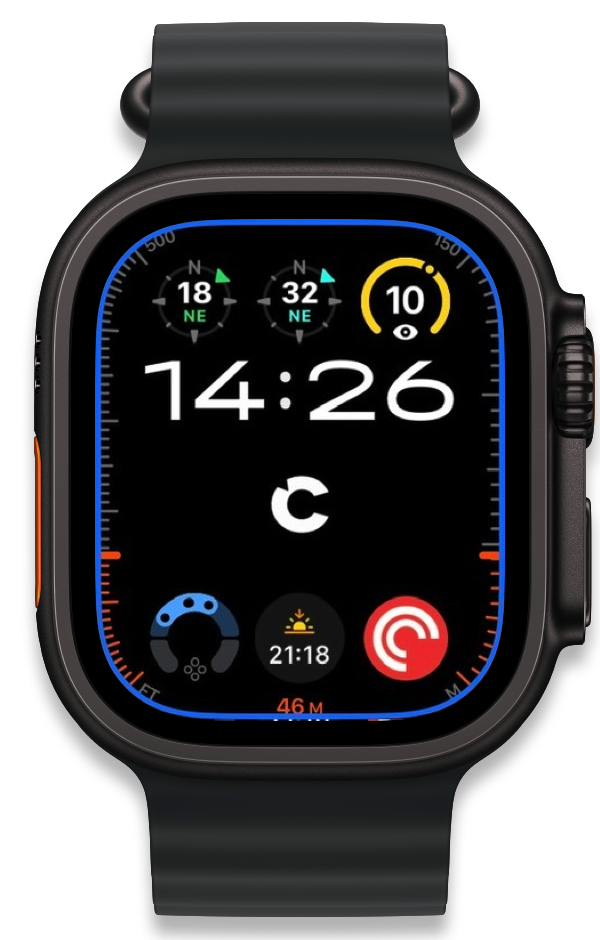
Apple Watch Ultra 2
## Start fast
Three ways to begin a note without taking your phone out:
- Watch face complication. Tap the Cleft icon on a customised face
- App grid. Press the Digital Crown, tap Cleft
- Action Button (Apple Watch Ultra). Set it to "Open App → Cleft" so a single press launches the app
A subtle haptic confirms the recording started. Pick a note style with the Digital Crown if you want this recording to use a different format, then talk, pause, and resume. When you're done, the audio transfers to your iPhone in the background and Cleft transcribes and formats it there.
## Record a note
Open Cleft from the complication, app grid, or Action Button, choose a note style if needed, then tap the record button. A haptic tap confirms it's running and the timer starts on screen.
Pause and resume mid-recording without ending the note. A haptic tap confirms each transition. Tap stop when you're done; another haptic confirms it saved.
The audio syncs to your iPhone in the background. Cleft transcribes and formats it on the phone. By the time you check, the note is in your list with a summary, key points, and action items.
For mic technique and language settings, see [Recording Voice Notes](/user-guides/recording-voice-notes).
## What Apple Watch is best at
Record straight from your wrist when reaching for your phone would break the moment.
Stop mid-thought when life interrupts, pick up where you left off without ending the note.
Use the Digital Crown to choose Structured, Structured Prose, Clean Transcript, or a synced custom style before recording.
Spin the Crown through your synced notes. The most recent ones are right there on your wrist, read-only.
Add Cleft to any watch face for one-tap access, inline, circular, or rectangular accessory styles.
Recordings transfer automatically once the iPhone is in range. Transcription happens on the phone, not the watch.
Just audio capture on the wrist. The heavy work runs on your iPhone.
## Wrist moments worth stealing
### Mid-stride, mid-workout
You're three miles into a run when an idea lands. Tap the complication, talk for fifteen seconds, drop your wrist. The recording syncs to your phone the next time it's in range. By the time you're stretching, the formatted note is sitting in your list.
Pair with [Writing Style](/user-guides/custom-instructions) to shape mid-run rambles into something you can act on.
### Hands full at home
Kitchen, kids, dog, laundry. The moments your phone is in another room are exactly the moments thoughts arrive. Raise your wrist, talk for thirty seconds, get back to whatever you were doing.
Pair with [Daily Capture Routines](/user-guides/daily-capture-routines) for repeatable patterns.
### Pause when life interrupts
Mid-recording, someone asks you a question. Tap pause, haptic confirms, answer them, tap resume, finish the thought. The note is still one note, not three fragments.
### A daily note you append to from anywhere
Pin one note on your iPhone (a journal, a project log, a workout diary) and use the [Continue Last Note widget](/user-guides/widgets-and-action-button) on the phone to append to it. From the watch, start a fresh note; on iPhone, hit the Continue widget. Same vault, two surfaces.
Setup: [Appending to Notes](/user-guides/appending-to-notes) · [Daily Capture Routines](/user-guides/daily-capture-routines).
### Walking meetings
Step outside with a colleague, talk through a problem on the move. When something lands, tap the complication and capture the decision in your own words, without breaking the rhythm of the walk.
Repeatable structure: [Meeting Notes System](/user-guides/meeting-notes-system).
### Apple Watch Ultra at the desk
Set the Action Button on your Ultra to **Open App → Cleft** (in Settings → Action Button). One press launches Cleft on the watch. Tap record, talk, the note hits your iPhone. Combine with [auto-copy to clipboard](/user-guides/copying-notes#auto-copy-feature) on iPhone and the transcribed text is ready to paste straight into the email or doc you're working on.
### Glance at your last few notes
You vaguely remember capturing something earlier and want a sanity check before the meeting starts. Open Cleft on your watch, scroll the list with the Crown, tap a note to read it. Edits happen on iPhone or Mac, but quick read-back on the wrist is enough most of the time.
## Set up the complication
Open the **Watch** app on iPhone, scroll to **Available Apps**, find Cleft, tap **Install**. The watch app needs the iPhone app installed first.
Press and hold your watch face → tap **Edit** → swipe to **Complications** → tap a slot → choose Cleft → press the Digital Crown to save.
Cleft offers inline, circular, and rectangular accessory styles. Pick whichever fits the face you're using.
Tap the complication from any watch face to open Cleft straight to the recording screen.
## Browsing notes on your wrist
Cleft on Apple Watch is **read-only** for synced notes. You can:
* See your recent notes in a list, newest first
* Scroll the list and the body of long notes with the Digital Crown
* Open a note to read the full transcript and summary
Editing, sharing, and exporting all happen on iPhone or Mac. The watch is for capture and a quick read-back, not full editing.
## Note styles on Apple Watch
Cleft shows your note styles on the recording screen. Turn the Digital Crown to move between Structured, Structured Prose, Clean Transcript, and any custom styles from Cleft Plus. The selected style applies to that recording when it is processed on your iPhone.
## Apple Watch Ultra Action Button
The Apple Watch Ultra's customisable Action Button can launch Cleft directly:
Press the Digital Crown → Settings → **Action Button**.
Choose **Open App** → select **Cleft**.
A single press of the Action Button now opens Cleft. Tap record to start a note.
The iPhone Action Button (iPhone 15 Pro and later) can be set to start recording on the phone directly, see [Widgets and Action Button](/user-guides/widgets-and-action-button) for that setup.
## Audio
Apple Watch records through its built-in microphone. It's tuned for voice and works well outdoors and in mixed environments, but it sits at the wrist, not the mouth, so a quick lift of the arm helps in noisy spots.
The first time you record on watch, watchOS asks for microphone access. If recording fails, open the **Settings** app on your watch → **Privacy & Security** → **Microphone** → make sure Cleft is enabled.
* Bring your wrist closer to your mouth in busy environments
* Step away from blasting speakers when you can
* For longer or more important recordings, capture on iPhone instead. The phone mic and processing are stronger
## Sync and battery
Recordings transfer from watch to iPhone via Apple's wireless connection, Bluetooth or shared Wi-Fi, whichever is available. Transcription runs on the iPhone once the audio arrives. From the iPhone, notes sync to your other devices through your Cleft account.
If a transfer stalls, it recovers on its own once your iPhone is back in reach, and you can tap Sync on the watch to re-send it. Long memos come across too, and a transfer that gets duplicated or interrupted still lands as exactly one note.
You can record on the watch even when your iPhone is out of range. The audio queues locally and transfers the next time the phone is nearby.
Recording on the watch uses local audio capture only, no transcription, no AI processing on the wrist. The heavy work runs on your iPhone, so battery impact on the watch is small.
## Supported devices
* **Apple Watch Series 7 and later**
* **Apple Watch SE** (2nd generation and later)
* **Apple Watch Ultra and Ultra 2**
* **watchOS 10 or later**, paired with an iPhone running Cleft and signed in to the same account
## Troubleshooting
**Recording not syncing to iPhone?** Open Cleft on both devices, make sure they're connected (Bluetooth or the same Wi-Fi network), keep them close while sync completes. A stalled transfer recovers on its own once your iPhone is in reach, or tap Sync on the watch to re-send it.
**Can't find Cleft on the watch?** Install it from the **Watch** app on iPhone. The iPhone app needs to be installed first; check the **Available Apps** section.
**Complication not appearing?** Remove and re-add the complication, or restart the watch.
**Microphone not working?** Settings → Privacy & Security → Microphone → make sure Cleft is enabled.
**Still stuck?** [Contact support](/user-guides/contact-support).
## Related guides
* [Recording Voice Notes](/user-guides/recording-voice-notes). Mic technique, languages, recording length
* [Syncing Notes](/user-guides/syncing-notes). How notes move between devices
* [Widgets and Action Button](/user-guides/widgets-and-action-button). iPhone capture surfaces, including the iPhone Action Button
* [Writing Style](/user-guides/custom-instructions). Shape how Cleft formats your notes
* [Daily Capture Routines](/user-guides/daily-capture-routines). Repeatable patterns for everyday capture
* [iOS](/user-guides/ios). The iPhone surface where wrist recordings get transcribed
* [macOS](/user-guides/macos). The keyboard-first sibling