> ## Documentation Index
> Fetch the complete documentation index at: https://learn.cleftnotes.com/llms.txt
> Use this file to discover all available pages before exploring further.
# Writing Style
> Choose how Cleft formats notes, set standing rules, and create custom note styles
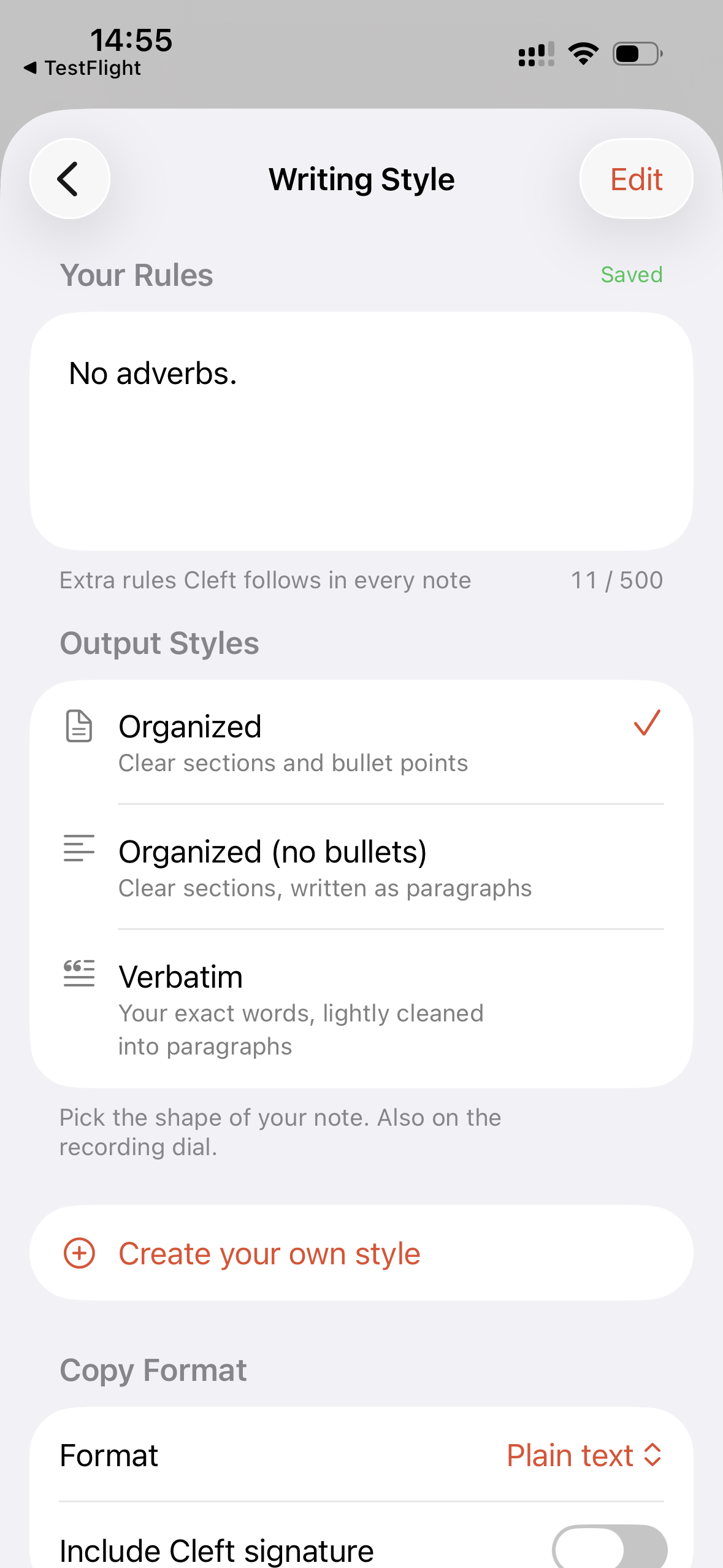
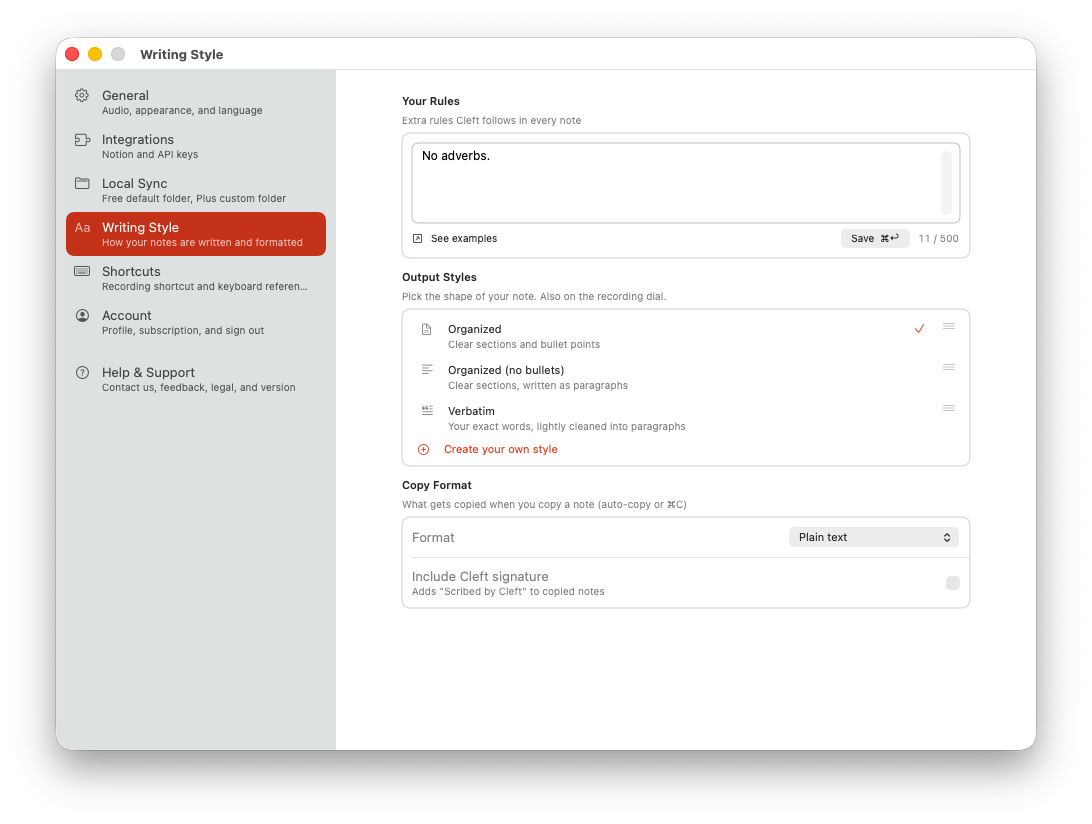
Writing Style controls how Cleft turns a rough recording into a readable note. Choose a style before you record, keep a standing rule Cleft follows every time, or create your own reusable styles with Cleft Plus.
Everyone can use the built-in styles. Cleft Plus adds Your Rules, up to two custom styles, and Copy Format.
Tap **Settings → Writing Style**.
Pick Structured, Structured Prose, Clean Transcript, or one of your custom styles.
Add a standing instruction in **Your Rules**, part of Cleft Plus. Changes save automatically.
Go to **Settings → Writing Style** or press `⌘.`.
Pick Structured, Structured Prose, Clean Transcript, or one of your custom styles.
Add a standing instruction in **Your Rules**, part of Cleft Plus. Changes save automatically.
## Built-in Styles
| Style | Best for |
| ---------------- | -------------------------------------------------------- |
| Structured | Clean summaries with headings, bullets, and action items |
| Structured Prose | Flowing prose without bullet-heavy formatting |
| Clean Transcript | Keeping your words close to the original transcript |
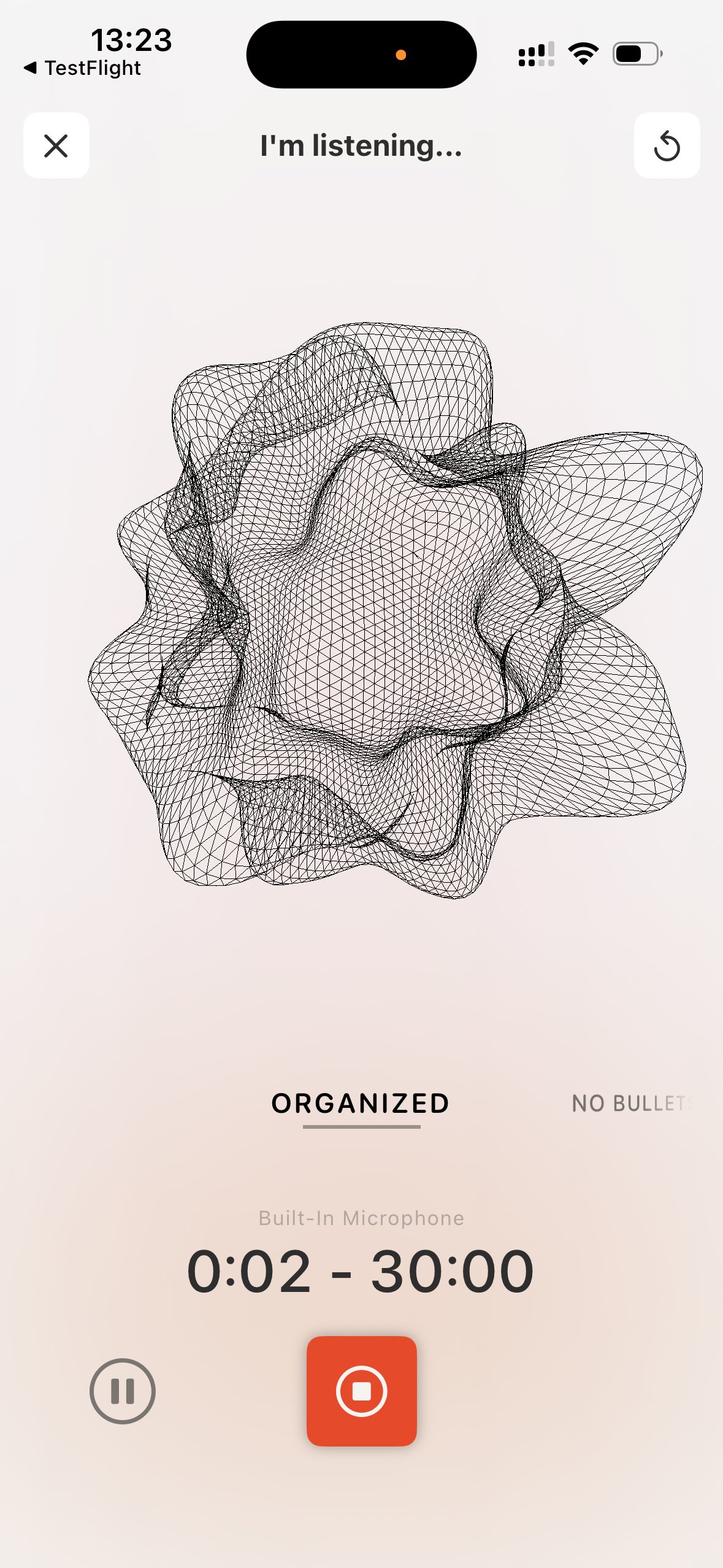
The style selector on the recording screen and the default in Settings use the same saved list. Pick a style before recording to shape that note, or regenerate a note later with a different style.
## Your Rules
Use **Your Rules** for one standing instruction that applies across your styles.
Examples:
```text theme={null}
No adverbs.
```
```text theme={null}
Keep decisions and follow-ups at the top.
```
```text theme={null}
Preserve my questions exactly as spoken.
```
Your Rules is part of Cleft Plus. Plus and trial users get up to 500 characters for a standing instruction, enough for a specific house style. On Free, use the examples above as a starting point, then upgrade to Plus to have Cleft apply your own rule every time.
## Custom Styles
Cleft Plus lets you create up to two custom styles. Each style has a name and its own instructions, so you can switch between formats without rewriting the same prompt.
Good custom style examples:
```text theme={null}
Name: Launch Brief
Instructions: Summarize the idea, audience, blockers, and next action. Keep it concise.
```
```text theme={null}
Name: Code Review
Instructions: Pull out risks, decisions, test notes, and follow-up questions. Avoid fluff.
```
With Cleft Plus, you can reorder built-in and custom styles together. That order follows you across iPhone, iPad, Mac, Apple Watch, and CarPlay.
## Copy Format
Writing Style also controls how copied notes behave:
* **Plain text.** Best for email, messages, and apps that do not need Markdown.
* **Markdown.** Best for Obsidian, GitHub, docs, and other Markdown-first workflows.
* **Cleft Signature.** Add or remove the Cleft signature from copied notes.
## Tips
* Put universal preferences in **Your Rules**.
* Put format-specific instructions in a **custom style**.
* Keep style instructions concrete: "Group decisions and follow-ups first" works better than "make it useful".
* Use **Clean Transcript** when exact wording matters more than summary quality.
Need more ideas? Check out [Style Inspirations](/user-guides/custom-instructions-library) in the Cookbook, or browse the [Custom Instructions recipe archive](/user-guides/custom-instructions-recipes) for a larger set of examples.