> ## Documentation Index
> Fetch the complete documentation index at: https://learn.cleftnotes.com/llms.txt
> Use this file to discover all available pages before exploring further.
# iOS
> Voice notes on iPhone, from the lock screen, the Action Button, Siri, CarPlay, or your wrist
Cleft on iPhone is built for the seconds before a thought slips. Hit the Action Button, tap the lock screen widget, or just say "Hey Siri, new Cleft note." Talk for a minute, and the formatted note is waiting next time you look at your phone.
## Start fast
Five ways to start a note without unlocking or opening the app:
- Action Button. iPhone 15 Pro and later, one press
- Lock Screen widget. Long-press the lock screen → Customize → add Cleft
- Control Center tile (iOS 18+). Pull down from the top-right, tap Cleft Record
- Siri. "Hey Siri, new Cleft note"
- CarPlay (iOS 26.4+). Cleft appears on the dashboard when you plug in
Once a recording starts, the timer runs in the Dynamic Island and a Live Activity sits on the lock screen. Tap to expand and stop or save without opening the app.
## Record a note
Tap **+** in the app, the lock screen widget, or your Action Button. Talk, pause and resume as you go, and don't bother organising your thoughts.
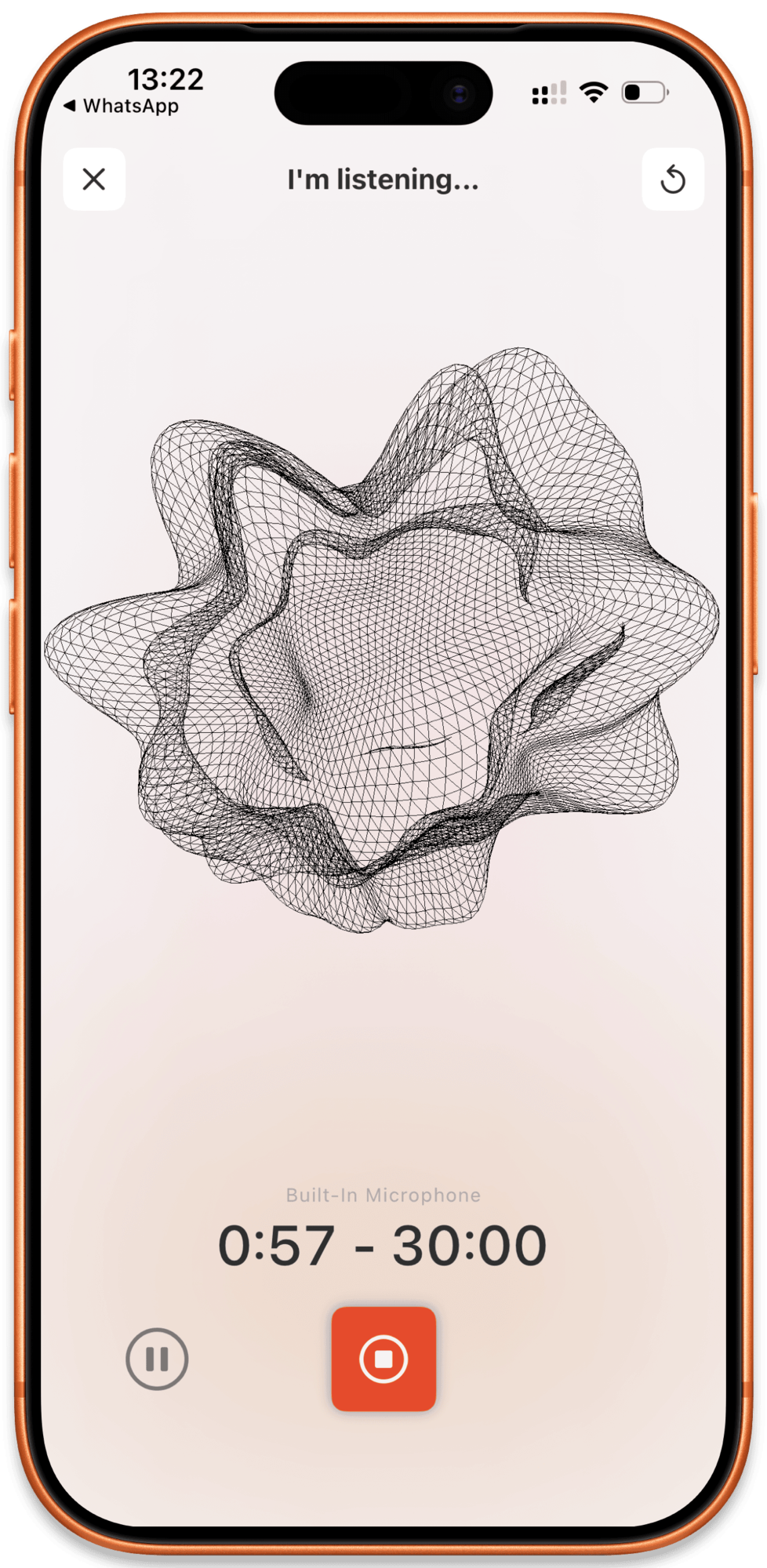 Cleft transcribes and formats your note. You can lock the phone. Processing continues in the background.
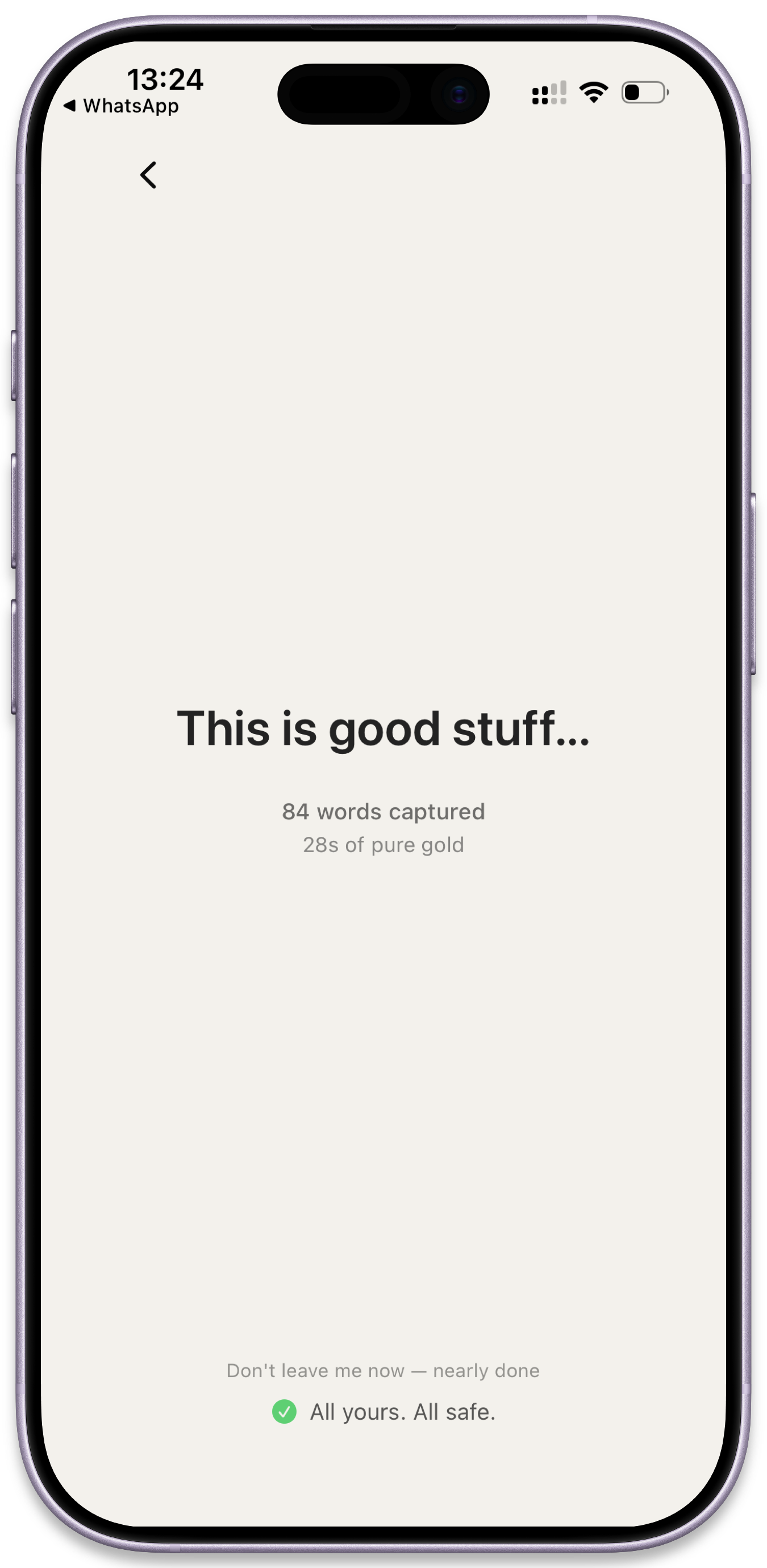 A summary, key points, and any action items are waiting when you come back. Edit, share, or send onward.
For mic technique and language settings, see [Recording Voice Notes](/user-guides/recording-voice-notes).
## What iPhone is best at
Action Button, lock screen widget, Control Center, Live Activity, five ways to start without unlocking.
Siri, Apple Shortcuts, and Focus filters trigger recording while your hands are busy.
Hands-free voice notes from the driver's seat. Recordings transfer to your phone the moment you disconnect.
Catch a thought on your wrist, finish it on your phone. The audio transfers automatically.
Cleft notes show up in iPhone Spotlight. Swipe down from the home screen and type a phrase to find any note.
Save every note as Markdown on your iPhone. Free for everyone, with the default folder under On My iPhone → Cleft in Files; Plus can point it at an Obsidian vault or any Files location. Set it up right from iPhone Settings.
Record on the subway, the trail, the plane. Notes queue locally and sync the moment you're back online.
## iPhone moments worth stealing
### Catch a thought before it slips
You're walking. An idea lands. Press the Action Button (or tap the lock screen widget), talk for 30 seconds, lock the phone. The note is formatted and tagged by the time you're at your desk, no app to open, no unlock to do.
Pair with [Writing Style](/user-guides/custom-instructions) so quick brain-dumps come back as decisions and follow-ups, not a wall of text.
### A daily note you add to all day
Pin one note (a daily journal, a project log, a travel diary) to a home-screen widget. Tap the widget every time you have something to add and Cleft appends to that note instead of starting a new one.
Setup: [Pin a note to your widget](/user-guides/widgets-and-action-button) · [Appending to Notes](/user-guides/appending-to-notes) · [Daily Capture Routines](/user-guides/daily-capture-routines)
### Hands-free in the car
Plug into CarPlay and Cleft appears on the dashboard with a voice control template: start, pause, save, all without touching the screen. The audio transfers back to your phone for transcription as soon as you disconnect.
No CarPlay? "Hey Siri, new Cleft note" works the same way over your car's speakers.
Full setup in [CarPlay](/user-guides/carplay).
### Between meetings, before you forget
Step out of a call, hit the Action Button, talk through what just happened. The Live Activity in the Dynamic Island lets you stop recording from any app. By the time the next meeting starts, Cleft is formatting it in the background.
Repeatable structure: [Meeting Notes System](/user-guides/meeting-notes-system).
### From wrist to vault
Record on Apple Watch when your phone isn't out. The audio hands off to your iPhone for transcription, then Local Sync can save the finished note to your Markdown folder on iPhone, iPad, or Mac.
[Apple Watch](/user-guides/apple-watch) · [Exporting to a folder](/user-guides/exporting-notes)
### Pull a thought back via Spotlight
Forgot which note had the quote you wanted? Swipe down on your home screen, type a phrase, and Cleft notes appear right alongside Mail, Messages, and Files. Tap to jump straight to the note.
### Send straight to where you actually work
Once a note's done, send it on without leaving Cleft:
* **Notion.** [Notion integration](/user-guides/integrations/notion/overview) (Plus can auto-send every note)
* **Apple Reminders / Things / Todoist.** [Task integrations](/user-guides/integrations/apple-reminders/overview)
* **Anywhere with a share sheet.** Mail, Messages, Slack, Drafts
See [Sending Notes](/user-guides/send) for the full list.
## Lock screen, Dynamic Island, and widgets
Add a Cleft accessory to your lock screen and start a recording without unlocking. Long-press the lock screen → **Customize** → add Cleft above or below the clock.
Three widget types ship today: **New Note** (start a recording), **Continue Last Note** (append to whatever you recorded last), and **Pinned Note** (always append to the same note, great for journals and project logs).
Full setup: [Widgets and Action Button](/user-guides/widgets-and-action-button).
While Cleft is recording, the timer sits in the Dynamic Island and a Live Activity appears on the lock screen. Tap to expand and you'll get tappable controls (stop, save, or cancel) without ever opening the app.
Add the Cleft Record or Continue tile to Control Center: pull down from the top-right of the screen, tap **+**, find Cleft. Then start a recording from any app.
Map the Action Button to Cleft via **Settings → Action Button**. One press starts a new voice note, no unlock, no app launch.
"Hey Siri, new Cleft note" starts a recording hands-free. Build custom Apple Shortcuts on top of Cleft's App Intents, or trigger Cleft from Focus filters.
Recipes: [Apple Shortcuts integration](/user-guides/integrations/apple-shortcuts/overview).
## Audio
Cleft uses whichever microphone iOS routes to it:
* **Built-in microphone.** Works out of the box, optimised for voice
* **AirPods Pro / Max.** Better in noisy spots thanks to noise cancellation
* **Wired or Bluetooth headsets.** Pick up automatically once paired
iOS asks for microphone access the first time you record. If recording fails, open **iOS Settings → Cleft → Microphone** and make sure it's enabled. Check **Focus** mode permissions too. Some Focus filters silence the mic.
* Hold the phone six to eight inches from your mouth
* Step away from background music or busy traffic when you can
* For long recordings, AirPods cut down ambient noise more than the built-in mic
## Settings
Open Cleft and tap the gear icon:
* **General.** Theme, transcription language, date and time format, Preflight Mode for offline
* **Writing Style** - Your Rules, output styles, copy format, and custom styles
* **Integrations** - Notion, Zapier, and other destinations
* **Local Sync** - save notes as Markdown files, flip the audio companion, check your storage, and choose a folder with Plus
* **Widgets.** In-app guide for adding lock and home screen widgets
* **Account and Support**
System-level controls (microphone permission, Siri phrase, Focus filters, Action Button mapping) live in the iOS Settings app.
## Troubleshooting
**Microphone not working?** iOS Settings → Cleft → Microphone → make sure it's enabled. Check Focus mode permissions too.
**Notes not syncing?** Open the note and pull down on the detail view to refresh. Confirm you're signed in to the same account on every device.
**Widget not updating?** Remove and re-add the widget. iOS schedules widget refreshes on its own. They don't update instantly.
**Still stuck?** [Contact support](/user-guides/contact-support).
## Related guides
* [Recording Voice Notes](/user-guides/recording-voice-notes). Mic technique, languages, recording length
* [Widgets and Action Button](/user-guides/widgets-and-action-button). Every widget, every entry point
* [CarPlay](/user-guides/carplay). Hands-free recording from the road
* [Apple Watch](/user-guides/apple-watch). Capture on your wrist
* [Apple Shortcuts](/user-guides/integrations/apple-shortcuts/overview). Automate Cleft anywhere on iOS
* [Writing Style](/user-guides/custom-instructions) - shape how Cleft formats your notes
* [iPadOS](/user-guides/ipados). What changes when you move to a tablet
* [macOS](/user-guides/macos). The keyboard-first sibling
A summary, key points, and any action items are waiting when you come back. Edit, share, or send onward.
For mic technique and language settings, see [Recording Voice Notes](/user-guides/recording-voice-notes).
## What iPhone is best at
Action Button, lock screen widget, Control Center, Live Activity, five ways to start without unlocking.
Siri, Apple Shortcuts, and Focus filters trigger recording while your hands are busy.
Hands-free voice notes from the driver's seat. Recordings transfer to your phone the moment you disconnect.
Catch a thought on your wrist, finish it on your phone. The audio transfers automatically.
Cleft notes show up in iPhone Spotlight. Swipe down from the home screen and type a phrase to find any note.
Save every note as Markdown on your iPhone. Free for everyone, with the default folder under On My iPhone → Cleft in Files; Plus can point it at an Obsidian vault or any Files location. Set it up right from iPhone Settings.
Record on the subway, the trail, the plane. Notes queue locally and sync the moment you're back online.
## iPhone moments worth stealing
### Catch a thought before it slips
You're walking. An idea lands. Press the Action Button (or tap the lock screen widget), talk for 30 seconds, lock the phone. The note is formatted and tagged by the time you're at your desk, no app to open, no unlock to do.
Pair with [Writing Style](/user-guides/custom-instructions) so quick brain-dumps come back as decisions and follow-ups, not a wall of text.
### A daily note you add to all day
Pin one note (a daily journal, a project log, a travel diary) to a home-screen widget. Tap the widget every time you have something to add and Cleft appends to that note instead of starting a new one.
Setup: [Pin a note to your widget](/user-guides/widgets-and-action-button) · [Appending to Notes](/user-guides/appending-to-notes) · [Daily Capture Routines](/user-guides/daily-capture-routines)
### Hands-free in the car
Plug into CarPlay and Cleft appears on the dashboard with a voice control template: start, pause, save, all without touching the screen. The audio transfers back to your phone for transcription as soon as you disconnect.
No CarPlay? "Hey Siri, new Cleft note" works the same way over your car's speakers.
Full setup in [CarPlay](/user-guides/carplay).
### Between meetings, before you forget
Step out of a call, hit the Action Button, talk through what just happened. The Live Activity in the Dynamic Island lets you stop recording from any app. By the time the next meeting starts, Cleft is formatting it in the background.
Repeatable structure: [Meeting Notes System](/user-guides/meeting-notes-system).
### From wrist to vault
Record on Apple Watch when your phone isn't out. The audio hands off to your iPhone for transcription, then Local Sync can save the finished note to your Markdown folder on iPhone, iPad, or Mac.
[Apple Watch](/user-guides/apple-watch) · [Exporting to a folder](/user-guides/exporting-notes)
### Pull a thought back via Spotlight
Forgot which note had the quote you wanted? Swipe down on your home screen, type a phrase, and Cleft notes appear right alongside Mail, Messages, and Files. Tap to jump straight to the note.
### Send straight to where you actually work
Once a note's done, send it on without leaving Cleft:
* **Notion.** [Notion integration](/user-guides/integrations/notion/overview) (Plus can auto-send every note)
* **Apple Reminders / Things / Todoist.** [Task integrations](/user-guides/integrations/apple-reminders/overview)
* **Anywhere with a share sheet.** Mail, Messages, Slack, Drafts
See [Sending Notes](/user-guides/send) for the full list.
## Lock screen, Dynamic Island, and widgets
Add a Cleft accessory to your lock screen and start a recording without unlocking. Long-press the lock screen → **Customize** → add Cleft above or below the clock.
Three widget types ship today: **New Note** (start a recording), **Continue Last Note** (append to whatever you recorded last), and **Pinned Note** (always append to the same note, great for journals and project logs).
Full setup: [Widgets and Action Button](/user-guides/widgets-and-action-button).
While Cleft is recording, the timer sits in the Dynamic Island and a Live Activity appears on the lock screen. Tap to expand and you'll get tappable controls (stop, save, or cancel) without ever opening the app.
Add the Cleft Record or Continue tile to Control Center: pull down from the top-right of the screen, tap **+**, find Cleft. Then start a recording from any app.
Map the Action Button to Cleft via **Settings → Action Button**. One press starts a new voice note, no unlock, no app launch.
"Hey Siri, new Cleft note" starts a recording hands-free. Build custom Apple Shortcuts on top of Cleft's App Intents, or trigger Cleft from Focus filters.
Recipes: [Apple Shortcuts integration](/user-guides/integrations/apple-shortcuts/overview).
## Audio
Cleft uses whichever microphone iOS routes to it:
* **Built-in microphone.** Works out of the box, optimised for voice
* **AirPods Pro / Max.** Better in noisy spots thanks to noise cancellation
* **Wired or Bluetooth headsets.** Pick up automatically once paired
iOS asks for microphone access the first time you record. If recording fails, open **iOS Settings → Cleft → Microphone** and make sure it's enabled. Check **Focus** mode permissions too. Some Focus filters silence the mic.
* Hold the phone six to eight inches from your mouth
* Step away from background music or busy traffic when you can
* For long recordings, AirPods cut down ambient noise more than the built-in mic
## Settings
Open Cleft and tap the gear icon:
* **General.** Theme, transcription language, date and time format, Preflight Mode for offline
* **Writing Style** - Your Rules, output styles, copy format, and custom styles
* **Integrations** - Notion, Zapier, and other destinations
* **Local Sync** - save notes as Markdown files, flip the audio companion, check your storage, and choose a folder with Plus
* **Widgets.** In-app guide for adding lock and home screen widgets
* **Account and Support**
System-level controls (microphone permission, Siri phrase, Focus filters, Action Button mapping) live in the iOS Settings app.
## Troubleshooting
**Microphone not working?** iOS Settings → Cleft → Microphone → make sure it's enabled. Check Focus mode permissions too.
**Notes not syncing?** Open the note and pull down on the detail view to refresh. Confirm you're signed in to the same account on every device.
**Widget not updating?** Remove and re-add the widget. iOS schedules widget refreshes on its own. They don't update instantly.
**Still stuck?** [Contact support](/user-guides/contact-support).
## Related guides
* [Recording Voice Notes](/user-guides/recording-voice-notes). Mic technique, languages, recording length
* [Widgets and Action Button](/user-guides/widgets-and-action-button). Every widget, every entry point
* [CarPlay](/user-guides/carplay). Hands-free recording from the road
* [Apple Watch](/user-guides/apple-watch). Capture on your wrist
* [Apple Shortcuts](/user-guides/integrations/apple-shortcuts/overview). Automate Cleft anywhere on iOS
* [Writing Style](/user-guides/custom-instructions) - shape how Cleft formats your notes
* [iPadOS](/user-guides/ipados). What changes when you move to a tablet
* [macOS](/user-guides/macos). The keyboard-first sibling