> ## Documentation Index
> Fetch the complete documentation index at: https://learn.cleftnotes.com/llms.txt
> Use this file to discover all available pages before exploring further.
# iPadOS
> Voice notes on iPad. Multi-window capture, Apple Pencil, Magic Keyboard, and the iPhone feature set on a bigger canvas
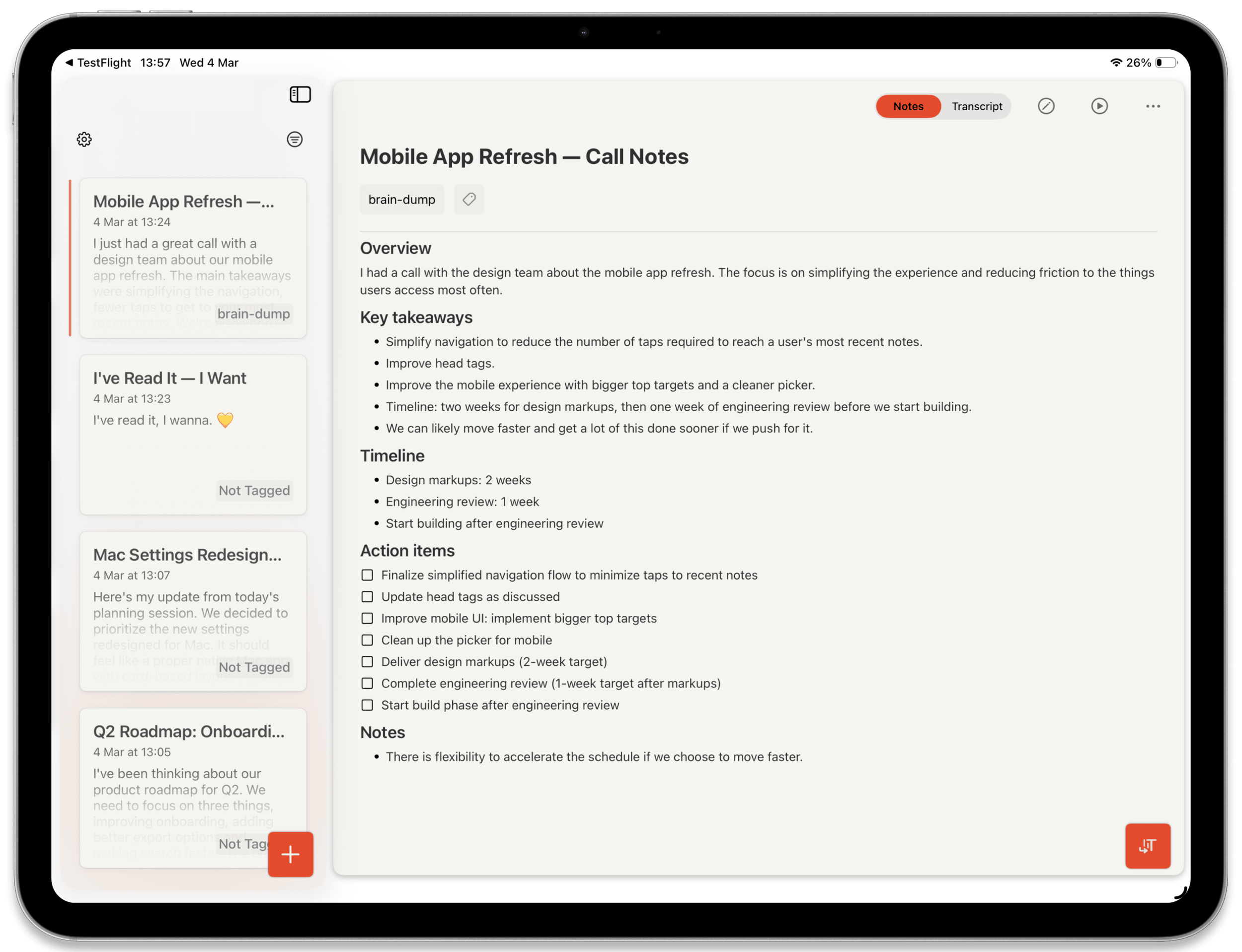
Cleft on iPad is the iPhone app, scaled up. Same recording, same widgets, same Siri, with a two-column layout, multi-window, Apple Pencil, and Magic Keyboard on top. Read on one side, capture on the other; squeeze the Pencil to start a thought without putting your tea down.
## Start fast
Five ways to begin a note without stopping what you're doing:
- Apple Pencil Pro squeeze. Squeeze the barrel to start a voice note (iPadOS 17.5+, Pencil Pro only)
- Lock Screen widget. Long-press the lock screen → Customize → add Cleft
- Control Center tile (iPadOS 18+). Pull from the top-right, tap Cleft Record
- Magic Keyboard. Open Cleft, hit +, or use
⌘ + ⏎ in the editor
- Siri. "Hey Siri, new Cleft note"
Once recording starts, the timer sits in a Live Activity on the lock screen and the Dynamic Island (M4 iPad Pro). Tap to stop or save without opening the app.
## Record a note
Cleft starts a recording in the foreground while you keep doing whatever else you were doing, reading a PDF in Split View, typing in another app, sketching in the Pencil Pro grip.
Pause and resume as you go. Use **Space** to pause/resume, **Esc** to cancel, **Return** to finish, when you have a Magic Keyboard or Smart Keyboard attached.
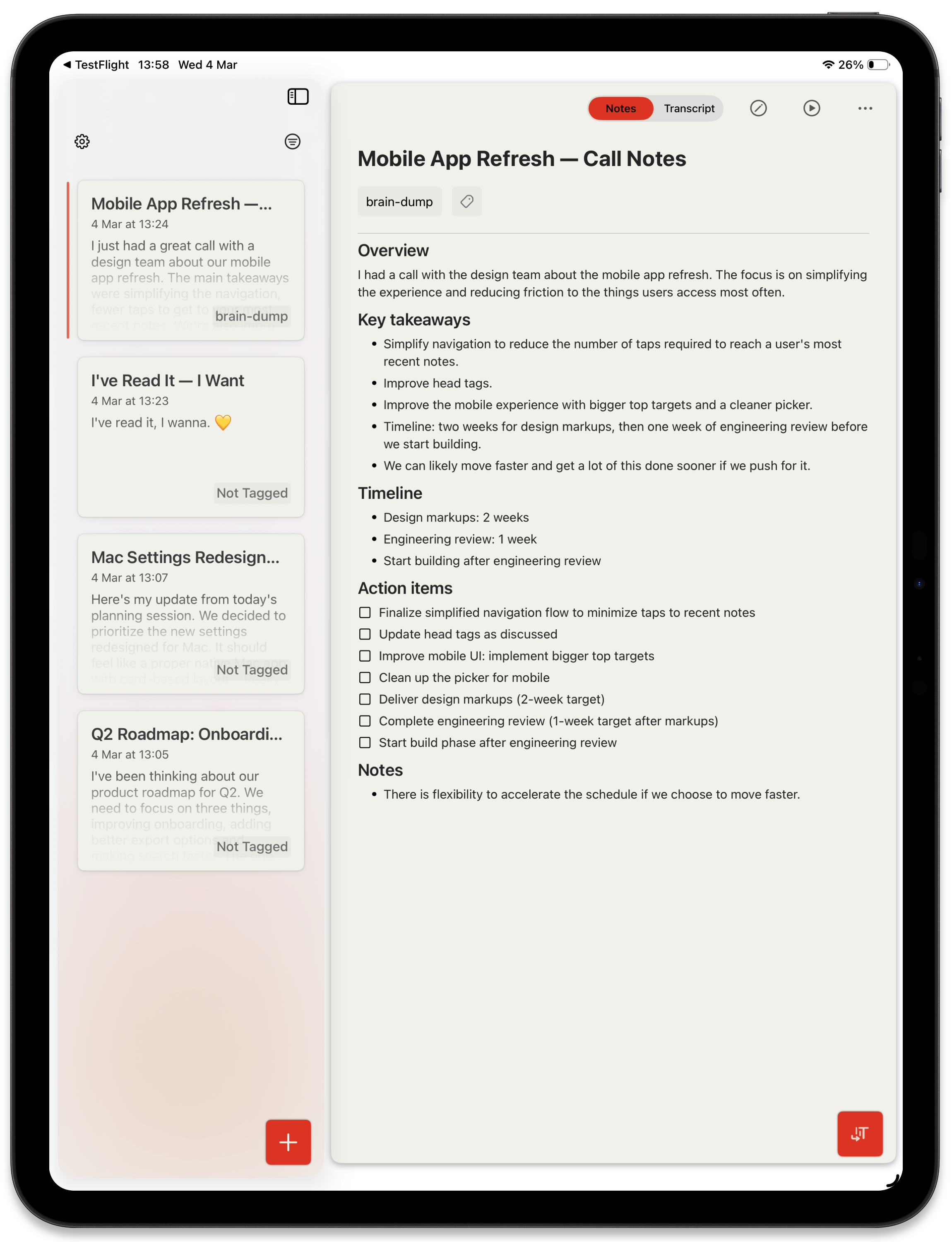
A summary, key points, and any action items are waiting on the right pane. Edit with Pencil Scribble or Magic Keyboard, send onward.
 For mic technique and language settings, see [Recording Voice Notes](/user-guides/recording-voice-notes).
## What iPad is best at
Stage Manager and Split View let you keep a source document open while you draft a note in Cleft right next to it.
Squeeze Apple Pencil Pro to start a voice note. Use Scribble to handwrite edits straight into the editor.
Format, send, and navigate with shortcuts, no trackpad needed when you're docked.
Save every note as Markdown on iPad. Free for everyone, with the default folder under On My iPad → Cleft in Files; Plus can point it at an Obsidian vault or any Files location. Set it up right from iPad Settings.
Lock-screen widgets, Control Center, Siri, App Shortcuts, Spotlight, Focus filters. All the iPhone surfaces work on iPad too.
The bigger canvas and better speakers make iPad the right place for 20-minute think-out-louds and lecture capture.
Cleft notes show up in iPadOS Spotlight. Swipe down on the Home Screen and type a phrase to find any note.
## iPad moments worth stealing
### Read on the left, capture on the right
Open a paper, transcript, or web article in one window; open Cleft in the other via Split View. Hit **+** in Cleft and narrate your reactions as you read: quotes, push-back, questions. The note ends up structured by [Writing Style](/user-guides/custom-instructions) so it's a usable artefact, not a wall of stream-of-consciousness.
Setup: see [Multi-window and Stage Manager](#multi-window-and-stage-manager) below.
### Squeeze the Pencil, talk, get back to drawing
You're sketching or annotating with Apple Pencil Pro. An idea lands. Squeeze the barrel. Cleft starts a new voice note in the background. Talk for thirty seconds, lock the iPad, keep drawing. The formatted note is waiting next time you open Cleft.
Use [Writing Style](/user-guides/custom-instructions) to shape that rough thirty seconds into something structured.
### A daily note you append to all day
Pin one note (a daily journal, a project log, a travel diary) to a Home Screen widget. Tap the widget every time you have something to add and Cleft appends to that note instead of starting a new one.
Setup: [Pin a note to your widget](/user-guides/widgets-and-action-button) · [Appending to Notes](/user-guides/appending-to-notes) · [Daily Capture Routines](/user-guides/daily-capture-routines)
### Magic Keyboard meeting station
Dock the iPad in the Magic Keyboard, hit **+** to start recording, talk through the call. After, edit the summary with Scribble or the keyboard, then:
* `⌘ + ⇧ + S`. Generate a [public link](/user-guides/shareable-links) for collaborators
* `⌥ + P`. Push straight into [Notion](/user-guides/integrations/notion/overview)
* `⌘ + C`. Copy as Markdown for Slack, email, anything
Repeatable structure: [Meeting Notes System](/user-guides/meeting-notes-system).
### Long-form thinking on the couch
iPad is the best Cleft device for 15-to-30 minute recordings, better speakers and battery than iPhone, none of the desk-bound posture of Mac. Prop it on a stand, hit record, talk through a problem out loud. The transcript and summary are ready when you sit back down.
Mic technique: [Recording Voice Notes](/user-guides/recording-voice-notes).
### From iPhone or Watch, finish on iPad
Capture on the move with iPhone or Apple Watch; pick up the formatted note on iPad to edit, tag, and send onward. Sync happens through your Cleft account, no extra setup.
[Apple Watch](/user-guides/apple-watch) · [iOS](/user-guides/ios) · [Working with Notes](/user-guides/managing-voice-notes)
### Pull a thought back via Spotlight
Forgot which note had the quote you wanted? Swipe down on the Home Screen, type a phrase, and Cleft notes appear right alongside Mail, Messages, and Files. Tap to jump straight to the note.
## Multi-window and Stage Manager
iPad lets you run two Cleft windows side by side, useful for referencing one note while editing another, or recording in one window while reading in the other.
Swipe up to reveal the Dock, long-press the Cleft icon, choose **Open in New Window**. Or drag the Cleft icon out of the Dock onto the screen.
Drag a window to the left or right edge for Split View, or enable Stage Manager from Control Center to free-arrange windows.
The layout adapts as you resize. Below \~600pt wide, Cleft collapses to a single column.
**Each window syncs independently.** A note created in one window appears in the other after the next sync. Pull to refresh in the lagging window for an immediate update.
## Apple Pencil
* **Scribble.** Handwrite anywhere you can type; iPadOS converts to text.
* **Apple Pencil Pro squeeze.** Squeeze to start a new voice note (iPadOS 17.5+, Pencil Pro only). Toggle in **iPadOS Settings → Apple Pencil**.
Cleft does not have a drawing or annotation surface. Pencil input is for text and quick capture.
## All keyboard shortcuts
Hold **⌘** in any screen to see the chords available in the current context.
### Notes and editing
* **⌘ + ⌥ + S**. Show or hide the sidebar
* **⌘ + ⏎**. Save and finish a text note
* **⌘ + B**. Bold
* **⌘ + I**. Italic
* **⌘ + K**. Add link
* **⌘ + ⌥ + 1 / 2 / 3**. Heading 1, 2, 3
* **⌘ + ⇧ + 7**. Numbered list
* **⌘ + ⇧ + 8**. Bulleted list
* **⌘ + ⇧ + X**. Strikethrough
* **⌘ + ⇧ + '**. Block quote
* **⌘ + ⇧ + C**. Inline code
### Send
* **⌘ + C**. Copy as Markdown
* **⌘ + ⇧ + S**. Publish a public link
* **⌥ + P**. Send to Notion
### While recording
* **Space**. Pause or resume
* **Return**. Finish and save
* **Esc**. Cancel
The cross-platform reference lives at [Keyboard Shortcuts](/user-guides/keyboard-shortcuts).
## Lock screen, widgets, and Siri
Long-press the lock screen → **Customize** → add a Cleft accessory above or below the clock. Tap to start a recording without unlocking.
Three widget types: **New Note** (start a recording), **Continue Last Note** (append to whatever you recorded last), and **Pinned Note** (always append to the same note, great for journals and project logs).
Full setup: [Widgets and Action Button](/user-guides/widgets-and-action-button).
While Cleft is recording, a Live Activity appears on the lock screen with stop, save, and cancel controls. M4 iPad Pro shows the same status in the Dynamic Island.
Pull from the top-right, tap **+**, find Cleft. Adds a Record or Continue tile so you can start a note from any app.
"Hey Siri, new Cleft note" works the same as on iPhone. Build custom Apple Shortcuts on top of Cleft's App Intents, or trigger Cleft from a Focus filter.
Recipes: [Apple Shortcuts integration](/user-guides/integrations/apple-shortcuts/overview).
## Audio
Cleft uses whichever microphone iPadOS routes to it:
* **Built-in microphone.** Works out of the box; iPad Pro's array is genuinely good for couch dictation
* **AirPods Pro / Max.** Better in noisy spots thanks to noise cancellation
* **USB-C and Bluetooth headsets.** Pick up automatically once paired
iPadOS asks for microphone access the first time you record. If recording fails, open **Settings → Cleft → Microphone** and make sure it's enabled. Check **Focus** mode permissions too. Some Focus filters silence the mic.
* Use a stand for long sessions; \~12-18 inches from the mic array works well
* AirPods are the safest bet in shared or noisy spaces
* Record in landscape if you'll be near speakers, keeps the mic away from playback bleed
## Settings
Open Cleft and tap the gear icon:
* **General.** Theme, transcription language, date and time format, Preflight Mode for offline
* **Writing Style** - Your Rules, output styles, copy format, and custom styles
* **Integrations** - Notion, Zapier, and other destinations
* **Local Sync** - save notes as Markdown files, flip the audio companion, check your storage, and choose a folder with Plus
* **Widgets.** In-app guide for adding lock and home screen widgets
* **Account and Support**
System-level controls (microphone permission, Siri phrase, Focus filters, Apple Pencil, Stage Manager) live in the iPadOS Settings app.
## Troubleshooting
**Apple Pencil squeeze not starting a note?** Confirm the Pencil is Apple Pencil Pro, iPadOS is 17.5 or later, and squeeze is enabled in **Settings → Apple Pencil**.
**Keyboard shortcut not firing?** Tap into the editor first so the field has focus. Hold **⌘** to confirm the chord is listed in the current screen.
**Two Cleft windows showing different notes?** Each window syncs independently. Pull to refresh in the lagging window.
**Microphone not working?** Settings → Cleft → Microphone → make sure it's enabled. Check Focus mode permissions too.
**Still stuck?** [Contact support](/user-guides/contact-support).
## Related guides
* [Recording Voice Notes](/user-guides/recording-voice-notes). Mic technique, languages, recording length
* [Writing Style](/user-guides/custom-instructions). Shape how Cleft formats your notes
* [Widgets and Action Button](/user-guides/widgets-and-action-button). Every widget, every entry point
* [Apple Shortcuts](/user-guides/integrations/apple-shortcuts/overview). Automate Cleft anywhere on iPadOS
* [Keyboard Shortcuts](/user-guides/keyboard-shortcuts). Cross-platform reference
* [iOS](/user-guides/ios). The pocket sibling, where most capture happens
* [macOS](/user-guides/macos). The keyboard-first big sibling
For mic technique and language settings, see [Recording Voice Notes](/user-guides/recording-voice-notes).
## What iPad is best at
Stage Manager and Split View let you keep a source document open while you draft a note in Cleft right next to it.
Squeeze Apple Pencil Pro to start a voice note. Use Scribble to handwrite edits straight into the editor.
Format, send, and navigate with shortcuts, no trackpad needed when you're docked.
Save every note as Markdown on iPad. Free for everyone, with the default folder under On My iPad → Cleft in Files; Plus can point it at an Obsidian vault or any Files location. Set it up right from iPad Settings.
Lock-screen widgets, Control Center, Siri, App Shortcuts, Spotlight, Focus filters. All the iPhone surfaces work on iPad too.
The bigger canvas and better speakers make iPad the right place for 20-minute think-out-louds and lecture capture.
Cleft notes show up in iPadOS Spotlight. Swipe down on the Home Screen and type a phrase to find any note.
## iPad moments worth stealing
### Read on the left, capture on the right
Open a paper, transcript, or web article in one window; open Cleft in the other via Split View. Hit **+** in Cleft and narrate your reactions as you read: quotes, push-back, questions. The note ends up structured by [Writing Style](/user-guides/custom-instructions) so it's a usable artefact, not a wall of stream-of-consciousness.
Setup: see [Multi-window and Stage Manager](#multi-window-and-stage-manager) below.
### Squeeze the Pencil, talk, get back to drawing
You're sketching or annotating with Apple Pencil Pro. An idea lands. Squeeze the barrel. Cleft starts a new voice note in the background. Talk for thirty seconds, lock the iPad, keep drawing. The formatted note is waiting next time you open Cleft.
Use [Writing Style](/user-guides/custom-instructions) to shape that rough thirty seconds into something structured.
### A daily note you append to all day
Pin one note (a daily journal, a project log, a travel diary) to a Home Screen widget. Tap the widget every time you have something to add and Cleft appends to that note instead of starting a new one.
Setup: [Pin a note to your widget](/user-guides/widgets-and-action-button) · [Appending to Notes](/user-guides/appending-to-notes) · [Daily Capture Routines](/user-guides/daily-capture-routines)
### Magic Keyboard meeting station
Dock the iPad in the Magic Keyboard, hit **+** to start recording, talk through the call. After, edit the summary with Scribble or the keyboard, then:
* `⌘ + ⇧ + S`. Generate a [public link](/user-guides/shareable-links) for collaborators
* `⌥ + P`. Push straight into [Notion](/user-guides/integrations/notion/overview)
* `⌘ + C`. Copy as Markdown for Slack, email, anything
Repeatable structure: [Meeting Notes System](/user-guides/meeting-notes-system).
### Long-form thinking on the couch
iPad is the best Cleft device for 15-to-30 minute recordings, better speakers and battery than iPhone, none of the desk-bound posture of Mac. Prop it on a stand, hit record, talk through a problem out loud. The transcript and summary are ready when you sit back down.
Mic technique: [Recording Voice Notes](/user-guides/recording-voice-notes).
### From iPhone or Watch, finish on iPad
Capture on the move with iPhone or Apple Watch; pick up the formatted note on iPad to edit, tag, and send onward. Sync happens through your Cleft account, no extra setup.
[Apple Watch](/user-guides/apple-watch) · [iOS](/user-guides/ios) · [Working with Notes](/user-guides/managing-voice-notes)
### Pull a thought back via Spotlight
Forgot which note had the quote you wanted? Swipe down on the Home Screen, type a phrase, and Cleft notes appear right alongside Mail, Messages, and Files. Tap to jump straight to the note.
## Multi-window and Stage Manager
iPad lets you run two Cleft windows side by side, useful for referencing one note while editing another, or recording in one window while reading in the other.
Swipe up to reveal the Dock, long-press the Cleft icon, choose **Open in New Window**. Or drag the Cleft icon out of the Dock onto the screen.
Drag a window to the left or right edge for Split View, or enable Stage Manager from Control Center to free-arrange windows.
The layout adapts as you resize. Below \~600pt wide, Cleft collapses to a single column.
**Each window syncs independently.** A note created in one window appears in the other after the next sync. Pull to refresh in the lagging window for an immediate update.
## Apple Pencil
* **Scribble.** Handwrite anywhere you can type; iPadOS converts to text.
* **Apple Pencil Pro squeeze.** Squeeze to start a new voice note (iPadOS 17.5+, Pencil Pro only). Toggle in **iPadOS Settings → Apple Pencil**.
Cleft does not have a drawing or annotation surface. Pencil input is for text and quick capture.
## All keyboard shortcuts
Hold **⌘** in any screen to see the chords available in the current context.
### Notes and editing
* **⌘ + ⌥ + S**. Show or hide the sidebar
* **⌘ + ⏎**. Save and finish a text note
* **⌘ + B**. Bold
* **⌘ + I**. Italic
* **⌘ + K**. Add link
* **⌘ + ⌥ + 1 / 2 / 3**. Heading 1, 2, 3
* **⌘ + ⇧ + 7**. Numbered list
* **⌘ + ⇧ + 8**. Bulleted list
* **⌘ + ⇧ + X**. Strikethrough
* **⌘ + ⇧ + '**. Block quote
* **⌘ + ⇧ + C**. Inline code
### Send
* **⌘ + C**. Copy as Markdown
* **⌘ + ⇧ + S**. Publish a public link
* **⌥ + P**. Send to Notion
### While recording
* **Space**. Pause or resume
* **Return**. Finish and save
* **Esc**. Cancel
The cross-platform reference lives at [Keyboard Shortcuts](/user-guides/keyboard-shortcuts).
## Lock screen, widgets, and Siri
Long-press the lock screen → **Customize** → add a Cleft accessory above or below the clock. Tap to start a recording without unlocking.
Three widget types: **New Note** (start a recording), **Continue Last Note** (append to whatever you recorded last), and **Pinned Note** (always append to the same note, great for journals and project logs).
Full setup: [Widgets and Action Button](/user-guides/widgets-and-action-button).
While Cleft is recording, a Live Activity appears on the lock screen with stop, save, and cancel controls. M4 iPad Pro shows the same status in the Dynamic Island.
Pull from the top-right, tap **+**, find Cleft. Adds a Record or Continue tile so you can start a note from any app.
"Hey Siri, new Cleft note" works the same as on iPhone. Build custom Apple Shortcuts on top of Cleft's App Intents, or trigger Cleft from a Focus filter.
Recipes: [Apple Shortcuts integration](/user-guides/integrations/apple-shortcuts/overview).
## Audio
Cleft uses whichever microphone iPadOS routes to it:
* **Built-in microphone.** Works out of the box; iPad Pro's array is genuinely good for couch dictation
* **AirPods Pro / Max.** Better in noisy spots thanks to noise cancellation
* **USB-C and Bluetooth headsets.** Pick up automatically once paired
iPadOS asks for microphone access the first time you record. If recording fails, open **Settings → Cleft → Microphone** and make sure it's enabled. Check **Focus** mode permissions too. Some Focus filters silence the mic.
* Use a stand for long sessions; \~12-18 inches from the mic array works well
* AirPods are the safest bet in shared or noisy spaces
* Record in landscape if you'll be near speakers, keeps the mic away from playback bleed
## Settings
Open Cleft and tap the gear icon:
* **General.** Theme, transcription language, date and time format, Preflight Mode for offline
* **Writing Style** - Your Rules, output styles, copy format, and custom styles
* **Integrations** - Notion, Zapier, and other destinations
* **Local Sync** - save notes as Markdown files, flip the audio companion, check your storage, and choose a folder with Plus
* **Widgets.** In-app guide for adding lock and home screen widgets
* **Account and Support**
System-level controls (microphone permission, Siri phrase, Focus filters, Apple Pencil, Stage Manager) live in the iPadOS Settings app.
## Troubleshooting
**Apple Pencil squeeze not starting a note?** Confirm the Pencil is Apple Pencil Pro, iPadOS is 17.5 or later, and squeeze is enabled in **Settings → Apple Pencil**.
**Keyboard shortcut not firing?** Tap into the editor first so the field has focus. Hold **⌘** to confirm the chord is listed in the current screen.
**Two Cleft windows showing different notes?** Each window syncs independently. Pull to refresh in the lagging window.
**Microphone not working?** Settings → Cleft → Microphone → make sure it's enabled. Check Focus mode permissions too.
**Still stuck?** [Contact support](/user-guides/contact-support).
## Related guides
* [Recording Voice Notes](/user-guides/recording-voice-notes). Mic technique, languages, recording length
* [Writing Style](/user-guides/custom-instructions). Shape how Cleft formats your notes
* [Widgets and Action Button](/user-guides/widgets-and-action-button). Every widget, every entry point
* [Apple Shortcuts](/user-guides/integrations/apple-shortcuts/overview). Automate Cleft anywhere on iPadOS
* [Keyboard Shortcuts](/user-guides/keyboard-shortcuts). Cross-platform reference
* [iOS](/user-guides/ios). The pocket sibling, where most capture happens
* [macOS](/user-guides/macos). The keyboard-first big sibling