> ## Documentation Index
> Fetch the complete documentation index at: https://learn.cleftnotes.com/llms.txt
> Use this file to discover all available pages before exploring further.
# macOS
> Voice notes on Mac. Full keyboard control, Spotlight, Apple Shortcuts, and folder sync to your vault
Cleft on Mac is built for the keyboard. Hit a shortcut, talk for a minute, and your thought lands in your folder, your vault, or Notion before you've switched apps.
**Global recording shortcut:** Press `⌥⌘N` to start or stop recording from anywhere on your Mac. Rebind it or clear it in **Settings → Shortcuts**.
## Start fast
Launch with `⌥⌘N`, Spotlight (⌘ + Space, "Cleft"), the Dock, or Launchpad.
The shortcuts you'll use every day:
⌥⌘N - Start or stop recording from anywhereN. New voice note⌘ + N. New text noteShift + N. Continue last note⌘ + 1 to ⌘ + 9 - Jump to a note in the current list⌘ + ⏎. Save note⌘ + R. Refresh⌘ + F. Find⌘ + /. Toggle filter⌘ + ,. Settings⌘ + .. Writing Style⌘ + W. Close window
## Record a note
Press **N** with no note selected, click the **+** button, or pick **File → New Voice Note** from the menu bar.
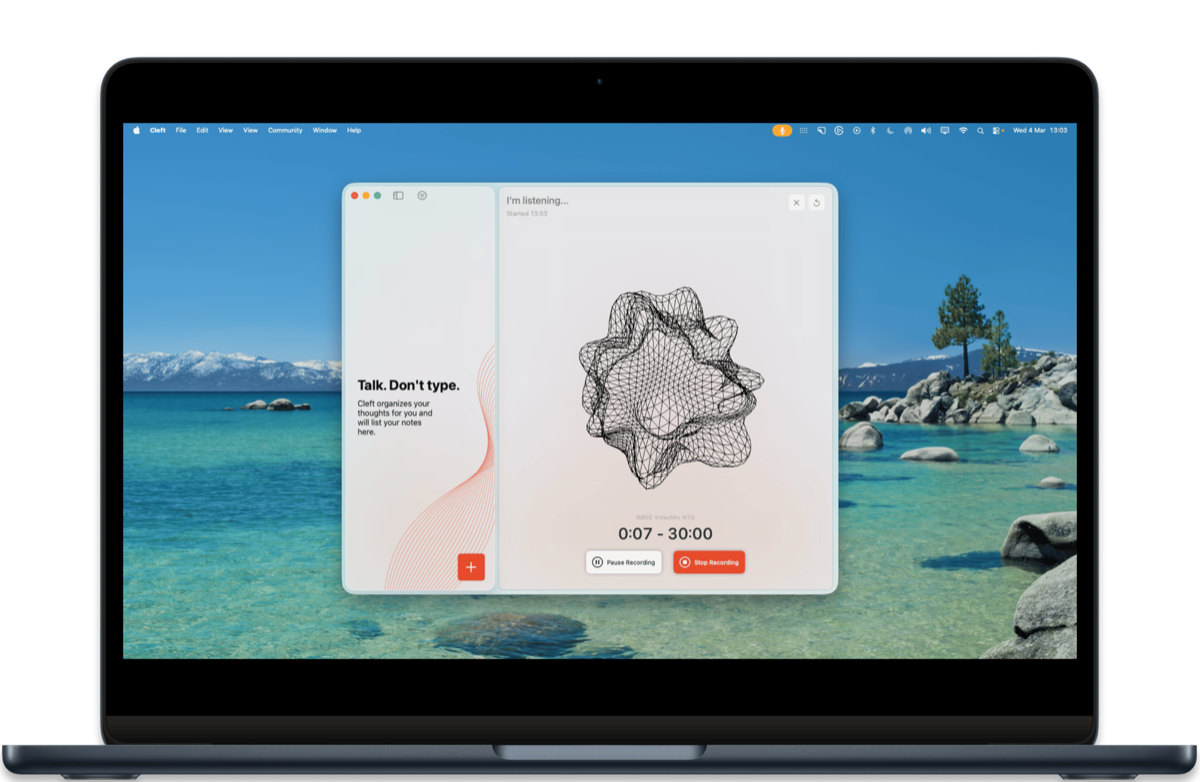 Use **Space** to pause and resume, **Esc** to cancel. Hit Stop when you're done.
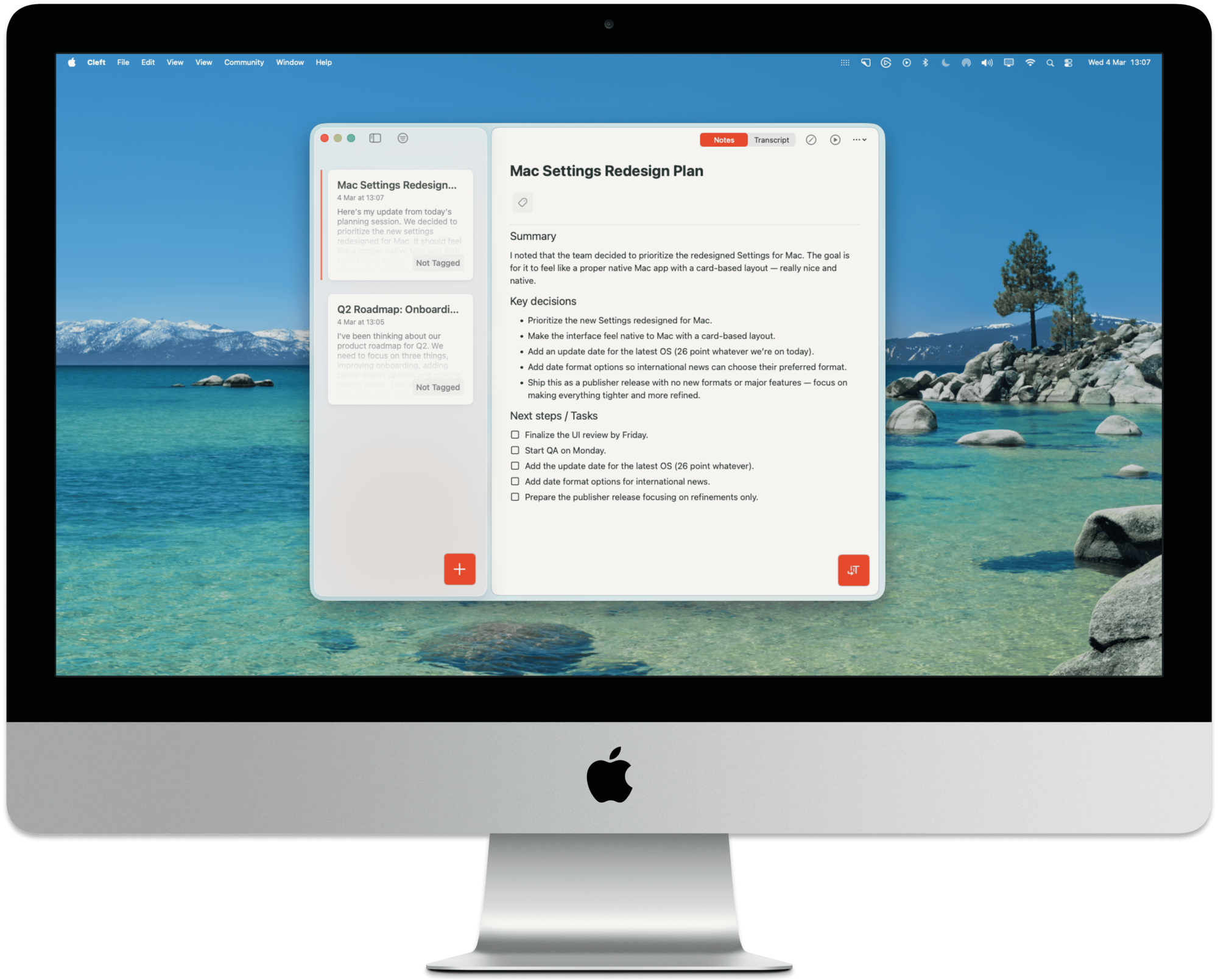
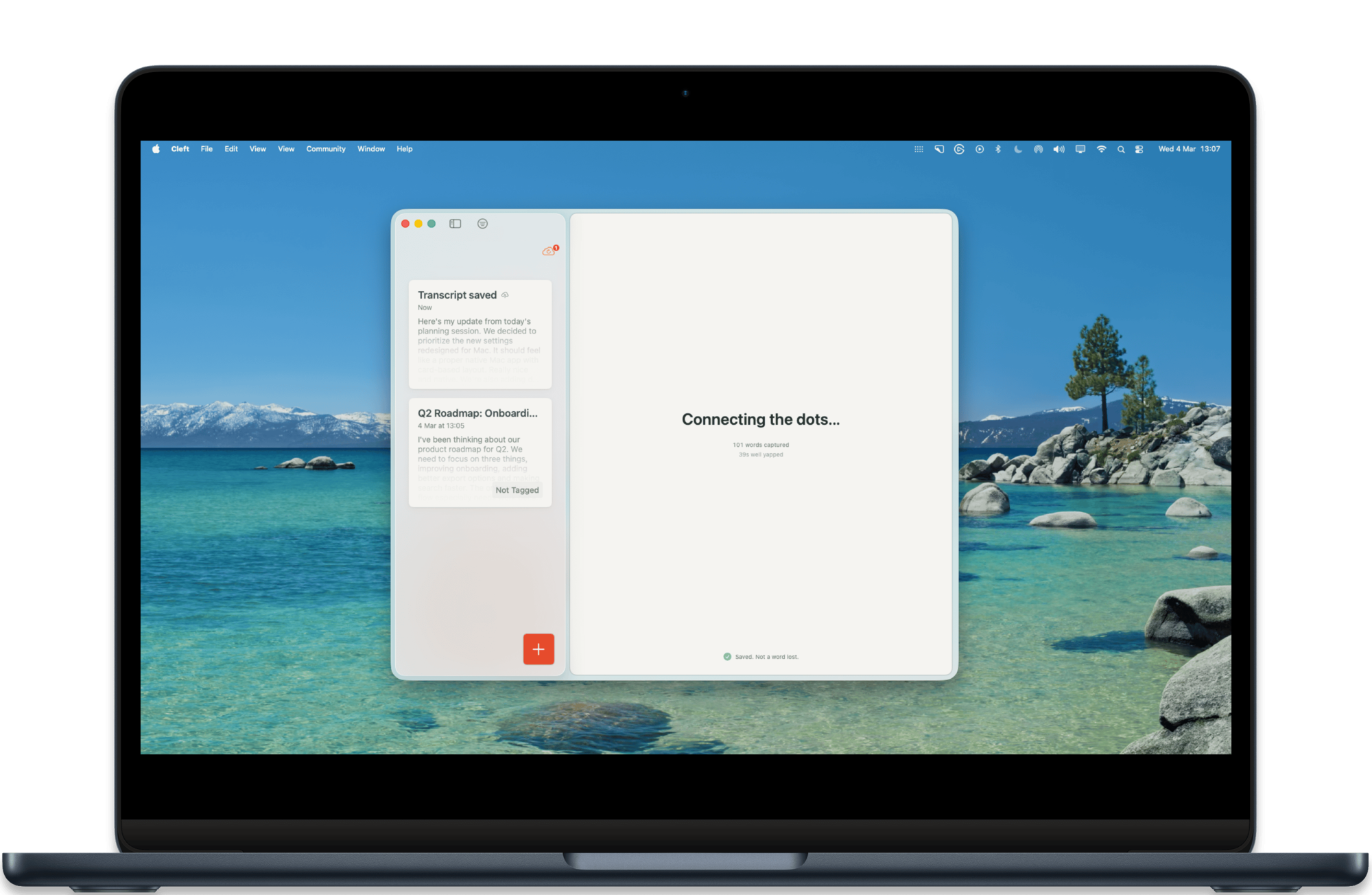 Cleft gives you back a summary, key points, and any action items. Edit with **⌘ + E**, switch to the raw transcript with **⌘ + T**.
 For mic technique and language settings, see [Recording Voice Notes](/user-guides/recording-voice-notes).
## What Mac is best at
Auto-export every note as Markdown to a folder on your Mac. Free for everyone; Plus lets you point it at your Obsidian vault, NotePlan project, Logseq graph, or any folder you pick.
Trigger Cleft from any Shortcut, Raycast command, or Alfred workflow.
Cleft notes show up in system Spotlight. Find a thought from anywhere on your Mac.
Capture, edit, share, and send to Notion without touching the trackpad.
## Mac moments worth stealing
### Between meetings, before you forget
Hop out of a Zoom call, press `⌥⌘N`, talk for 30 seconds while it's fresh, then save. The next meeting starts before the formatting finishes, and the note is waiting when you get back.
Pair with [Writing Style](/user-guides/custom-instructions) so post-meeting brain-dumps come back as decisions + follow-ups rather than a wall of text.
### Turn a meeting into a shareable summary
Record the meeting (or a recap right after), edit the summary with **⌘ + Shift + N**, then:
* **⌘ + Shift + S**. Share via Mail, Messages, or any share-sheet app
* **⌘ + Shift + P**. Generate a [private link](/user-guides/shareable-links) for collaborators
* **Option + P**. Push straight into [Notion](/user-guides/integrations/notion/overview)
* **⌘ + L**. Add tags so it's findable next quarter
For repeatable meeting structure, see [Meeting Notes System](/user-guides/meeting-notes-system).
### Daily journal with append
One note per day, added to throughout. Use **Shift + N** to continue the last note instead of starting a new one, your morning intentions, midday wins, and evening reflection all stack into a single entry.
Full setup in [Daily Capture Routines](/user-guides/daily-capture-routines) and [Appending to Notes](/user-guides/appending-to-notes).
### Sync everything to your Markdown vault
Cleft can write every note to a folder on disk. Free for everyone; Plus lets you pick a custom destination (your Obsidian vault, NotePlan project, Logseq graph, or anywhere). Anything you record on Mac, iPhone, or Apple Watch lands there as Markdown, formatted, tagged, and timestamped.
Settings can reveal your active save folder in Finder or show you its exact path, whether you're on Free or Plus and whether you kept the default folder or picked your own. Turn on the audio toggle and the original recording saves right beside the written note, and Settings shows how many files you have and the total size at a glance.
* **Set it up:** Settings → Local Sync
* **Full guide:** [Local Sync](/user-guides/integrations/local-sync/overview)
* **App-specific notes:** [Obsidian](/user-guides/integrations/obsidian/overview), [NotePlan](/user-guides/integrations/noteplan/overview), [Logseq](/user-guides/integrations/logseq/overview), [Drafts](/user-guides/integrations/drafts/overview), [Bear](/user-guides/integrations/bear/overview)
### Automate the boring parts
Apple Shortcuts and App Intents expose Cleft's actions to the rest of macOS. Some starting points:
* **Raycast / Alfred:** Map a hotkey to "Start a Cleft voice note" so capture is one keystroke from anywhere.
* **Calendar trigger:** Auto-create a "Meeting prep" note 5 minutes before each calendar event.
* **End-of-day:** A Shortcut that copies today's notes into your daily review doc.
Recipes and templates: [Apple Shortcuts integration](/user-guides/integrations/apple-shortcuts/overview).
### Pull a thought back via Spotlight
Forgot which note had the quote you wanted? ⌘ + Space, type a phrase, and Cleft notes appear alongside Mail and Files. Click through and Cleft opens directly to that note.
## All keyboard shortcuts
### Recording and notes
* **⌥⌘N** - Start or stop recording from anywhere on Mac
* **N**. New voice note (no note selected)
* **⌘ + N**. New text note
* **Shift + N**. Continue last note
* **⌘ + Shift + N**. Edit summary
* **⌘ + E**. Toggle read/edit
* **⌘ + ⏎**. Save note
* **⌘ + T**. Toggle summary / transcript
* **⌘ + 1** through **⌘ + 9** - Open the matching note in the current list, filter, or search result
* **C**. Copy note (no note selected)
* **⌘ + R**. Refresh
* **Space**. Pause / resume while recording
* **Esc**. Cancel recording
### Editing
* **⌘ + B**. Bold
* **⌘ + I**. Italic
* **⌘ + K**. Insert link
* **⌘ + Shift + X** - Strikethrough
* **⌘ + Option + 1 / 2 / 3** - Heading 1, 2, or 3
* **⌘ + Shift + 7** - Numbered list
* **⌘ + Shift + 8** - Bulleted list
* **⌘ + Shift + '** - Block quote
* **⌘ + Shift + C** - Inline code
### Sharing and tags
* **⌘ + Shift + S**. Share note
* **⌘ + Shift + P**. Share private link
* **Option + P**. Send to Notion
* **⌘ + L**. Add tags
### Filters
* **⌘ + /**. Toggle filter
* **⌘ + Shift + \[**. Previous filter
* **⌘ + Shift + ]**. Next filter
### View
* **⌘ + +**. Zoom in
* **⌘ + −**. Zoom out
* **⌘ + 0**. Actual size
### Window
* **⌘ + M**. Minimize
* **⌘ + Control + F**. Full screen
* **⌘ + W**. Close window
* **⌘ + Q**. Quit Cleft
The full cross-platform list is on [Keyboard Shortcuts](/user-guides/keyboard-shortcuts).
## Window behaviour
Cleft uses one main window. Settings (⌘ + ,) and Writing Style (⌘ + .) open in their own windows so you can keep them visible while you work.
⌘ + W closes the window without quitting. Cleft stays in your Dock. Bring it back from the Dock, ⌘ + Tab, or **Window → Notes** in the menu bar.
## Staying up to date
When a newer version of Cleft is ready, a gentle reminder appears on your Home screen and takes you straight to the update. It never blocks a recording, and you can dismiss it for now.
## Audio
Pick your mic from the recording controls:
* **Built-in microphone.** Works out of the box
* **External USB mic.** For studio-quality input
* **AirPods and Bluetooth headsets.** Paired devices switch in automatically
AirPods switch in cleanly without re-pairing or restarting recording.
macOS asks for microphone access the first time you record. If recording fails:
* Open **System Settings → Privacy & Security → Microphone**
* Make sure Cleft is allowed
* Restart Cleft after granting access
## Appearance
Cleft follows your macOS appearance, Light, Dark, or Auto. Change it in **System Settings → Appearance**.
## Troubleshooting
**Microphone not detected?** System Settings → Privacy & Security → Microphone → make sure Cleft is allowed, then restart Cleft.
**Sync issues?** Check your connection, confirm you're signed in to the same Cleft account on every device, and press `⌘R` to refresh.
**Slow or unresponsive?** Quit and reopen Cleft (⌘ + Q, then relaunch). If it persists, [contact support](/user-guides/contact-support).
## Related guides
* [Recording Voice Notes](/user-guides/recording-voice-notes). Mic technique, languages, recording length
* [Writing Style](/user-guides/custom-instructions) - shape how Cleft formats your notes
* [Keyboard Shortcuts](/user-guides/keyboard-shortcuts). Every shortcut across every platform
* [Local Sync](/user-guides/integrations/local-sync/overview). Auto-export every note as Markdown to a folder you choose
* [Apple Shortcuts](/user-guides/integrations/apple-shortcuts/overview). Automate Cleft from anywhere on your Mac
* [iOS](/user-guides/ios). The pocket sibling, where most capture happens
* [iPadOS](/user-guides/ipados). What changes when you move to a tablet
For mic technique and language settings, see [Recording Voice Notes](/user-guides/recording-voice-notes).
## What Mac is best at
Auto-export every note as Markdown to a folder on your Mac. Free for everyone; Plus lets you point it at your Obsidian vault, NotePlan project, Logseq graph, or any folder you pick.
Trigger Cleft from any Shortcut, Raycast command, or Alfred workflow.
Cleft notes show up in system Spotlight. Find a thought from anywhere on your Mac.
Capture, edit, share, and send to Notion without touching the trackpad.
## Mac moments worth stealing
### Between meetings, before you forget
Hop out of a Zoom call, press `⌥⌘N`, talk for 30 seconds while it's fresh, then save. The next meeting starts before the formatting finishes, and the note is waiting when you get back.
Pair with [Writing Style](/user-guides/custom-instructions) so post-meeting brain-dumps come back as decisions + follow-ups rather than a wall of text.
### Turn a meeting into a shareable summary
Record the meeting (or a recap right after), edit the summary with **⌘ + Shift + N**, then:
* **⌘ + Shift + S**. Share via Mail, Messages, or any share-sheet app
* **⌘ + Shift + P**. Generate a [private link](/user-guides/shareable-links) for collaborators
* **Option + P**. Push straight into [Notion](/user-guides/integrations/notion/overview)
* **⌘ + L**. Add tags so it's findable next quarter
For repeatable meeting structure, see [Meeting Notes System](/user-guides/meeting-notes-system).
### Daily journal with append
One note per day, added to throughout. Use **Shift + N** to continue the last note instead of starting a new one, your morning intentions, midday wins, and evening reflection all stack into a single entry.
Full setup in [Daily Capture Routines](/user-guides/daily-capture-routines) and [Appending to Notes](/user-guides/appending-to-notes).
### Sync everything to your Markdown vault
Cleft can write every note to a folder on disk. Free for everyone; Plus lets you pick a custom destination (your Obsidian vault, NotePlan project, Logseq graph, or anywhere). Anything you record on Mac, iPhone, or Apple Watch lands there as Markdown, formatted, tagged, and timestamped.
Settings can reveal your active save folder in Finder or show you its exact path, whether you're on Free or Plus and whether you kept the default folder or picked your own. Turn on the audio toggle and the original recording saves right beside the written note, and Settings shows how many files you have and the total size at a glance.
* **Set it up:** Settings → Local Sync
* **Full guide:** [Local Sync](/user-guides/integrations/local-sync/overview)
* **App-specific notes:** [Obsidian](/user-guides/integrations/obsidian/overview), [NotePlan](/user-guides/integrations/noteplan/overview), [Logseq](/user-guides/integrations/logseq/overview), [Drafts](/user-guides/integrations/drafts/overview), [Bear](/user-guides/integrations/bear/overview)
### Automate the boring parts
Apple Shortcuts and App Intents expose Cleft's actions to the rest of macOS. Some starting points:
* **Raycast / Alfred:** Map a hotkey to "Start a Cleft voice note" so capture is one keystroke from anywhere.
* **Calendar trigger:** Auto-create a "Meeting prep" note 5 minutes before each calendar event.
* **End-of-day:** A Shortcut that copies today's notes into your daily review doc.
Recipes and templates: [Apple Shortcuts integration](/user-guides/integrations/apple-shortcuts/overview).
### Pull a thought back via Spotlight
Forgot which note had the quote you wanted? ⌘ + Space, type a phrase, and Cleft notes appear alongside Mail and Files. Click through and Cleft opens directly to that note.
## All keyboard shortcuts
### Recording and notes
* **⌥⌘N** - Start or stop recording from anywhere on Mac
* **N**. New voice note (no note selected)
* **⌘ + N**. New text note
* **Shift + N**. Continue last note
* **⌘ + Shift + N**. Edit summary
* **⌘ + E**. Toggle read/edit
* **⌘ + ⏎**. Save note
* **⌘ + T**. Toggle summary / transcript
* **⌘ + 1** through **⌘ + 9** - Open the matching note in the current list, filter, or search result
* **C**. Copy note (no note selected)
* **⌘ + R**. Refresh
* **Space**. Pause / resume while recording
* **Esc**. Cancel recording
### Editing
* **⌘ + B**. Bold
* **⌘ + I**. Italic
* **⌘ + K**. Insert link
* **⌘ + Shift + X** - Strikethrough
* **⌘ + Option + 1 / 2 / 3** - Heading 1, 2, or 3
* **⌘ + Shift + 7** - Numbered list
* **⌘ + Shift + 8** - Bulleted list
* **⌘ + Shift + '** - Block quote
* **⌘ + Shift + C** - Inline code
### Sharing and tags
* **⌘ + Shift + S**. Share note
* **⌘ + Shift + P**. Share private link
* **Option + P**. Send to Notion
* **⌘ + L**. Add tags
### Filters
* **⌘ + /**. Toggle filter
* **⌘ + Shift + \[**. Previous filter
* **⌘ + Shift + ]**. Next filter
### View
* **⌘ + +**. Zoom in
* **⌘ + −**. Zoom out
* **⌘ + 0**. Actual size
### Window
* **⌘ + M**. Minimize
* **⌘ + Control + F**. Full screen
* **⌘ + W**. Close window
* **⌘ + Q**. Quit Cleft
The full cross-platform list is on [Keyboard Shortcuts](/user-guides/keyboard-shortcuts).
## Window behaviour
Cleft uses one main window. Settings (⌘ + ,) and Writing Style (⌘ + .) open in their own windows so you can keep them visible while you work.
⌘ + W closes the window without quitting. Cleft stays in your Dock. Bring it back from the Dock, ⌘ + Tab, or **Window → Notes** in the menu bar.
## Staying up to date
When a newer version of Cleft is ready, a gentle reminder appears on your Home screen and takes you straight to the update. It never blocks a recording, and you can dismiss it for now.
## Audio
Pick your mic from the recording controls:
* **Built-in microphone.** Works out of the box
* **External USB mic.** For studio-quality input
* **AirPods and Bluetooth headsets.** Paired devices switch in automatically
AirPods switch in cleanly without re-pairing or restarting recording.
macOS asks for microphone access the first time you record. If recording fails:
* Open **System Settings → Privacy & Security → Microphone**
* Make sure Cleft is allowed
* Restart Cleft after granting access
## Appearance
Cleft follows your macOS appearance, Light, Dark, or Auto. Change it in **System Settings → Appearance**.
## Troubleshooting
**Microphone not detected?** System Settings → Privacy & Security → Microphone → make sure Cleft is allowed, then restart Cleft.
**Sync issues?** Check your connection, confirm you're signed in to the same Cleft account on every device, and press `⌘R` to refresh.
**Slow or unresponsive?** Quit and reopen Cleft (⌘ + Q, then relaunch). If it persists, [contact support](/user-guides/contact-support).
## Related guides
* [Recording Voice Notes](/user-guides/recording-voice-notes). Mic technique, languages, recording length
* [Writing Style](/user-guides/custom-instructions) - shape how Cleft formats your notes
* [Keyboard Shortcuts](/user-guides/keyboard-shortcuts). Every shortcut across every platform
* [Local Sync](/user-guides/integrations/local-sync/overview). Auto-export every note as Markdown to a folder you choose
* [Apple Shortcuts](/user-guides/integrations/apple-shortcuts/overview). Automate Cleft from anywhere on your Mac
* [iOS](/user-guides/ios). The pocket sibling, where most capture happens
* [iPadOS](/user-guides/ipados). What changes when you move to a tablet