> ## Documentation Index
> Fetch the complete documentation index at: https://learn.cleftnotes.com/llms.txt
> Use this file to discover all available pages before exploring further.
# Settings
> Configure Cleft on iPhone, iPad, and Mac
Some settings are Plus-only. Cleft syncs many preferences through iCloud, including theme, note style, copy format, note language, writing rules, Notion auto-send, and save-to-device choices. Folder permissions, device permissions, and first-launch Local Sync consent are still configured per device.
## Accessing Settings
Tap the **gear icon** in the top-right corner of the notes list.
Press `⌘ + ,` or click **Cleft → Settings** in the menu bar.
***
## iOS / iPadOS Settings
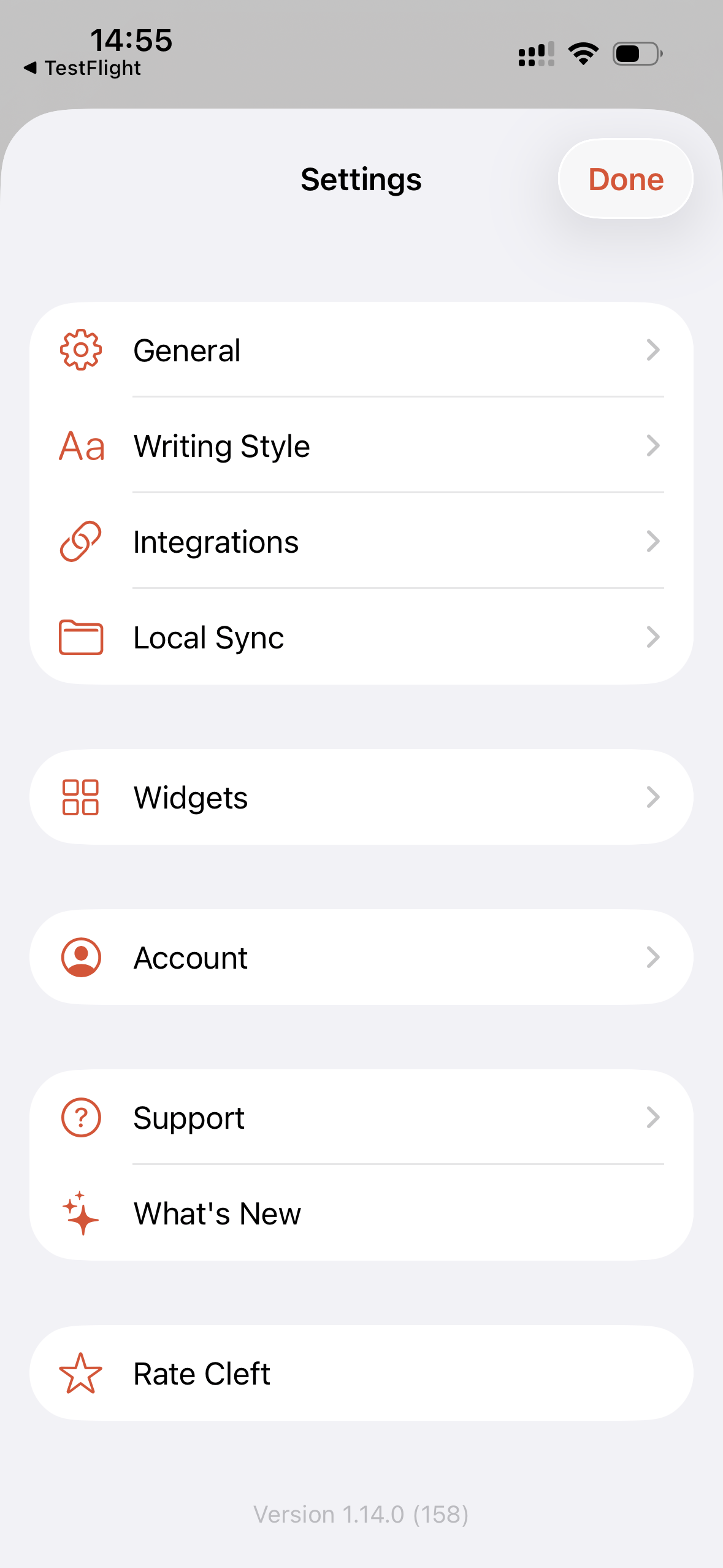
On iPhone and iPad, settings are organised into sections that match the main tasks you configure.
### General
* **Appearance.** Light, Dark, or System theme.
* **Language.** Transcription language, including Auto-Detect.
* **Date and time format.** Choose how dates and times appear throughout the app.
* **Preflight Mode.** Download note text for offline reading before a flight, commute, or low-signal stretch.
### Writing Style
* **Your Rules** (Plus). Set one standing instruction Cleft follows every time, up to 500 characters. Free users see example rules to learn from; setting your own is part of Cleft Plus.
* **Output Styles.** Pick from Structured, Structured Prose, Clean Transcript, and any custom styles you have made.
* **Custom styles** (Plus). Create up to two named note styles and reorder the full style list.
* **Copy Format** (Plus). Choose the format Cleft uses when copying notes.
* **Cleft Signature.** Add or remove the Cleft signature from copied notes.
### Integrations
* **Notion** (Plus). Connect, pick a database, and choose how notes flow:
* **Auto-send to Notion.** Every finished recording lands in your chosen database automatically. Pauses itself after repeated failed sends with a banner that explains how to retry.
* **Archive after Send.** Move a note to your Archived filter the moment a manual Send to Notion succeeds.
* See [Notion](/user-guides/integrations/notion/overview) for the full setup.
* **Zapier** (Plus). Connect to automation workflows.
* **API Key.** Manage developer access where available.
### Local Sync
* **Save notes as files.** Auto-export every note as Markdown on Mac, iPhone, and iPad.
* **Sync Folder.** Free users use Cleft's Documents/Cleft Notes folder. Plus users can choose a custom folder, including an Obsidian vault, NotePlan project, Logseq graph, or another Files/Finder location.
* **Include audio files.** Save the original `.m4a` recording beside the Markdown file.
* **Save existing notes as files.** Export notes that already existed before Local Sync was enabled.
* **Show path.** On iPhone and iPad, reveal the current path so you can navigate to it in Files.
See [Local Sync](/user-guides/integrations/local-sync/overview) for the full file format and app-specific setup.
### Widgets
* **Lock Screen widgets.** Add quick recording entry points to the Lock Screen.
* **Home Screen widgets.** Start a new note, continue the last note, or pin a specific note for append workflows.
* **Live Activity and Control Center.** Configure recording surfaces that work outside the app.
* **Action Button and CarPlay guidance.** Follow setup steps for the system features that live outside Cleft.
### Account
* **What's Included.** View your plan features.
* **Manage Subscription.** Upgrade or manage billing.
* **Email and display name.** Update account details.
* **Log Out.** Sign out of Cleft.
* **Delete Account.** Permanently remove your account and data.
### Support
* **Help & Support.** Get assistance.
* **Send Feedback.** Share ideas or report issues.
* **What's New.** See the latest release notes.
* **Rate Cleft.** Leave an App Store review.
* **Roadmap.** See what's coming next.
* **Privacy Policy and terms.** View legal documents.
***
## macOS Settings
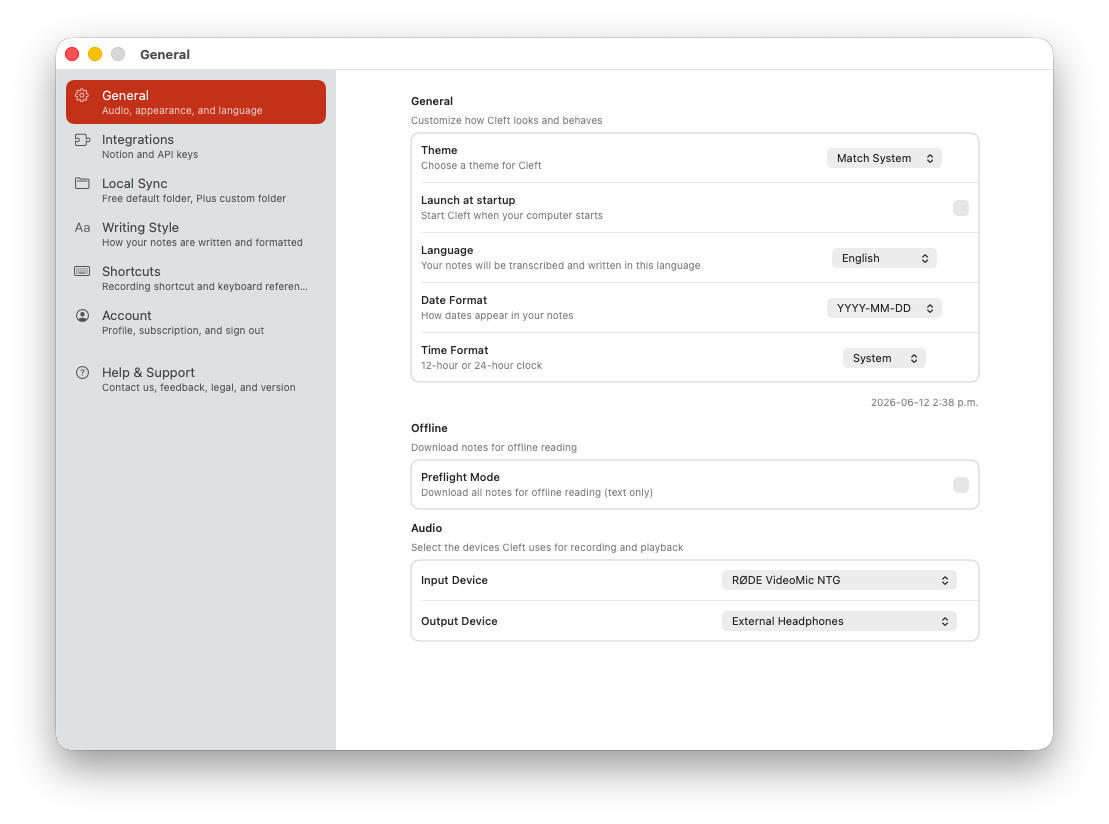
On Mac, Settings uses a sidebar with seven sections. Open the window with `⌘,`, then choose the section you need.
### General
* **Theme.** Light, Dark, or Match System.
* **Launch at Startup.** Start Cleft when your Mac starts.
* **Language.** Transcription language, including Auto-Detect.
* **Date and time format.** Choose how dates and times appear throughout the app.
* **Preflight Mode.** Download note text for offline reading.
* **Input Device.** Select your microphone.
* **Output Device.** Select audio output for playback.
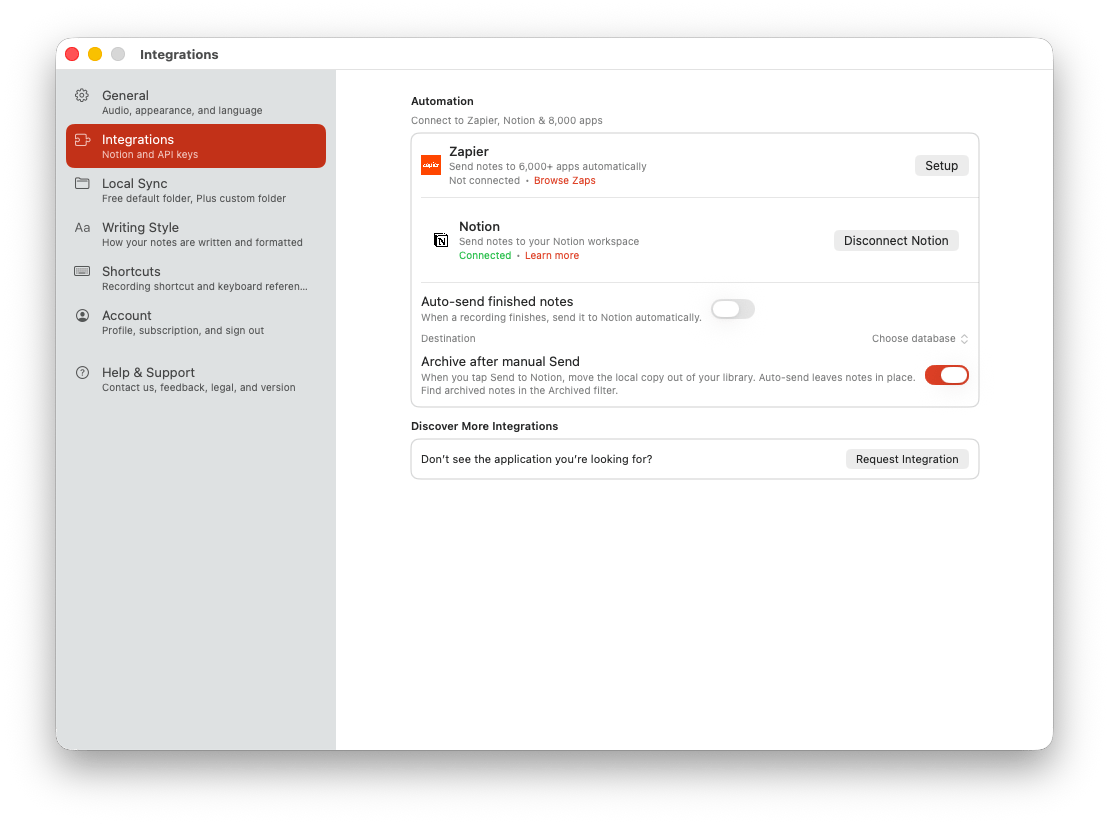
### Integrations
* **Zapier** (Plus). Connect Cleft to automation workflows.
* **Notion** (Plus). Connect, pick a database, configure auto-send, and choose whether successful manual sends archive notes.
* **Request an integration.** Send feedback when the app you need is not listed yet.
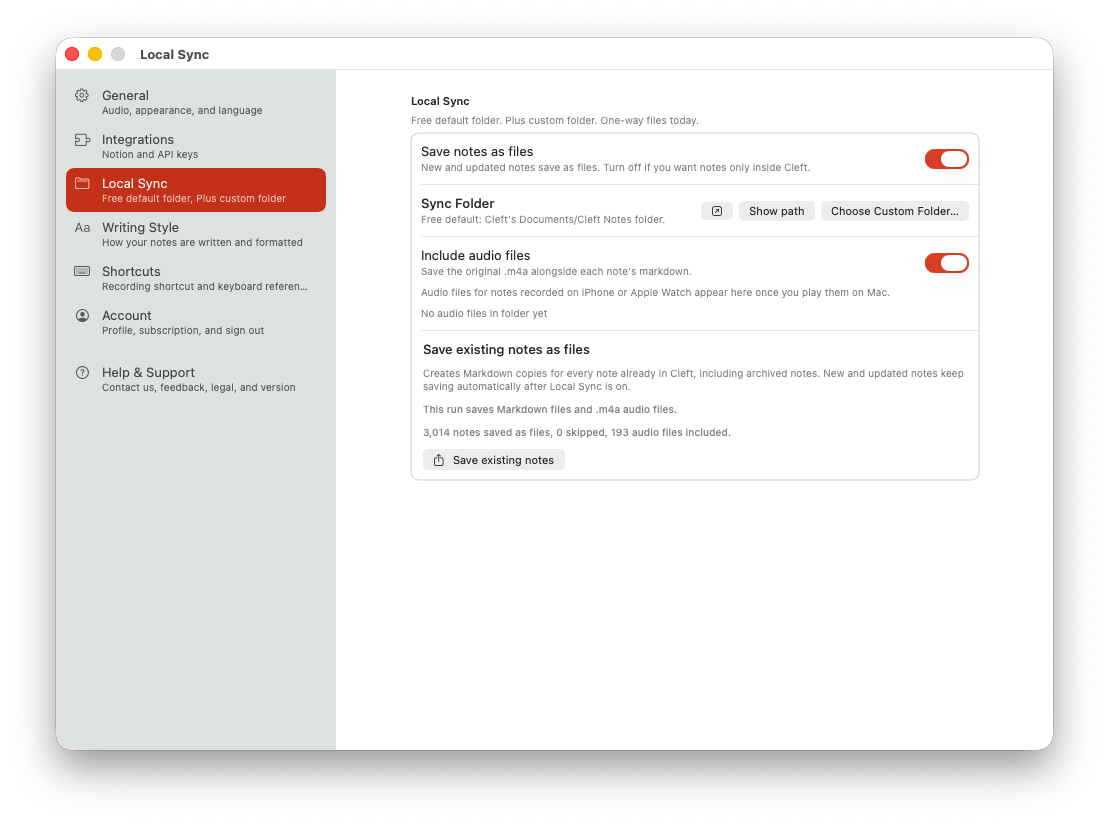
### Local Sync
* **Save notes as files.** Auto-export every note as Markdown.
* **Sync Folder.** Free users use Cleft's Documents/Cleft Notes folder. Plus users can pick a custom folder.
* **Reveal and Show path.** Reveal the active folder in Finder or copy/check the path, whether you use the default folder or a custom destination.
* **Include audio files.** Save original `.m4a` recordings beside Markdown exports and see the current audio footprint.
* **Save existing notes as files.** Backfill notes that existed before Local Sync was enabled.
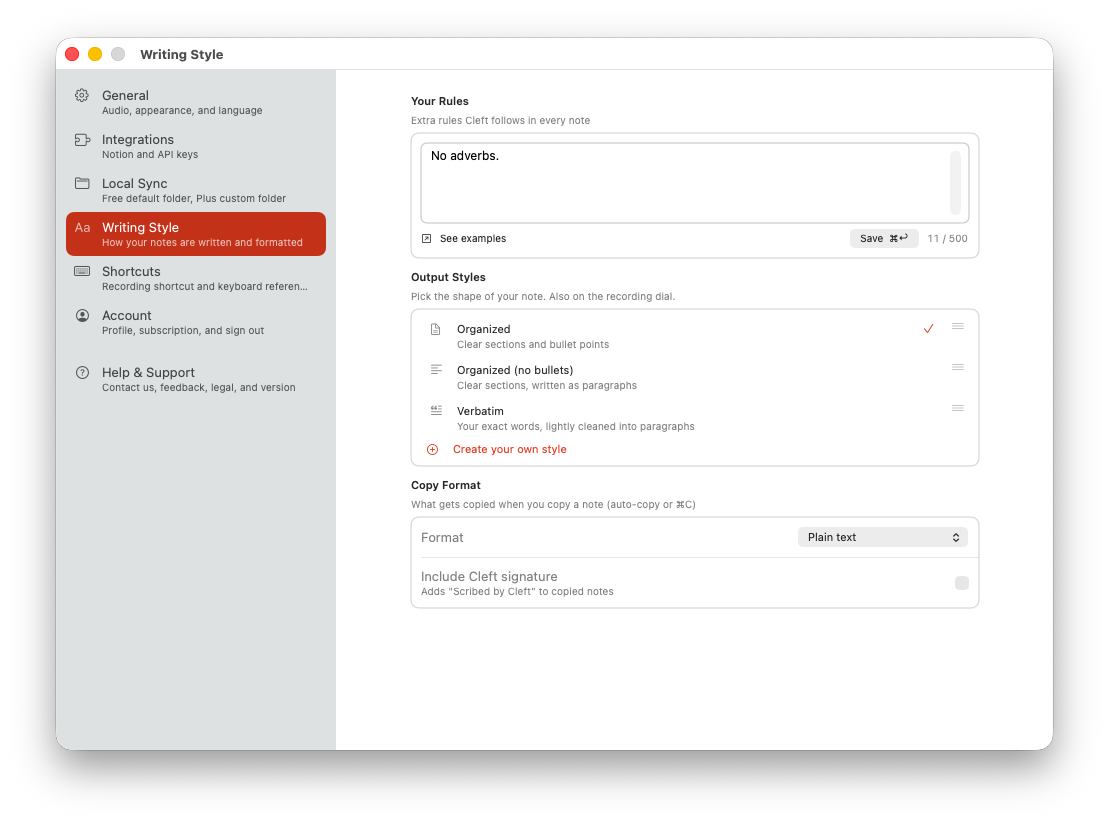
### Writing Style
* **Your Rules.** Add one standing instruction for Cleft to follow.
* **Output Styles.** Choose, create, and reorder note styles.
* **Copy Format.** Choose how Cleft copies note content.
* **Cleft Signature.** Add or remove the Cleft signature from copied notes.
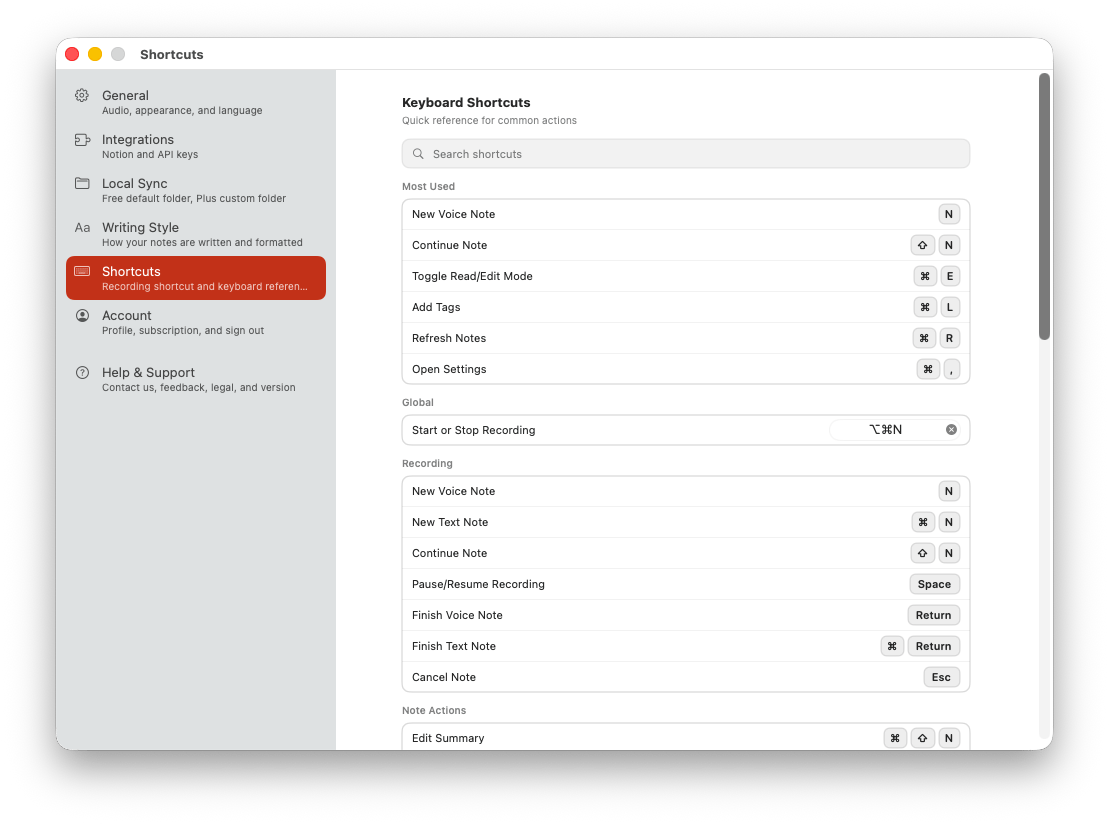
### Shortcuts
* **Global Start or Stop Recording.** The default shortcut is `⌥⌘N`; rebind it or clear it here.
* **Searchable shortcut reference.** Find recording, editing, navigation, and sharing shortcuts from one place.
* **Most Used.** Keep the shortcuts you reach for most visible while you learn the set.
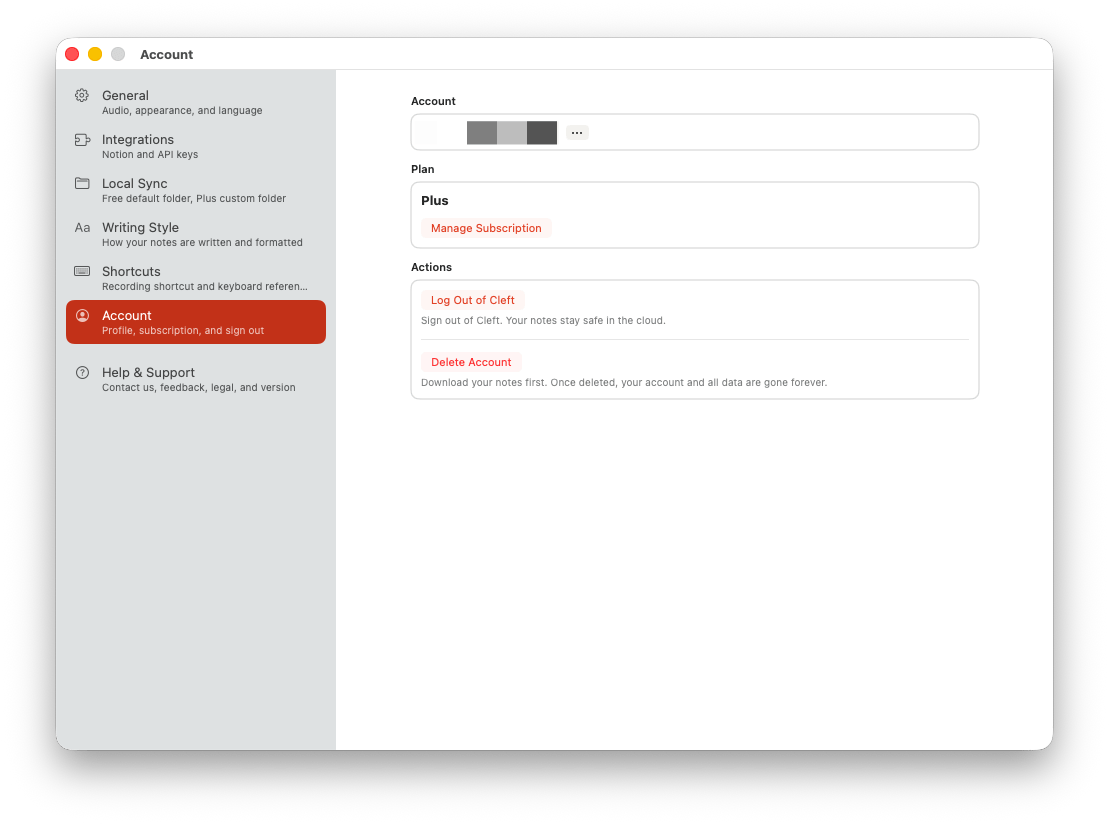
### Account
* **Account.** Your email address and display name.
* **Plan.** Current subscription tier.
* **Manage Subscription.** Upgrade or manage billing.
* **Log Out of Cleft.** Sign out without deleting local app data.
* **Delete Account.** Permanently remove your account and data.
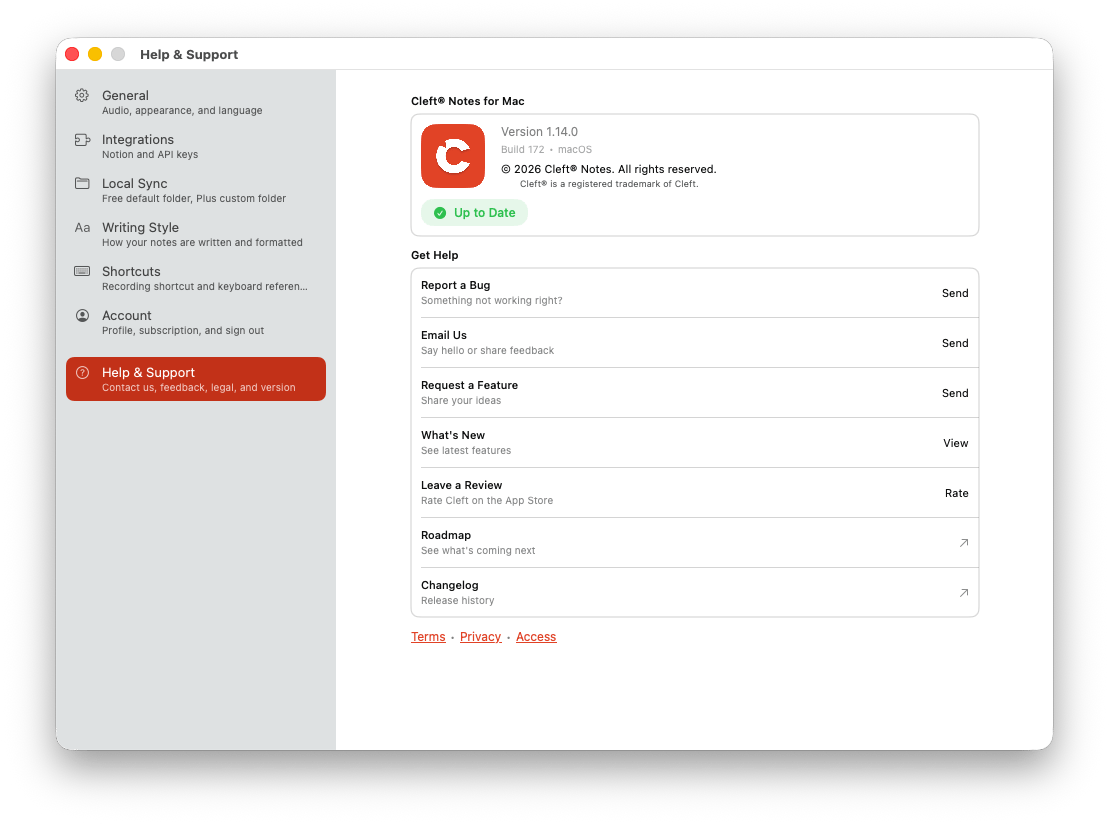
### Help & Support
* **Version.** Current app version and build number.
* **Report a Bug / Email Us / Request a Feature.** Get in touch.
* **What's New.** See the latest release notes.
* **Leave a Review.** Rate on the App Store.
* **Roadmap / Changelog / Terms / Privacy / Access.** Reference links.
***
## Platform Differences
| Feature | iOS / iPadOS | macOS |
| ------------------------------- | ------------------------------------------------------------------- | -------------------------------------------------------------- |
| Launch at Login | System setting | In Cleft Settings |
| Input/Output Device | Routed by the system | In Cleft Settings |
| Local Sync default folder | Yes | Yes |
| Custom Local Sync folder | Plus, exact folder selected in Files | Plus, dedicated subfolder inside the folder selected in Finder |
| Show active Local Sync location | Show path | Finder reveal control and Show path |
| Global recording shortcut | System surfaces such as Action Button, widgets, Siri, and Shortcuts | `⌥⌘N`, configurable in Settings |
| Widgets guide | Yes | No |
| Settings sync through iCloud | Many preferences | Many preferences |
For folder export setup, file naming, and app-specific workflows, use the [Local Sync guide](/user-guides/integrations/local-sync/overview).