> ## Documentation Index
> Fetch the complete documentation index at: https://learn.cleftnotes.com/llms.txt
> Use this file to discover all available pages before exploring further.
# Transcripts
> View, edit, and regenerate the raw transcript behind any voice note
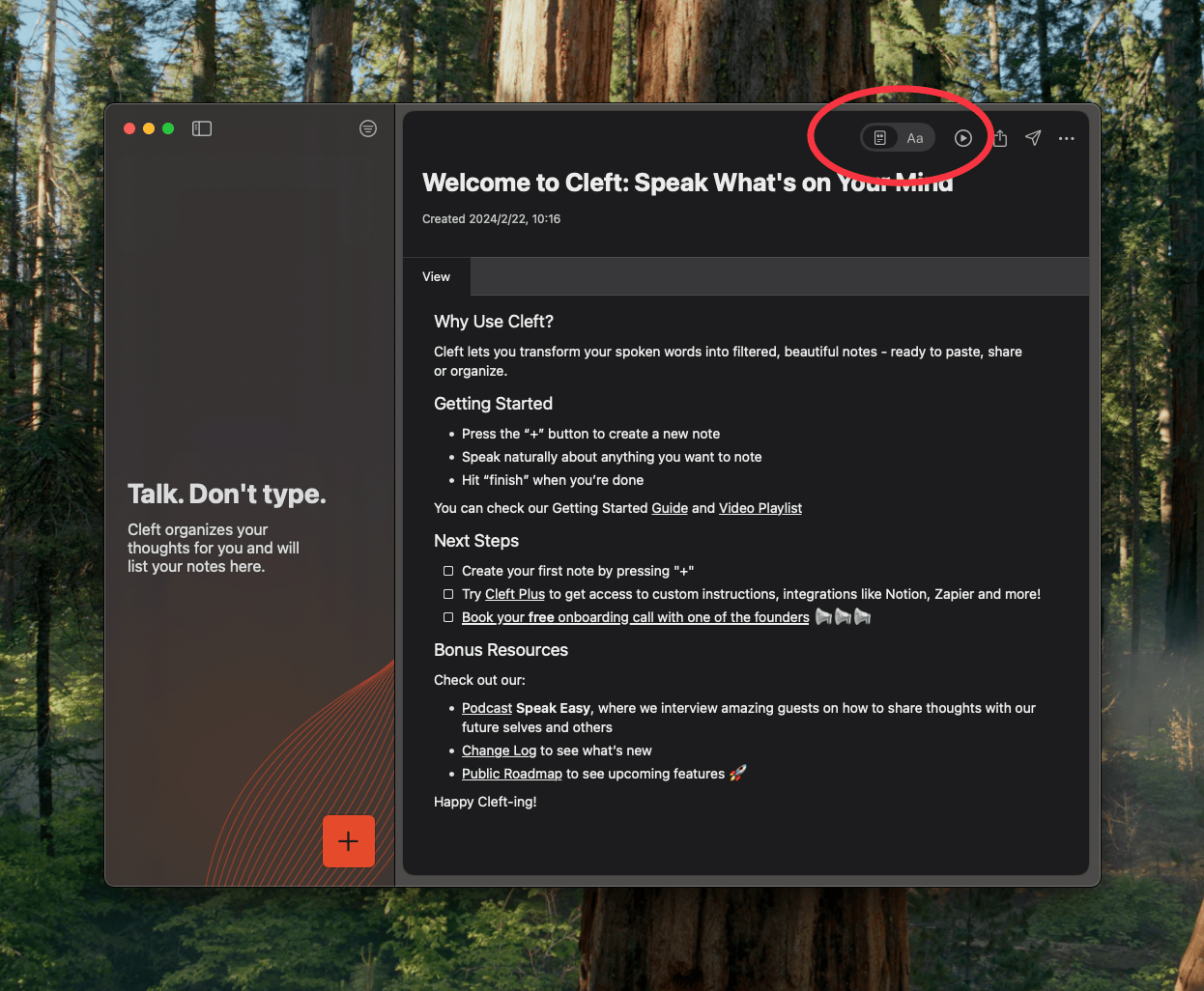
Want to see exactly what was said? Every voice note has a raw transcript. Tap the **Transcript** toggle at the top of any note to view it.
## How Transcription Works
1. When you stop [recording](/user-guides/recording-voice-notes), Cleft transcribes your audio locally on your device using the Whisper model
2. You see live progress as your words are transcribed in real time
3. The transcript is then processed into your finished note based on your [Writing Style](/user-guides/custom-instructions)
Any future changes (regeneration, merging, appending) work with the text transcript rather than reprocessing the original audio.
## Editing a Transcript
Transcript not quite right? Edit it directly:
1. Tap the **Transcript** toggle to view the raw text
2. Edit. Fix names, technical terms, or anything the transcription got wrong
3. When you're done, choose to regenerate:
* **Transcript only.** Updates the transcript text
* **Transcript and summary.** Rewrites your note based on the corrected transcript
Edit transcriptions while the recording is still fresh in your memory. You'll spot mistakes more easily.
For formatting your finished note (bold, headings, lists), see [Editing & Formatting Notes](/user-guides/editing-notes).