> ## Documentation Index
> Fetch the complete documentation index at: https://learn.cleftnotes.com/llms.txt
> Use this file to discover all available pages before exploring further.
# Widgets & Action Button
> Pin a note, jump back into your last one, or start a recording in one tap
Widgets are available on iOS, iPadOS, and CarPlay (iOS 26.4 and later). The Action Button is available on iPhone 15 Pro, 15 Pro Max, 16 Pro, and 16 Pro Max.
Cleft lives on every surface of your phone. Pin a note to your home screen, continue your last one from Control Center, start a recording from your Lock Screen, or trigger one with a press of the Action Button.
Keep one note on your home screen until you change it.
Jump back into your most recent note from anywhere.
Start a recording without unlocking your phone.
Tap once on your home screen to record a fresh note.
Map the side button on iPhone 15 Pro and 16 Pro to record.
A walkthrough of every Cleft surface inside Settings.
## Pinned Note widget
The Pinned Note widget keeps one note on your home screen. Pin a note from inside the app and it stays on the widget until you pin a different one.
**Add the widget**
1. Long-press your home screen
2. Tap **+** in the top-left
3. Search for **Cleft** and pick **Pinned Note**
4. Add the widget at your preferred size
**Pin a note to the widget**
* **From your note list:** long-press the note and pick **Pin to Widget**.
* **From an open note:** tap the more (•••) menu and pick **Pin to Widget**.
A small pin glyph on the list row shows which note is currently anchored to the widget.
**On iOS 26 with the tinted theme.** The widget renders with a desaturated accent so it stays readable against your home screen tint. No setup needed.
## Continue Last widget
The Continue Last widget always shows your most recent note. No setup. Tap it and pick up right where you left off.
**Add the widget**
1. Long-press your home screen
2. Tap **+** in the top-left
3. Search for **Cleft** and pick **Continue Last**
4. Add the widget at your preferred size
The widget refreshes itself whenever you finish a recording or open a different note. On iOS 26, Smart Stack ranks the widget higher when you have a fresh note worth coming back to.
## Continue Last in Control Center
You can also reach your last note from Control Center.
**Add the control**
1. Open Control Center
2. Long-press an empty area, then tap **+ Add a Control**
3. Search for **Cleft** and pick **Continue Last Note**
Tap the control to open your most recent note from anywhere in iOS.
## Lock Screen widget
Add a Cleft widget to your Lock Screen to start a new recording without unlocking your phone.
1. Go to your Lock Screen
2. Long-press to customize, then tap **Add Widgets**
3. Find **Cleft** in the widget list and add the recording widget
Tap the widget to start a recording. The Live Activity takes over from there with a pause and resume button you can reach from the Dynamic Island.
## Home Screen recording widget
Want to start a fresh note straight from your home screen? Add the **New Cleft Note** widget the same way as the Pinned Note widget. Tap it once to start recording.
## Action Button
On iPhone 15 Pro, 15 Pro Max, 16 Pro, and 16 Pro Max, you can map the side Action Button to start and stop a Cleft recording.
1. Open **Settings → Action Button**
2. Swipe to find **Cleft**
3. Confirm the choice
Press the Action Button once to start recording. Press it again to stop. Cleft saves the note and runs your usual processing.
## In-app guide
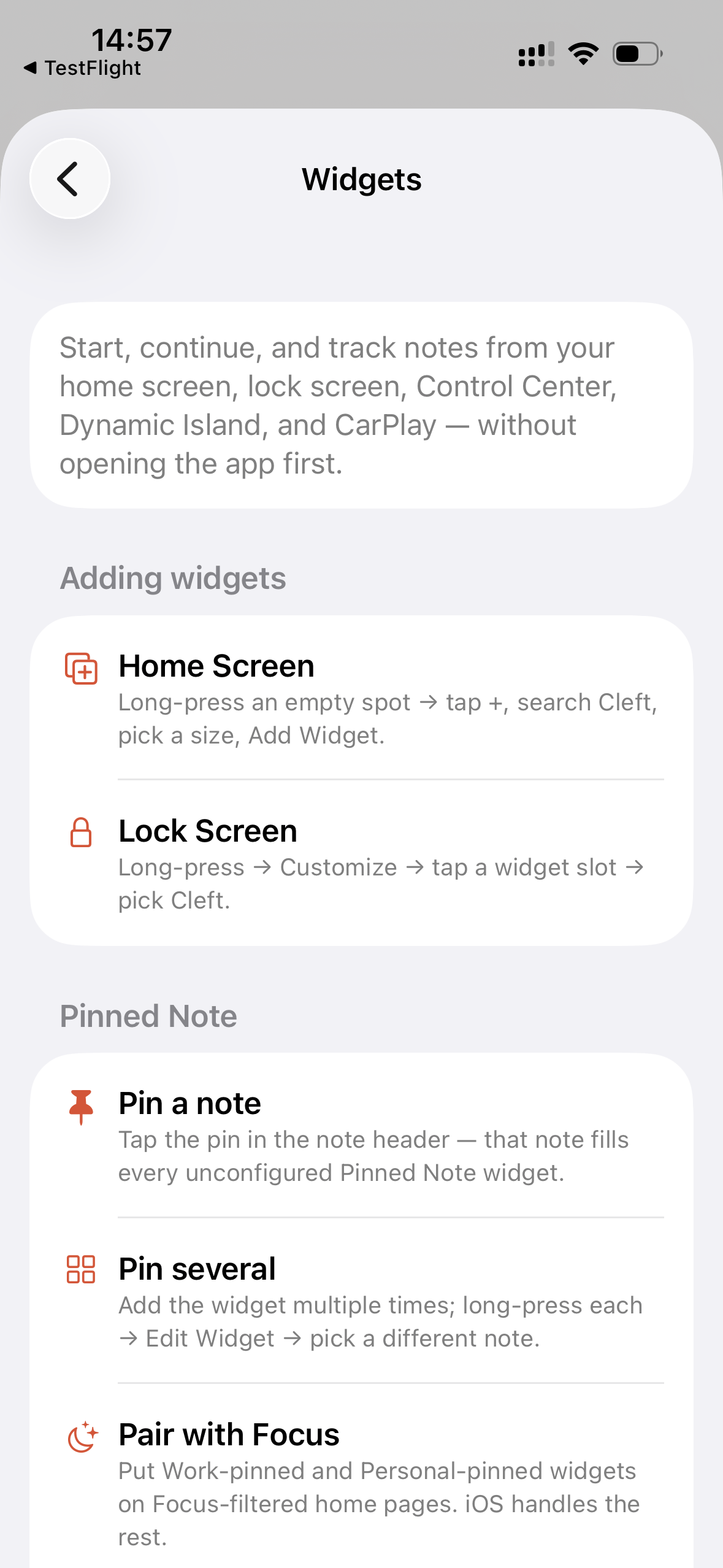
Cleft has a guided tour of every widget surface at **Settings → Widgets** inside the app. It walks through Pinned Note, Continue Last, Dynamic Island, Control Center, CarPlay, and the Action Button so you can set them up without leaving the app.
The Pinned Note widget pairs well with iOS Focus modes. Pin your daily journal on a Personal home screen and your meeting prep on a Work home screen, and each one shows up automatically when its Focus is active.