
Widgets are available on iPhone, iPad, and Mac. CarPlay requires iOS 26.4 or later. The Action Button is available on supported iPhone models.

New Cleft Note, Continue, and Pinned Note widgets together on the iPhone home screen
Pinned Note
Keep one note on your home screen until you change it.
Continue Last
Jump back into your most recent note from anywhere.
Lock Screen
Start a recording without unlocking your phone.
Home Screen capture
Tap once on your home screen to record or write a fresh note.
Recording Status
Follow a recording until the finished note is ready.
Control Center
Start or stop a voice note, or open a new text note.
Action Button
Start a voice note or a text note with one press.
In-app guide
A walkthrough of every Cleft surface inside Settings.
Pinned Note widget
The Pinned Note widget keeps one note on your home screen. Pin a note from inside the app and it stays on the widget until you pin a different one. Add the widget- Long-press your home screen
- Tap + in the top-left
- Search for Cleft and pick Pinned Note
- Add the widget at your preferred size
Continue Last widget
The Continue Last widget shows your most recent note from its last refresh. No setup. Tap it and pick up right where you left off. Add the widget- Long-press your home screen
- Tap + in the top-left
- Search for Cleft and pick Continue Last
- Add the widget at your preferred size
Cleft 1.15.0 removes the Continue Last Note control from Control Center, the Lock Screen, and the Action Button, because those places cannot show which note a tap would open. Use the Continue Last widget, the Pinned Note widget, or the Continue Last Note shortcut in the Shortcuts app instead.
Recording in Control Center
Cleft adds controls to Control Center on iPhone, iPad, and Mac: Voice Note starts or stops your current voice note, and Text Note opens a new text note. These need Cleft 1.15.0 or later, and macOS 26 or later on a Mac. On iPhone and iPad, the New Voice Note control from earlier versions is still there too: one tap starts a voice note.- Open Control Center
- Long-press an empty area, then tap + Add a Control
- Search for Cleft and add Voice Note, New Voice Note, Text Note, or any of them
Lock Screen widget
Add a Cleft widget to your Lock Screen to start a new recording without unlocking your phone.- Go to your Lock Screen
- Long-press to customize, then tap Add Widgets
- Find Cleft in the widget list and add Voice Note, Text Note, or both
Home Screen recording widget
Want to start a fresh note straight from your home screen? Add the Voice Note widget the same way as the Pinned Note widget. Tap it once to start recording. Like the app, it shows the voice mark for a voice note, and the Text Note widget shows the pencil.Text note and quick-capture widgets
Add Text Note to start writing from your Home Screen or Lock Screen. The medium Voice or Text widget puts Voice and Text side by side so you can choose in one tap. These need Cleft 1.15.0 or later. On Mac, add Cleft widgets to your desktop or Notification Center to start a voice note, start a text note, choose voice or text, or continue your latest note.New Task widget
Tasks arrives in Cleft v1.16.0 on iPhone, iPad, and Mac. Until then, you will not find **Send Tasks** or **New Task** in the app.
Recording Status widget
The Recording Status widget shows recording and saving progress on your Home Screen, Lock Screen, and in StandBy. This needs Cleft 1.15.0 or later.- Long-press your Home Screen or Lock Screen
- Tap + or Add Widgets
- Search for Cleft and pick Recording Status
Action Button
On an iPhone with an Action Button, map it to start a voice note, start a text note, or ask which kind you want each time.- Open Settings → Action Button
- Swipe to Shortcut, then choose a shortcut
- Pick a Cleft action: New Voice Note, New Text Note, or Choose Cleft Capture
Start with a writing style
The New Voice Note action includes a Style choice. Set it when you add the action to Apple Shortcuts, Siri, or the Action Button, and that capture starts with the writing style you chose. This needs Cleft 1.15.0 or later. You can also configure a Cleft complication on Apple Watch with a writing style. Custom style names stay hidden on the watch face unless you turn on Show Custom Style Name.In-app guide
Cleft has a guided tour of every widget surface at Settings → Widgets inside the app. It walks through Pinned Note, Continue Last, Dynamic Island, Control Center, CarPlay, and the Action Button so you can set them up without leaving the app.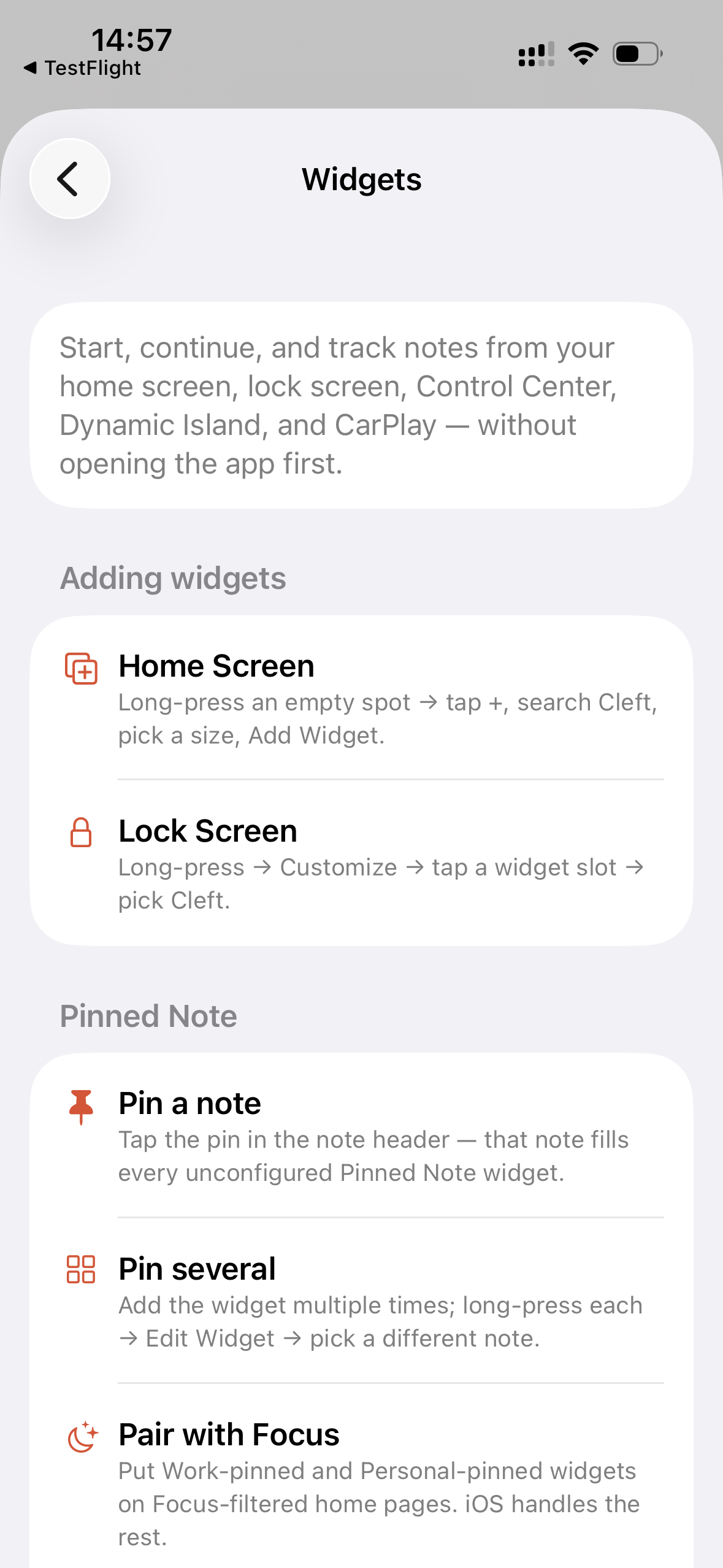
Widgets guide in Settings