Save every Cleft note as a Markdown file on Mac, iPhone, or iPad. Works with Obsidian, NotePlan, Logseq, Drafts, or any folder
Local Sync is free for every Mac, iPhone, and iPad user as of v1.14.0. Cleft Plus lets you point exports at a custom folder: your Obsidian vault, a NotePlan project, a Logseq graph, or anywhere on disk. Free users get Cleft’s Documents/Cleft Notes folder.
Local Sync writes every Cleft note to your device as a .md file (and, if you want, the original audio recording next to it as an .m4a). When you record a new note, edit a title, change a tag, or a note arrives via cross-device sync, the file on disk updates to match. Works on Mac, iPhone, and iPad.Local Sync is an export. It adds copies to your folder without changing how Cleft otherwise stores, syncs, or processes your notes and recordings.This is one-way sync: Cleft is the source of truth. Edits you make to the .md files in your vault are silently overwritten the next time Cleft syncs that note. Same contract as Notion auto-send.
Any folder you pick (Obsidian vault, NotePlan project, Logseq graph, etc.)
Audio companion (.m4a)
Free toggle
Free toggle
Turn it off
Free toggle
Free toggle
Plus differentiates on destination choice, not feature existence. Free users who want exports inside an Obsidian vault, NotePlan folder, or anywhere other than Cleft’s Documents/Cleft Notes folder upgrade to Plus to unlock the picker.
The first time you open Cleft on Mac, iPhone, or iPad running v1.14.0 or later, a one-time sheet introduces Local Sync:
Use default folder. Accepts Cleft’s Documents/Cleft Notes folder. Nothing else to configure.
Choose folder. Pick your own folder (Plus). Routes to the picker if you’re already on Plus, or to the upgrade screen if you’re not.
Don’t save files. Turns Local Sync off entirely. You can change your mind any time in Settings → Local Sync.
If you choose either folder option, Cleft then asks whether to Save existing notes as files or leave that for later. New and edited notes keep saving automatically either way.You’ll only see the first-launch sheet once. After that, the master “Save notes as files” toggle in Settings is the off-switch.
First-run Local Sync prompt on Mac
Already had Local Sync set up before v1.14.0? You’ll see a different sheet (a one-time migration heads-up) that explains what’s about to change on disk and lets you reveal your vault for a backup first. See Migrating from earlier versions below.
The date is createdAt in UTC, so a 23:30-recorded note doesn’t drift across day boundaries on a different-timezone device.
The slug is a kebab-case ASCII-folded rendering of your title, capped at 60 characters.
The trailing number is the immutable Cleft note ID. Multiple “untitled” notes never collide, and it’s how files get matched up when titles change.
Smart title renames. When your title changes (and the slug regenerates), Cleft renames the existing file before overwriting content. On recent Obsidian (1.4 and later) this usually lets Obsidian recognise the rename and keep your wikilinks pointing at the note. It stays best-effort, though: on a slow disk, a busy system, or an iOS-only Obsidian setup, the rename can register as a delete-and-create and break links. If that happens, recover the note by its cleft_id: (see Troubleshooting).
---cleft_id: 12431title: "My note title"tags: ["work", "ideas"]created: 2026-05-06T10:30:00Zupdated: 2026-05-06T11:15:00Zsource: clefttranscript: "full transcript on one line"---AI-generated summary goes here.#work #ideas
All keys are lowercase English (never localised), so Obsidian Properties, NotePlan, and Dataview queries work the same regardless of your device language.
Field
What it is
cleft_id
Stable Cleft note ID. Namespaced under cleft_ so it can’t collide with id: fields written by other tools (Readwise, Notion exports, Templater) sharing your vault. Grep ^cleft_id: 12431 to find a note by ID even after manual filename changes.
title
Your note’s title (YAML-quoted, so titles with : or " round-trip safely)
tags
Array of tags as a YAML flow-sequence, clickable in Obsidian’s Properties panel
created
When the note was created (UTC, ISO 8601). For Dataview sorting, NotePlan calendar grouping, Drafts smart folders
updated
When the note was last changed (UTC, ISO 8601)
source
Always cleft. Filter for Cleft-originated notes via Dataview
transcript
Full transcript on one line (newlines collapsed to spaces)
Inline #hashtags after the body light up tag clickability in Obsidian preview, NotePlan search, and Drafts’ tag panel. None of those see the YAML tags: field as clickable.
Version-controlling your vault? Re-exporting an unchanged note produces a byte-identical file, so a git diff only flips lines for real changes. One caveat: when a note’s title changes, Cleft renames the file, which git records as a delete plus an add, so per-file history doesn’t carry across the rename. The note is still recoverable by its cleft_id:.
A free toggle in Settings → Local Sync controls whether Cleft writes the original audio recording next to each markdown file. Default is on for new installs, off for existing Local Sync users (so a vault inside iCloud Drive, Dropbox, or Obsidian Sync doesn’t suddenly start syncing hundreds of MB of audio).
The exported .m4a is the recording as it was made. No perceptual filters touch the file, and only AAC codec artefacts apply. Cleft does not re-encode to MP3, WAV, or FLAC.
Filename mirrors the markdown’s basename: 2026-05-06-meeting-12431.m4a next to 2026-05-06-meeting-12431.md. In Obsidian, an embed like ![[2026-05-06-meeting-12431.m4a]] works without manual wiring.
Notes recorded on iPhone or Apple Watch: the markdown exports immediately, but the original audio is per-device-local. On a device (like your Mac) that does not yet have the recording, the audio sidecar is skipped until you download or play that note there. The note text, tags, and summary still sync as usual.
On-disk footprint is shown in Settings (file count and total size) so the cost is visible at a glance.
If you’re on Plus and want exports to land in your Obsidian vault, NotePlan project, Logseq graph, or anywhere other than the default folder:
1
Open Cleft Settings
Open Cleft Settings (press ⌘ + , or click the gear icon)
Go to Local Sync
Find Local Sync and click Choose Custom Folder…
2
Select a parent folder
Pick the parent folder: your Obsidian vault root, NotePlan folder, Logseq graph root, or any folder you want Cleft to write into.On Mac, Cleft creates a dedicated subfolder inside it so your Cleft exports stay separate and never collide with your existing file structure.
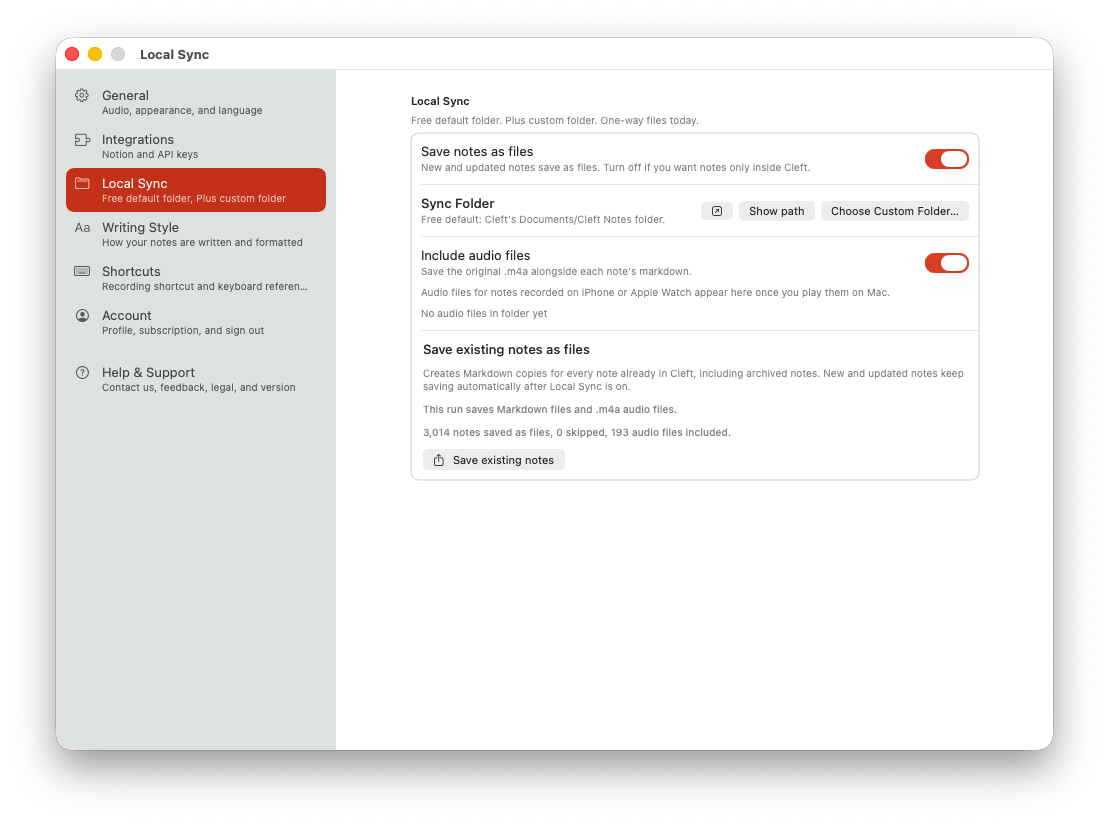
Local Sync settings on Mac
3
Use the folder
Click Use Folder on the alert. Cleft now has permission to write to the folder, and your notes start exporting instantly.
Use the reveal button on the Sync Folder row to open your active sync folder in Finder, or Show path to check the exact location. To change folder later, click Choose Custom Folder… again. The old folder stays untouched on disk.
Setup is the same on iPhone and iPad. Open Settings, go to Local Sync, and pick a folder:
Free users get Cleft’s Documents/Cleft Notes folder (out of the box, no configuration needed). On iPhone and iPad you’ll find it in the Files app under On My iPhone → Cleft (or On My iPad → Cleft).
Plus users tap Choose Custom Folder… to pick any folder on the device: an Obsidian vault “Store on this iPhone,” a Bear local notebook, or your own custom folder via Files app. On iPhone and iPad, Cleft writes to the exact folder you select.
iCloud Drive folders work but are best-effort; Files-app local folders are the recommended path. Once you’ve picked a folder, your notes start exporting immediately. Use Show path in Settings to check the active location.
Local Sync saves new and updated notes automatically once it is on. If you want Markdown files for notes that were already in Cleft, including archived notes, use Save existing notes as files in Settings.While the backfill runs, Cleft shows progress and keeps the regular Local Sync controls available. You can cancel the backfill without turning off automatic saving for new or updated notes.
The setup is the same for every app. Point Local Sync at the right folder. Each app page covers how the synced files render and any app-specific tips:
Obsidian. Frontmatter renders as Properties; wikilinks preserved on title renames; Dataview-friendly.
NotePlan. Inline tags clickable; project-folder workflow; calendar views are filename-driven.
Logseq. Point the picker at <your-graph>/pages/. Cleft notes appear as Logseq pages alongside the rest of the graph; inline #tags work natively.
Drafts. Drafts is database-backed, not folder-watched, so the Apple Shortcut is the recommended path. Local Sync works as a file-based fallback you can drag-drop or import.
Bear. Like Drafts, Bear stores notes in its own database, so it isn’t folder-watched. Local Sync + manual import works today; a native Bear URL-scheme integration is on the roadmap.
If you had Local Sync set up before v1.14.0, you’ll see a one-time sheet on Mac, iPhone, or iPad launch explaining what’s about to change on disk:
Filenames migrate from cleft_12431.md to 2026-05-06-meeting-with-jonny-12431.md. Migration is lazy and per-note. Each file gets renamed forward the next time that note is edited or re-exported. Notes you never touch again keep the old name indefinitely (frontmatter is correct either way).
Frontmatter gains cleft_id: as the first field and switches to lowercase English keys (title: not Title:). Any Dataview or Templater queries on the old Title key will need updating.
Audio companion export is available but stays off for you on this update. Turn it on from Settings if you want it. Defaulting it on for an existing vault inside iCloud Drive or Dropbox would create a sudden bandwidth spike on the next recording.
The sheet has a “Reveal Vault in Finder” button (Mac) so you can take a backup before the migration begins. On iPhone and iPad, navigate to your folder via Files for the same effect. The “Got it” button dismisses the sheet permanently.
Check Settings → Local Sync. Is the master “Save notes as files” toggle on? It wins over every other setting.
Look for the folder. Free users land in Cleft’s Documents/Cleft Notes folder, which is in the Files app under On My iPhone (or iPad) → Cleft. On Mac, Plus users with a custom folder land in a dedicated subfolder inside the parent you picked. On iPhone or iPad, Cleft writes to the folder you picked via the Files app.
On Mac, use the reveal control on the Sync Folder row to open the active folder in Finder, or Show path to check the exact location. On iPhone and iPad, use Show path, then open that location in Files.
Did the note actually save in Cleft? If it’s not in Cleft’s own list, this is a recording issue, not a sync issue.
On iPhone or iPad, is your folder inside iCloud Drive? iCloud Drive support is best-effort in this release. Try a local Files-app folder (Obsidian “Store on this iPhone”, Bear local notebook, or any local folder) for the most reliable path.
On Mac, folder on a network drive (SMB, Dropbox)? Those can be flaky with security-scoped bookmarks. Try a local folder first.
My German/French/Spanish title shows Titel: instead of title: in Obsidian PropertiesThis was a bug in builds before v1.14.0. Update Cleft, and re-exporting will fix the frontmatter. The file syncs on any change: title regen, tag edit, append, or sync arrival.Old filenames like cleft_12431.md are still in my vaultThat’s the pre-v1.14.0 format. Migration is lazy: files get renamed to {YYYY-MM-DD}-{slug}-{noteId}.md the next time that note is edited or re-exported. Notes you never touch again keep the old name indefinitely. To force migration of every file at once, bulk-regenerate summaries; there’s no one-shot sweep.Wikilinks broke after I retitled a noteObsidian’s external-rename heuristic is best-effort. On a slow disk, busy system, or iOS-only setup, renames can coalesce into delete+create instead of a pure rename. Recover the note ID via the cleft_id: field in frontmatter (grep "^cleft_id: 12431" *.md) and manually update the wikilink to the new filename.Markdown is appearing but the audio file is missing for some notesExpected for notes whose original recording has not downloaded to this device yet. Cross-device sync moves the note (text, metadata, summary), but the audio file is per-device-local. Play or download the note on this device and the next export catches it.Audio files aren’t appearing at all, only markdownCheck Settings → Local Sync. Is the audio toggle on? Default is on for new installs but off for users who had Local Sync set up before v1.14.0. Flip it on and your next note will export the audio.
Local Sync is available on iPhone and iPad as of v1.14.0. The setup is the same: Settings → Local Sync. Free users get Cleft’s Documents/Cleft Notes folder, Plus users can pick any folder on the device.File apps: The folder picker works with any folder in the Files app: Obsidian “Store on this iPhone” vaults, Bear local notebooks, or your own custom folder. iCloud Drive folders are best-effort in this release; Files-app local folders are the recommended path.Reveal location: iPhone and iPad can show the active path in Settings, but they cannot reveal an arbitrary security-scoped folder in Files the way Mac can reveal it in Finder. Navigate directly via Files instead.
One-way sync. Cleft → folder, never the reverse. Edits in your vault are overwritten on the next Cleft sync of that note.
No wikilinks in the template. Cleft 1.x has no data model for inter-note references; coming with the Studio engine in 2.0.
Persistent failures surface in Settings. Local Sync keeps retrying automatically. If the folder stays inaccessible, Cleft shows a Settings banner; custom-folder users can choose the folder again from there.
iCloud Drive on iOS/iPadOS is best-effort. Reads of not-yet-downloaded files and recovery after iOS clears cached content aren’t fully handled yet. Local Files-app folders are the recommended path for now.
Network and cloud-synced folders are best-effort on Mac too. Custom folders on SMB shares, Dropbox, or other network drives can lose access intermittently. Cleft retries on the next sync, but a local folder is the most reliable destination.
Automatic on every poll; Local Sync keeps retrying even after a banner appears
Paused after 3 failures (account-state errors)
User notification
Settings banner after persistent folder access failures
Toast on failure + Settings banner on persistent issues
Subscription gate
Folder picker is Plus-only; existing custom folders keep working if you lapse
Runtime check; lapses disable auto-send
Filesystem errors (security-scope wobble, briefly-locked files, full disk) are usually transient, so silent retry is the right answer. Notion failures are typically account-state (auth expired, database deleted), so a pause-and-notify is needed.
⌘I
{"docsConfig":{"theme":"maple","$schema":"https://mintlify.com/schema.json","name":"Cleft","colors":{"primary":"#d44426","light":"#F9B07C","dark":"#B35A17"},"logo":{"light":"https://mintcdn.com/cleft/klV7X4NHhF0a6iaZ/images/logos/cleft-logo-orange.png?fit=max\u0026auto=format\u0026n=klV7X4NHhF0a6iaZ\u0026q=85\u0026s=41cabeb54b81965ce60f374a49cbba18","dark":"https://mintcdn.com/cleft/klV7X4NHhF0a6iaZ/images/logos/cleft-logo-orange.png?fit=max\u0026auto=format\u0026n=klV7X4NHhF0a6iaZ\u0026q=85\u0026s=41cabeb54b81965ce60f374a49cbba18","href":"https://learn.cleftnotes.com/readme"},"favicon":"https://mintcdn.com/cleft/0236LR4ixz6pmh4K/images/logos/favicon.svg?fit=max\u0026auto=format\u0026n=0236LR4ixz6pmh4K\u0026q=85\u0026s=4db13c32d53e58ab3b0d2e8e20d7dd5d","navbar":{"links":[{"href":"https://cleftnotes.com/blog","label":"Blog"},{"href":"https://learn.cleftnotes.com/changelog","label":"Changelog"},{"href":"https://cleftnotes.com/roadmap","label":"Roadmap"}],"primary":{"type":"button","label":"Download","href":"https://apps.apple.com/us/app/cleft-for-verbal-thinkers/id6479458038"}},"footer":{"links":[{"header":"Product","items":[{"label":"Features","href":"https://learn.cleftnotes.com/user-guides/getting-started"},{"label":"Pricing","href":"https://learn.cleftnotes.com/user-guides/upgrade-to-plus"},{"label":"Changelog","href":"https://learn.cleftnotes.com/changelog"},{"label":"Roadmap","href":"https://cleftnotes.com/roadmap"}]},{"header":"Learn","items":[{"label":"Documentation","href":"https://learn.cleftnotes.com/user-guides/getting-started"},{"label":"Cookbook","href":"https://learn.cleftnotes.com/user-guides/the-cookbook"},{"label":"FAQ","href":"https://learn.cleftnotes.com/user-guides/faq"}]},{"header":"Company","items":[{"label":"About","href":"https://cleftnotes.com/about"},{"label":"Privacy","href":"https://cleftnotes.com/privacy"},{"label":"Terms","href":"https://cleftnotes.com/terms"}]},{"header":"Connect","items":[{"label":"Twitter","href":"https://x.com/Cleftai"},{"label":"LinkedIn","href":"https://www.linkedin.com/company/cleftai"},{"label":"Threads","href":"https://www.threads.net/@Cleft_HQ"},{"label":"Reddit","href":"https://reddit.com/r/cleft_hq"},{"label":"GitHub","href":"https://github.com/cleftai"}]}]},"search":{"prompt":"Search or ask about Cleft..."},"seo":{"indexing":"all"},"metadata":{"timestamp":false},"styling":{"latex":true},"navigation":{"pages":[]}},"deployment":{"deploymentMetadataValue":{"subdomain":"cleft","hasAudioNarration":false,"actualSubdomain":"cleft","customDomains":["learn.cleftnotes.com"],"gitSource":{"type":"github","owner":"cleftai","repo":"cleft-docs","deployBranch":"main","contentDirectory":"","isPrivate":true,"mountPath":"","label":""},"chroma":{"liveDeploymentHistoryId":"6a563e7ae32dcb5a800d0ebf","collectionId":"4fe304c0-0bc2-4263-b34c-e2463b1c66dc","schemaVersion":"v3"},"entitlements":{},"buildId":"6a79fe3f0b75af1c71421e2e:success","clientVersion":"0.0.3926","searchFilterCounts":[{"language":"default","tag":"Integrations","count":48},{"language":"default","tag":"Cookbook","count":28},{"language":"default","tag":"Shortcuts","count":23},{"language":"default","tag":"Apple","count":19},{"language":"default","tag":"Features","count":17},{"language":"default","tag":"Apple Shortcuts","count":14},{"language":"default","tag":"Zaps","count":13},{"language":"default","tag":"Support","count":8},{"language":"default","tag":"Platforms","count":8},{"language":"default","tag":"Speak Your Mind","count":6}]},"assistantConfig":{},"hasChatPermissions":false,"hasWebMcpPermissions":false,"toggles":[{"name":"kill-isr","enabled":true,"variant":{"name":"disabled","enabled":false,"feature_enabled":true},"impressionData":false},{"name":"agent-mintlify-slack","enabled":true,"variant":{"name":"disabled","enabled":false,"feature_enabled":true},"impressionData":false},{"name":"editor-v7-file-tree","enabled":true,"variant":{"name":"disabled","enabled":false,"feature_enabled":true},"impressionData":false},{"name":"agent-integrations-settings","enabled":true,"variant":{"name":"disabled","enabled":false,"feature_enabled":true},"impressionData":false},{"name":"automations-pr-grouping","enabled":true,"variant":{"name":"disabled","enabled":false,"feature_enabled":true},"impressionData":false},{"name":"custom-prefix","enabled":true,"variant":{"name":"disabled","enabled":false,"feature_enabled":true},"impressionData":false},{"name":"analytics-v7","enabled":true,"variant":{"name":"disabled","enabled":false,"feature_enabled":true},"impressionData":false},{"name":"user-flows-analytics","enabled":true,"variant":{"name":"disabled","enabled":false,"feature_enabled":true},"impressionData":false},{"name":"no-publish-flow","enabled":true,"variant":{"name":"disabled","enabled":false,"feature_enabled":true},"impressionData":false},{"name":"workos-onboarding","enabled":true,"variant":{"name":"disabled","enabled":false,"feature_enabled":true},"impressionData":false},{"name":"llms-txt-v2","enabled":true,"variant":{"name":"disabled","enabled":false,"feature_enabled":true},"impressionData":false},{"name":"pause-universal-search-reconcile","enabled":true,"variant":{"name":"disabled","enabled":false,"feature_enabled":true},"impressionData":false},{"name":"snapshot-serving-live","enabled":true,"variant":{"name":"disabled","enabled":false,"feature_enabled":true},"impressionData":false},{"name":"stripTemperatureMiddleware","enabled":true,"variant":{"name":"disabled","enabled":false,"feature_enabled":true},"impressionData":false},{"name":"per-site-search-delta","enabled":true,"variant":{"name":"disabled","enabled":false,"feature_enabled":true},"impressionData":false},{"name":"support-platform-pylon-zendesk","enabled":true,"variant":{"name":"disabled","enabled":false,"feature_enabled":true},"impressionData":false},{"name":"snapshot-serving","enabled":true,"variant":{"name":"disabled","enabled":false,"feature_enabled":true},"impressionData":false},{"name":"instant-rollback","enabled":true,"variant":{"name":"disabled","enabled":false,"feature_enabled":true},"impressionData":false},{"name":"granular-notifications-server","enabled":true,"variant":{"name":"disabled","enabled":false,"feature_enabled":true},"impressionData":false},{"name":"granular-notifications","enabled":true,"variant":{"name":"disabled","enabled":false,"feature_enabled":true},"impressionData":false},{"name":"editor-private-page-search","enabled":true,"variant":{"name":"disabled","enabled":false,"feature_enabled":true},"impressionData":false},{"name":"automations-fable","enabled":true,"variant":{"name":"disabled","enabled":false,"feature_enabled":true},"impressionData":false},{"name":"fixed-ai-action-pricing","enabled":true,"variant":{"name":"disabled","enabled":false,"feature_enabled":true},"impressionData":false},{"name":"automation-resolve-merge-conflict","enabled":true,"variant":{"name":"disabled","enabled":false,"feature_enabled":true},"impressionData":false},{"name":"scoped-publishing","enabled":true,"variant":{"name":"disabled","enabled":false,"feature_enabled":true},"impressionData":false},{"name":"mintql","enabled":true,"variant":{"name":"disabled","enabled":false,"feature_enabled":true},"impressionData":false},{"name":"page-level-analytics","enabled":true,"variant":{"name":"disabled","enabled":false,"feature_enabled":true},"impressionData":false},{"name":"editor-version-history-v2","enabled":true,"variant":{"name":"disabled","enabled":false,"feature_enabled":true},"impressionData":false},{"name":"editor-nav-generations","enabled":true,"variant":{"name":"disabled","enabled":false,"feature_enabled":true},"impressionData":false},{"name":"billing-page-v2","enabled":true,"variant":{"name":"disabled","enabled":false,"feature_enabled":true},"impressionData":false},{"name":"vite-origin","enabled":true,"variant":{"name":"disabled","enabled":false,"feature_enabled":true},"impressionData":false},{"name":"workspace-projects","enabled":true,"variant":{"name":"disabled","enabled":false,"feature_enabled":true},"impressionData":false},{"name":"assistant-v5","enabled":true,"variant":{"name":"disabled","enabled":false,"feature_enabled":true},"impressionData":false},{"name":"byok-sep-25","enabled":true,"variant":{"name":"disabled","enabled":false,"feature_enabled":true},"impressionData":false},{"name":"fork-pr-previews","enabled":true,"variant":{"name":"disabled","enabled":false,"feature_enabled":true},"impressionData":false},{"name":"revalidation-jwt","enabled":true,"variant":{"name":"disabled","enabled":false,"feature_enabled":true},"impressionData":false},{"name":"editor-agent-model-picker","enabled":true,"variant":{"name":"disabled","enabled":false,"feature_enabled":true},"impressionData":false},{"name":"hobby-abuse-scan","enabled":true,"variant":{"name":"disabled","enabled":false,"feature_enabled":true},"impressionData":false},{"name":"dashboard-inbox","enabled":true,"variant":{"name":"disabled","enabled":false,"feature_enabled":true},"impressionData":false}],"isAtlas":false,"googleFontsInlined":false},"customCss":[],"page":{"pagePath":"user-guides/integrations/local-sync/overview","slug":"/user-guides/integrations/local-sync/overview","pageMetadata":{"title":"Local Sync","description":"Save every Cleft note as a Markdown file on Mac, iPhone, or iPad. Works with Obsidian, NotePlan, Logseq, Drafts, or any folder","version":"v1.14.0","lastUpdated":"2026-06-22","href":"/user-guides/integrations/local-sync/overview"},"description":{"compiledSource":"\"use strict\";\nconst {jsx: _jsx} = arguments[0];\nconst {useMDXComponents: _provideComponents} = arguments[0];\nfunction _createMdxContent(props) {\n const _components = {\n p: \"p\",\n ..._provideComponents(),\n ...props.components\n };\n return _jsx(_components.p, {\n children: \"Save every Cleft note as a Markdown file on Mac, iPhone, or iPad. Works with Obsidian, NotePlan, Logseq, Drafts, or any folder\"\n });\n}\nfunction MDXContent(props = {}) {\n const {wrapper: MDXLayout} = {\n ..._provideComponents(),\n ...props.components\n };\n return MDXLayout ? _jsx(MDXLayout, {\n ...props,\n children: _jsx(_createMdxContent, {\n ...props\n })\n }) : _createMdxContent(props);\n}\nreturn {\n default: MDXContent\n};\n","frontmatter":{},"scope":{}},"pageType":"default","mdx":{"mdxSource":{"compiledSource":"\"use strict\";const{Fragment:_Fragment,jsx:_jsx,jsxs:_jsxs}=arguments[0];const{useMDXComponents:_provideComponents}=arguments[0];function _createMdxContent(props){const _components={a:`a`,code:`code`,em:`em`,li:`li`,ol:`ol`,p:`p`,pre:`pre`,span:`span`,strong:`strong`,tbody:`tbody`,td:`td`,th:`th`,thead:`thead`,tr:`tr`,ul:`ul`,..._provideComponents(),...props.components},{CodeBlock,Frame,Heading,Note,OptimizedImage,Step,Steps,Table,Tip,ZoomImage}=_components;if(!CodeBlock)_missingMdxReference(`CodeBlock`,true);if(!Frame)_missingMdxReference(`Frame`,true);if(!Heading)_missingMdxReference(`Heading`,true);if(!Note)_missingMdxReference(`Note`,true);if(!OptimizedImage)_missingMdxReference(`OptimizedImage`,true);if(!Step)_missingMdxReference(`Step`,true);if(!Steps)_missingMdxReference(`Steps`,true);if(!Table)_missingMdxReference(`Table`,true);if(!Tip)_missingMdxReference(`Tip`,true);if(!ZoomImage)_missingMdxReference(`ZoomImage`,true);return _jsxs(_Fragment,{children:[_jsx(Note,{children:_jsxs(_components.p,{children:[`Local Sync is `,_jsx(_components.strong,{children:`free for every Mac, iPhone, and iPad user`}),` as of v1.14.0. `,_jsx(_components.a,{href:`/user-guides/upgrade-to-plus`,children:`Cleft Plus`}),` lets you point exports at a custom folder: your Obsidian vault, a NotePlan project, a Logseq graph, or anywhere on disk. Free users get Cleft’s Documents/Cleft Notes folder.`]})}),`\n`,_jsx(Heading,{level:`2`,id:`what-is-local-sync`,children:`What is Local Sync?`}),`\n`,_jsxs(_components.p,{children:[`Local Sync writes every Cleft note to your device as a `,_jsx(_components.code,{children:`.md`}),` file (and, if you want, the original audio recording next to it as an `,_jsx(_components.code,{children:`.m4a`}),`). When you record a new note, edit a title, change a tag, or a note arrives via cross-device sync, the file on disk updates to match. Works on Mac, iPhone, and iPad.`]}),`\n`,_jsx(_components.p,{children:`Local Sync is an export. It adds copies to your folder without changing how Cleft otherwise stores, syncs, or processes your notes and recordings.`}),`\n`,_jsxs(_components.p,{children:[`This is `,_jsx(_components.strong,{children:`one-way sync`}),`: Cleft is the source of truth. Edits you make to the `,_jsx(_components.code,{children:`.md`}),` files in your vault are silently overwritten the next time Cleft syncs that note. Same contract as Notion auto-send.`]}),`\n`,_jsx(Heading,{level:`2`,id:`free-or-plus`,children:`Free or Plus`}),`\n`,_jsxs(Table,{children:[_jsx(_components.thead,{children:_jsxs(_components.tr,{children:[_jsx(_components.th,{}),_jsx(_components.th,{children:`Free`}),_jsx(_components.th,{children:`Plus`})]})}),_jsxs(_components.tbody,{children:[_jsxs(_components.tr,{children:[_jsx(_components.td,{children:`Local Sync`}),_jsx(_components.td,{children:`Default-on`}),_jsx(_components.td,{children:`Default-on`})]}),_jsxs(_components.tr,{children:[_jsx(_components.td,{children:`Where files land`}),_jsx(_components.td,{children:`Cleft’s Documents/Cleft Notes folder`}),_jsx(_components.td,{children:`Any folder you pick (Obsidian vault, NotePlan project, Logseq graph, etc.)`})]}),_jsxs(_components.tr,{children:[_jsx(_components.td,{children:`Audio companion (.m4a)`}),_jsx(_components.td,{children:`Free toggle`}),_jsx(_components.td,{children:`Free toggle`})]}),_jsxs(_components.tr,{children:[_jsx(_components.td,{children:`Turn it off`}),_jsx(_components.td,{children:`Free toggle`}),_jsx(_components.td,{children:`Free toggle`})]})]})]}),`\n`,_jsxs(_components.p,{children:[`Plus differentiates on `,_jsx(_components.strong,{children:`destination choice`}),`, not feature existence. Free users who want exports inside an Obsidian vault, NotePlan folder, or anywhere other than Cleft’s Documents/Cleft Notes folder upgrade to Plus to unlock the picker.`]}),`\n`,_jsx(Heading,{level:`2`,id:`first-launch`,children:`First launch`}),`\n`,_jsx(_components.p,{children:`The first time you open Cleft on Mac, iPhone, or iPad running v1.14.0 or later, a one-time sheet introduces Local Sync:`}),`\n`,_jsxs(_components.ul,{children:[`\n`,_jsxs(_components.li,{children:[_jsx(_components.strong,{children:`Use default folder.`}),` Accepts Cleft’s Documents/Cleft Notes folder. Nothing else to configure.`]}),`\n`,_jsxs(_components.li,{children:[_jsx(_components.strong,{children:`Choose folder.`}),` Pick your own folder (`,_jsx(_components.a,{href:`/user-guides/upgrade-to-plus`,children:`Plus`}),`). Routes to the picker if you’re already on Plus, or to the upgrade screen if you’re not.`]}),`\n`,_jsxs(_components.li,{children:[_jsx(_components.strong,{children:`Don’t save files.`}),` Turns Local Sync off entirely. You can change your mind any time in `,_jsx(_components.strong,{children:`Settings → Local Sync`}),`.`]}),`\n`]}),`\n`,_jsxs(_components.p,{children:[`If you choose either folder option, Cleft then asks whether to `,_jsx(_components.strong,{children:`Save existing notes as files`}),` or leave that for later. New and edited notes keep saving automatically either way.`]}),`\n`,_jsx(_components.p,{children:`You’ll only see the first-launch sheet once. After that, the master “Save notes as files” toggle in Settings is the off-switch.`}),`\n`,_jsx(`div`,{style:{maxWidth:`760px`,margin:`1.5rem auto`},children:_jsx(Frame,{caption:`First-run Local Sync prompt on Mac`,children:_jsx(ZoomImage,{children:_jsxs(`picture`,{children:[_jsx(`source`,{media:`(prefers-color-scheme: dark)`,srcSet:`/images/screenshots/local-sync/cleft-v1140-local-sync-first-run-macos-dark.png`}),_jsx(OptimizedImage,{src:`https://mintcdn.com/cleft/-fcF0J3R7wKUGT_B/images/screenshots/local-sync/cleft-v1140-local-sync-first-run-macos-light.png?fit=max\u0026auto=format\u0026n=-fcF0J3R7wKUGT_B\u0026q=85\u0026s=e26414a0687a0757bded2e3eb838c6d2`,alt:`Cleft macOS first-run Local Sync prompt asking whether to save portable copies of notes, with Use default folder, Choose folder, and Don't save files buttons.`,style:{display:`block`,width:`100%`,height:`auto`},\"data-og-width\":`1112`,width:`1112`,\"data-og-height\":`942`,height:`942`,\"data-path\":`images/screenshots/local-sync/cleft-v1140-local-sync-first-run-macos-light.png`,\"data-optimize\":`true`,\"data-opv\":`3`,srcset:`https://mintcdn.com/cleft/-fcF0J3R7wKUGT_B/images/screenshots/local-sync/cleft-v1140-local-sync-first-run-macos-light.png?w=280\u0026fit=max\u0026auto=format\u0026n=-fcF0J3R7wKUGT_B\u0026q=85\u0026s=8cf37103bfe116f937cd412481ba9c94 280w, https://mintcdn.com/cleft/-fcF0J3R7wKUGT_B/images/screenshots/local-sync/cleft-v1140-local-sync-first-run-macos-light.png?w=560\u0026fit=max\u0026auto=format\u0026n=-fcF0J3R7wKUGT_B\u0026q=85\u0026s=bf7420ac8c872daf3543df19201eaf2c 560w, https://mintcdn.com/cleft/-fcF0J3R7wKUGT_B/images/screenshots/local-sync/cleft-v1140-local-sync-first-run-macos-light.png?w=840\u0026fit=max\u0026auto=format\u0026n=-fcF0J3R7wKUGT_B\u0026q=85\u0026s=0323437a5fcadd0398261a711b5e9ba0 840w, https://mintcdn.com/cleft/-fcF0J3R7wKUGT_B/images/screenshots/local-sync/cleft-v1140-local-sync-first-run-macos-light.png?w=1100\u0026fit=max\u0026auto=format\u0026n=-fcF0J3R7wKUGT_B\u0026q=85\u0026s=31909bb2cbceae0c686732ae2d38940d 1100w, https://mintcdn.com/cleft/-fcF0J3R7wKUGT_B/images/screenshots/local-sync/cleft-v1140-local-sync-first-run-macos-light.png?w=1650\u0026fit=max\u0026auto=format\u0026n=-fcF0J3R7wKUGT_B\u0026q=85\u0026s=fa8a392814f4104d2e7950d6f2d9e379 1650w, https://mintcdn.com/cleft/-fcF0J3R7wKUGT_B/images/screenshots/local-sync/cleft-v1140-local-sync-first-run-macos-light.png?w=2500\u0026fit=max\u0026auto=format\u0026n=-fcF0J3R7wKUGT_B\u0026q=85\u0026s=c3007fd77618f4af91dc86fb1962fe1d 2500w`})]})})})}),`\n`,_jsx(Tip,{children:_jsxs(_components.p,{children:[_jsx(_components.strong,{children:`Already had Local Sync set up before v1.14.0?`}),` You’ll see a different sheet (a one-time migration heads-up) that explains what’s about to change on disk and lets you reveal your vault for a backup first. See `,_jsx(_components.a,{href:`#migrating-from-earlier-versions`,children:`Migrating from earlier versions`}),` below.`]})}),`\n`,_jsx(Heading,{level:`2`,id:`how-files-are-named`,children:`How files are named`}),`\n`,_jsx(_components.p,{children:`Filenames are readable in your vault sidebar:`}),`\n`,_jsx(CodeBlock,{numberOfLines:`2`,language:`text`,children:_jsx(_components.pre,{className:`shiki shiki-themes github-light-default dark-plus`,style:{backgroundColor:`#ffffff`,\"--shiki-dark-bg\":`#0B0C0E`,color:`#1f2328`,\"--shiki-dark\":`#D4D4D4`},language:`text`,children:_jsxs(_components.code,{language:`text`,numberOfLines:`2`,children:[_jsx(_components.span,{className:`line`,children:_jsx(_components.span,{children:`2026-05-06-meeting-with-jonny-12431.md`})}),`\n`,_jsx(_components.span,{className:`line`,children:_jsx(_components.span,{})})]})})}),`\n`,_jsxs(_components.ul,{children:[`\n`,_jsxs(_components.li,{children:[`The date is `,_jsx(_components.code,{children:`createdAt`}),` in UTC, so a 23:30-recorded note doesn’t drift across day boundaries on a different-timezone device.`]}),`\n`,_jsx(_components.li,{children:`The slug is a kebab-case ASCII-folded rendering of your title, capped at 60 characters.`}),`\n`,_jsx(_components.li,{children:`The trailing number is the immutable Cleft note ID. Multiple “untitled” notes never collide, and it’s how files get matched up when titles change.`}),`\n`]}),`\n`,_jsxs(_components.p,{children:[_jsx(_components.strong,{children:`Smart title renames.`}),` When your title changes (and the slug regenerates), Cleft renames the existing file `,_jsx(_components.em,{children:`before`}),` overwriting content. On recent Obsidian (1.4 and later) this usually lets Obsidian recognise the rename and keep your wikilinks pointing at the note. It stays best-effort, though: on a slow disk, a busy system, or an iOS-only Obsidian setup, the rename can register as a delete-and-create and break links. If that happens, recover the note by its `,_jsx(_components.code,{children:`cleft_id:`}),` (see Troubleshooting).`]}),`\n`,_jsx(Heading,{level:`2`,id:`what’s-inside-each-file`,children:`What’s inside each file`}),`\n`,_jsx(CodeBlock,{filename:``,numberOfLines:`13`,language:`markdown`,children:_jsx(_components.pre,{className:`shiki shiki-themes github-light-default dark-plus`,style:{backgroundColor:`#ffffff`,\"--shiki-dark-bg\":`#0B0C0E`,color:`#1f2328`,\"--shiki-dark\":`#D4D4D4`},language:`markdown`,children:_jsxs(_components.code,{language:`markdown`,numberOfLines:`13`,children:[_jsx(_components.span,{className:`line`,children:_jsx(_components.span,{style:{color:`#1F2328`,\"--shiki-dark\":`#D4D4D4`},children:`---`})}),`\n`,_jsxs(_components.span,{className:`line`,children:[_jsx(_components.span,{style:{color:`#116329`,\"--shiki-dark\":`#569CD6`},children:`cleft_id`}),_jsx(_components.span,{style:{color:`#1F2328`,\"--shiki-dark\":`#D4D4D4`},children:`: `}),_jsx(_components.span,{style:{color:`#0550AE`,\"--shiki-dark\":`#B5CEA8`},children:`12431`})]}),`\n`,_jsxs(_components.span,{className:`line`,children:[_jsx(_components.span,{style:{color:`#116329`,\"--shiki-dark\":`#569CD6`},children:`title`}),_jsx(_components.span,{style:{color:`#1F2328`,\"--shiki-dark\":`#D4D4D4`},children:`: `}),_jsx(_components.span,{style:{color:`#0A3069`,\"--shiki-dark\":`#CE9178`},children:`\"My note title\"`})]}),`\n`,_jsxs(_components.span,{className:`line`,children:[_jsx(_components.span,{style:{color:`#116329`,\"--shiki-dark\":`#569CD6`},children:`tags`}),_jsx(_components.span,{style:{color:`#1F2328`,\"--shiki-dark\":`#D4D4D4`},children:`: [`}),_jsx(_components.span,{style:{color:`#0A3069`,\"--shiki-dark\":`#CE9178`},children:`\"work\"`}),_jsx(_components.span,{style:{color:`#1F2328`,\"--shiki-dark\":`#D4D4D4`},children:`, `}),_jsx(_components.span,{style:{color:`#0A3069`,\"--shiki-dark\":`#CE9178`},children:`\"ideas\"`}),_jsx(_components.span,{style:{color:`#1F2328`,\"--shiki-dark\":`#D4D4D4`},children:`]`})]}),`\n`,_jsxs(_components.span,{className:`line`,children:[_jsx(_components.span,{style:{color:`#116329`,\"--shiki-dark\":`#569CD6`},children:`created`}),_jsx(_components.span,{style:{color:`#1F2328`,\"--shiki-dark\":`#D4D4D4`},children:`: `}),_jsx(_components.span,{style:{color:`#0550AE`,\"--shiki-dark\":`#D4D4D4`},children:`2026-05-06T10:30:00Z`})]}),`\n`,_jsxs(_components.span,{className:`line`,children:[_jsx(_components.span,{style:{color:`#116329`,\"--shiki-dark\":`#569CD6`},children:`updated`}),_jsx(_components.span,{style:{color:`#1F2328`,\"--shiki-dark\":`#D4D4D4`},children:`: `}),_jsx(_components.span,{style:{color:`#0550AE`,\"--shiki-dark\":`#D4D4D4`},children:`2026-05-06T11:15:00Z`})]}),`\n`,_jsxs(_components.span,{className:`line`,children:[_jsx(_components.span,{style:{color:`#116329`,\"--shiki-dark\":`#569CD6`},children:`source`}),_jsx(_components.span,{style:{color:`#1F2328`,\"--shiki-dark\":`#D4D4D4`},children:`: `}),_jsx(_components.span,{style:{color:`#0A3069`,\"--shiki-dark\":`#CE9178`},children:`cleft`})]}),`\n`,_jsxs(_components.span,{className:`line`,children:[_jsx(_components.span,{style:{color:`#116329`,\"--shiki-dark\":`#569CD6`},children:`transcript`}),_jsx(_components.span,{style:{color:`#1F2328`,\"--shiki-dark\":`#D4D4D4`},children:`: `}),_jsx(_components.span,{style:{color:`#0A3069`,\"--shiki-dark\":`#CE9178`},children:`\"full transcript on one line\"`})]}),`\n`,_jsx(_components.span,{className:`line`,children:_jsx(_components.span,{style:{color:`#1F2328`,\"--shiki-dark\":`#D4D4D4`},children:`---`})}),`\n`,_jsx(_components.span,{className:`line`}),`\n`,_jsx(_components.span,{className:`line`,children:_jsx(_components.span,{style:{color:`#1F2328`,\"--shiki-dark\":`#D4D4D4`},children:`AI-generated summary goes here.`})}),`\n`,_jsx(_components.span,{className:`line`}),`\n`,_jsx(_components.span,{className:`line`,children:_jsx(_components.span,{style:{color:`#1F2328`,\"--shiki-dark\":`#D4D4D4`},children:`#work #ideas`})}),`\n`]})})}),`\n`,_jsx(_components.p,{children:`All keys are lowercase English (never localised), so Obsidian Properties, NotePlan, and Dataview queries work the same regardless of your device language.`}),`\n`,_jsxs(Table,{children:[_jsx(_components.thead,{children:_jsxs(_components.tr,{children:[_jsx(_components.th,{children:`Field`}),_jsx(_components.th,{children:`What it is`})]})}),_jsxs(_components.tbody,{children:[_jsxs(_components.tr,{children:[_jsx(_components.td,{children:_jsx(_components.code,{children:`cleft_id`})}),_jsxs(_components.td,{children:[`Stable Cleft note ID. Namespaced under `,_jsx(_components.code,{children:`cleft_`}),` so it can’t collide with `,_jsx(_components.code,{children:`id:`}),` fields written by other tools (Readwise, Notion exports, Templater) sharing your vault. Grep `,_jsx(_components.code,{children:`^cleft_id: 12431`}),` to find a note by ID even after manual filename changes.`]})]}),_jsxs(_components.tr,{children:[_jsx(_components.td,{children:_jsx(_components.code,{children:`title`})}),_jsxs(_components.td,{children:[`Your note’s title (YAML-quoted, so titles with `,_jsx(_components.code,{children:`:`}),` or `,_jsx(_components.code,{children:`\"`}),` round-trip safely)`]})]}),_jsxs(_components.tr,{children:[_jsx(_components.td,{children:_jsx(_components.code,{children:`tags`})}),_jsx(_components.td,{children:`Array of tags as a YAML flow-sequence, clickable in Obsidian’s Properties panel`})]}),_jsxs(_components.tr,{children:[_jsx(_components.td,{children:_jsx(_components.code,{children:`created`})}),_jsx(_components.td,{children:`When the note was created (UTC, ISO 8601). For Dataview sorting, NotePlan calendar grouping, Drafts smart folders`})]}),_jsxs(_components.tr,{children:[_jsx(_components.td,{children:_jsx(_components.code,{children:`updated`})}),_jsx(_components.td,{children:`When the note was last changed (UTC, ISO 8601)`})]}),_jsxs(_components.tr,{children:[_jsx(_components.td,{children:_jsx(_components.code,{children:`source`})}),_jsxs(_components.td,{children:[`Always `,_jsx(_components.code,{children:`cleft`}),`. Filter for Cleft-originated notes via Dataview`]})]}),_jsxs(_components.tr,{children:[_jsx(_components.td,{children:_jsx(_components.code,{children:`transcript`})}),_jsx(_components.td,{children:`Full transcript on one line (newlines collapsed to spaces)`})]})]})]}),`\n`,_jsxs(_components.p,{children:[`Inline `,_jsx(_components.code,{children:`#hashtags`}),` after the body light up tag clickability in Obsidian preview, NotePlan search, and Drafts’ tag panel. None of those see the YAML `,_jsx(_components.code,{children:`tags:`}),` field as clickable.`]}),`\n`,_jsx(Tip,{children:_jsxs(_components.p,{children:[_jsx(_components.strong,{children:`Version-controlling your vault?`}),` Re-exporting an unchanged note produces a byte-identical file, so a `,_jsx(_components.code,{children:`git diff`}),` only flips lines for real changes. One caveat: when a note’s title changes, Cleft renames the file, which git records as a delete plus an add, so per-file history doesn’t carry across the rename. The note is still recoverable by its `,_jsx(_components.code,{children:`cleft_id:`}),`.`]})}),`\n`,_jsx(Heading,{level:`2`,id:`audio-companion`,children:`Audio companion`}),`\n`,_jsxs(_components.p,{children:[`A free toggle in `,_jsx(_components.strong,{children:`Settings → Local Sync`}),` controls whether Cleft writes the original audio recording next to each markdown file. Default is `,_jsx(_components.strong,{children:`on for new installs`}),`, `,_jsx(_components.strong,{children:`off for existing Local Sync users`}),` (so a vault inside iCloud Drive, Dropbox, or Obsidian Sync doesn’t suddenly start syncing hundreds of MB of audio).`]}),`\n`,_jsxs(_components.ul,{children:[`\n`,_jsxs(_components.li,{children:[`The exported `,_jsx(_components.code,{children:`.m4a`}),` is the recording `,_jsx(_components.strong,{children:`as it was made`}),`. No perceptual filters touch the file, and only AAC codec artefacts apply. Cleft does not re-encode to MP3, WAV, or FLAC.`]}),`\n`,_jsxs(_components.li,{children:[`Filename mirrors the markdown’s basename: `,_jsx(_components.code,{children:`2026-05-06-meeting-12431.m4a`}),` next to `,_jsx(_components.code,{children:`2026-05-06-meeting-12431.md`}),`. In Obsidian, an embed like `,_jsx(_components.code,{children:`![[2026-05-06-meeting-12431.m4a]]`}),` works without manual wiring.`]}),`\n`,_jsxs(_components.li,{children:[_jsx(_components.strong,{children:`Notes recorded on iPhone or Apple Watch:`}),` the markdown exports immediately, but the original audio is per-device-local. On a device (like your Mac) that does not yet have the recording, the audio sidecar is skipped until you download or play that note there. The note text, tags, and summary still sync as usual.`]}),`\n`,_jsxs(_components.li,{children:[_jsx(_components.strong,{children:`On-disk footprint`}),` is shown in Settings (file count and total size) so the cost is visible at a glance.`]}),`\n`]}),`\n`,_jsx(Heading,{level:`2`,id:`setup`,children:`Setup`}),`\n`,_jsx(Heading,{level:`3`,id:`macos-plus-pick-a-custom-folder`,children:`macOS (Plus: pick a custom folder)`}),`\n`,_jsx(_components.p,{children:`If you’re on Plus and want exports to land in your Obsidian vault, NotePlan project, Logseq graph, or anywhere other than the default folder:`}),`\n`,_jsxs(Steps,{children:[_jsx(Step,{title:`Open Cleft Settings`,children:_jsxs(_components.ol,{children:[`\n`,_jsxs(_components.li,{children:[`Open Cleft Settings (press `,_jsx(_components.code,{\"data-symbols\":`true`,children:`⌘ + ,`}),` or click the gear icon)`]}),`\n`,_jsxs(_components.li,{children:[`Go to `,_jsx(_components.strong,{children:`Local Sync`})]}),`\n`,_jsxs(_components.li,{children:[`Find `,_jsx(_components.strong,{children:`Local Sync`}),` and click `,_jsx(_components.strong,{children:`Choose Custom Folder…`})]}),`\n`]})}),_jsxs(Step,{title:`Select a parent folder`,children:[_jsx(_components.p,{children:`Pick the parent folder: your Obsidian vault root, NotePlan folder, Logseq graph root, or any folder you want Cleft to write into.`}),_jsx(_components.p,{children:`On Mac, Cleft creates a dedicated subfolder inside it so your Cleft exports stay separate and never collide with your existing file structure.`}),_jsx(`div`,{style:{maxWidth:`760px`,margin:`1rem auto 0`},children:_jsx(Frame,{caption:`Local Sync settings on Mac`,children:_jsx(ZoomImage,{children:_jsxs(`picture`,{children:[_jsx(`source`,{media:`(prefers-color-scheme: dark)`,srcSet:`/images/screenshots/settings/macos/cleft-v1140-settings-macos-local-sync-dark.png`}),_jsx(OptimizedImage,{src:`https://mintcdn.com/cleft/slm0qmOqBrADyp6Y/images/screenshots/settings/macos/cleft-v1140-settings-macos-local-sync-light.png?fit=max\u0026auto=format\u0026n=slm0qmOqBrADyp6Y\u0026q=85\u0026s=d0a71372d1832f365f797bf0f4c892ef`,alt:`Cleft macOS Local Sync settings showing Save notes as files, Sync Folder controls, Show path, Choose Custom Folder, Include audio files, and Save existing notes.`,style:{display:`block`,width:`100%`,height:`auto`},\"data-og-width\":`1109`,width:`1109`,\"data-og-height\":`824`,height:`824`,\"data-path\":`images/screenshots/settings/macos/cleft-v1140-settings-macos-local-sync-light.png`,\"data-optimize\":`true`,\"data-opv\":`3`,srcset:`https://mintcdn.com/cleft/slm0qmOqBrADyp6Y/images/screenshots/settings/macos/cleft-v1140-settings-macos-local-sync-light.png?w=280\u0026fit=max\u0026auto=format\u0026n=slm0qmOqBrADyp6Y\u0026q=85\u0026s=c335c1db0224c2347b52e139b7ce423b 280w, https://mintcdn.com/cleft/slm0qmOqBrADyp6Y/images/screenshots/settings/macos/cleft-v1140-settings-macos-local-sync-light.png?w=560\u0026fit=max\u0026auto=format\u0026n=slm0qmOqBrADyp6Y\u0026q=85\u0026s=1dae5b701e378c2c2d29f7f0c090999f 560w, https://mintcdn.com/cleft/slm0qmOqBrADyp6Y/images/screenshots/settings/macos/cleft-v1140-settings-macos-local-sync-light.png?w=840\u0026fit=max\u0026auto=format\u0026n=slm0qmOqBrADyp6Y\u0026q=85\u0026s=ccc5ddc92f6a264e00f357aa8472f34a 840w, https://mintcdn.com/cleft/slm0qmOqBrADyp6Y/images/screenshots/settings/macos/cleft-v1140-settings-macos-local-sync-light.png?w=1100\u0026fit=max\u0026auto=format\u0026n=slm0qmOqBrADyp6Y\u0026q=85\u0026s=1b29ff2480f8b4be58b94236853282d1 1100w, https://mintcdn.com/cleft/slm0qmOqBrADyp6Y/images/screenshots/settings/macos/cleft-v1140-settings-macos-local-sync-light.png?w=1650\u0026fit=max\u0026auto=format\u0026n=slm0qmOqBrADyp6Y\u0026q=85\u0026s=bdd65cfe8c2c4a4c9d045d051dceda2e 1650w, https://mintcdn.com/cleft/slm0qmOqBrADyp6Y/images/screenshots/settings/macos/cleft-v1140-settings-macos-local-sync-light.png?w=2500\u0026fit=max\u0026auto=format\u0026n=slm0qmOqBrADyp6Y\u0026q=85\u0026s=461d7923c6774d1c76b251365e93081b 2500w`})]})})})})]}),_jsxs(Step,{title:`Use the folder`,children:[_jsxs(_components.p,{children:[`Click `,_jsx(_components.strong,{children:`Use Folder`}),` on the alert. Cleft now has permission to write to the folder, and your notes start exporting instantly.`]}),_jsx(Tip,{children:_jsxs(_components.p,{children:[`Use the reveal button on the Sync Folder row to open your active sync folder in Finder, or `,_jsx(_components.strong,{children:`Show path`}),` to check the exact location. To change folder later, click `,_jsx(_components.strong,{children:`Choose Custom Folder…`}),` again. The old folder stays untouched on disk.`]})})]})]}),`\n`,_jsx(Heading,{level:`3`,id:`iphone-and-ipad`,children:`iPhone and iPad`}),`\n`,_jsxs(_components.p,{children:[`Setup is the same on iPhone and iPad. Open Settings, go to `,_jsx(_components.strong,{children:`Local Sync`}),`, and pick a folder:`]}),`\n`,_jsxs(_components.ul,{children:[`\n`,_jsxs(_components.li,{children:[_jsx(_components.strong,{children:`Free users`}),` get Cleft’s Documents/Cleft Notes folder (out of the box, no configuration needed). On iPhone and iPad you’ll find it in the Files app under `,_jsx(_components.strong,{children:`On My iPhone → Cleft`}),` (or `,_jsx(_components.strong,{children:`On My iPad → Cleft`}),`).`]}),`\n`,_jsxs(_components.li,{children:[_jsx(_components.strong,{children:`Plus users`}),` tap `,_jsx(_components.strong,{children:`Choose Custom Folder…`}),` to pick any folder on the device: an Obsidian vault “Store on this iPhone,” a Bear local notebook, or your own custom folder via Files app. On iPhone and iPad, Cleft writes to the exact folder you select.`]}),`\n`]}),`\n`,_jsxs(_components.p,{children:[`iCloud Drive folders work but are best-effort; Files-app local folders are the recommended path. Once you’ve picked a folder, your notes start exporting immediately. Use `,_jsx(_components.strong,{children:`Show path`}),` in Settings to check the active location.`]}),`\n`,_jsx(`div`,{style:{maxWidth:`360px`,margin:`1.5rem auto`},children:_jsx(Frame,{caption:`Local Sync settings on iPhone`,children:_jsx(ZoomImage,{children:_jsxs(`picture`,{children:[_jsx(`source`,{media:`(prefers-color-scheme: dark)`,srcSet:`/images/screenshots/settings/ios/cleft-v1140-settings-ios-local-sync-dark.png`}),_jsx(OptimizedImage,{src:`https://mintcdn.com/cleft/slm0qmOqBrADyp6Y/images/screenshots/settings/ios/cleft-v1140-settings-ios-local-sync-light.png?fit=max\u0026auto=format\u0026n=slm0qmOqBrADyp6Y\u0026q=85\u0026s=f61b1896023eba6f56476d5a103451ae`,alt:`Cleft iPhone Local Sync settings showing Save notes as files, Sync Folder, Show path, Include audio files, and Save existing notes.`,style:{display:`block`,width:`100%`,height:`auto`},\"data-og-width\":`1179`,width:`1179`,\"data-og-height\":`2556`,height:`2556`,\"data-path\":`images/screenshots/settings/ios/cleft-v1140-settings-ios-local-sync-light.png`,\"data-optimize\":`true`,\"data-opv\":`3`,srcset:`https://mintcdn.com/cleft/slm0qmOqBrADyp6Y/images/screenshots/settings/ios/cleft-v1140-settings-ios-local-sync-light.png?w=280\u0026fit=max\u0026auto=format\u0026n=slm0qmOqBrADyp6Y\u0026q=85\u0026s=f111bcb09c6f03ef30364dc5bd7cbbb6 280w, https://mintcdn.com/cleft/slm0qmOqBrADyp6Y/images/screenshots/settings/ios/cleft-v1140-settings-ios-local-sync-light.png?w=560\u0026fit=max\u0026auto=format\u0026n=slm0qmOqBrADyp6Y\u0026q=85\u0026s=28d1b685e5c84cdc1e1c0e722bc7a582 560w, https://mintcdn.com/cleft/slm0qmOqBrADyp6Y/images/screenshots/settings/ios/cleft-v1140-settings-ios-local-sync-light.png?w=840\u0026fit=max\u0026auto=format\u0026n=slm0qmOqBrADyp6Y\u0026q=85\u0026s=3621a2a3c4cd8450f10c518580334ff1 840w, https://mintcdn.com/cleft/slm0qmOqBrADyp6Y/images/screenshots/settings/ios/cleft-v1140-settings-ios-local-sync-light.png?w=1100\u0026fit=max\u0026auto=format\u0026n=slm0qmOqBrADyp6Y\u0026q=85\u0026s=ee7d9db681867b5ec264ea76b3bb1147 1100w, https://mintcdn.com/cleft/slm0qmOqBrADyp6Y/images/screenshots/settings/ios/cleft-v1140-settings-ios-local-sync-light.png?w=1650\u0026fit=max\u0026auto=format\u0026n=slm0qmOqBrADyp6Y\u0026q=85\u0026s=dbee1fe4c546fa2bd0ee0d86b8af36b0 1650w, https://mintcdn.com/cleft/slm0qmOqBrADyp6Y/images/screenshots/settings/ios/cleft-v1140-settings-ios-local-sync-light.png?w=2500\u0026fit=max\u0026auto=format\u0026n=slm0qmOqBrADyp6Y\u0026q=85\u0026s=f8e17eeebe4e8332031edf62cf066b6c 2500w`})]})})})}),`\n`,_jsx(Heading,{level:`2`,id:`save-existing-notes-as-files`,children:`Save existing notes as files`}),`\n`,_jsxs(_components.p,{children:[`Local Sync saves new and updated notes automatically once it is on. If you want Markdown files for notes that were already in Cleft, including archived notes, use `,_jsx(_components.strong,{children:`Save existing notes as files`}),` in Settings.`]}),`\n`,_jsx(_components.p,{children:`While the backfill runs, Cleft shows progress and keeps the regular Local Sync controls available. You can cancel the backfill without turning off automatic saving for new or updated notes.`}),`\n`,_jsx(`div`,{style:{maxWidth:`760px`,margin:`1.5rem auto`},children:_jsx(Frame,{caption:`Backfill existing notes from Local Sync settings`,children:_jsx(ZoomImage,{children:_jsxs(`picture`,{children:[_jsx(`source`,{media:`(prefers-color-scheme: dark)`,srcSet:`/images/screenshots/settings/macos/cleft-v1140-settings-macos-local-sync-progress-dark.png`}),_jsx(OptimizedImage,{src:`https://mintcdn.com/cleft/slm0qmOqBrADyp6Y/images/screenshots/settings/macos/cleft-v1140-settings-macos-local-sync-progress-light.png?fit=max\u0026auto=format\u0026n=slm0qmOqBrADyp6Y\u0026q=85\u0026s=7385f3ba863342ec224bfbefc34c06be`,alt:`Cleft macOS Local Sync settings while Save existing notes as files is running, showing a progress bar, note count, disabled Save existing notes button, and Cancel button.`,style:{display:`block`,width:`100%`,height:`auto`},\"data-og-width\":`1109`,width:`1109`,\"data-og-height\":`824`,height:`824`,\"data-path\":`images/screenshots/settings/macos/cleft-v1140-settings-macos-local-sync-progress-light.png`,\"data-optimize\":`true`,\"data-opv\":`3`,srcset:`https://mintcdn.com/cleft/slm0qmOqBrADyp6Y/images/screenshots/settings/macos/cleft-v1140-settings-macos-local-sync-progress-light.png?w=280\u0026fit=max\u0026auto=format\u0026n=slm0qmOqBrADyp6Y\u0026q=85\u0026s=f17ab5b74d7bec8ce6e09e214c11ef1c 280w, https://mintcdn.com/cleft/slm0qmOqBrADyp6Y/images/screenshots/settings/macos/cleft-v1140-settings-macos-local-sync-progress-light.png?w=560\u0026fit=max\u0026auto=format\u0026n=slm0qmOqBrADyp6Y\u0026q=85\u0026s=5ebe1669cd8d9be22ca290cdab6d12af 560w, https://mintcdn.com/cleft/slm0qmOqBrADyp6Y/images/screenshots/settings/macos/cleft-v1140-settings-macos-local-sync-progress-light.png?w=840\u0026fit=max\u0026auto=format\u0026n=slm0qmOqBrADyp6Y\u0026q=85\u0026s=ec2a00de1f8367d1c59717e684e07a37 840w, https://mintcdn.com/cleft/slm0qmOqBrADyp6Y/images/screenshots/settings/macos/cleft-v1140-settings-macos-local-sync-progress-light.png?w=1100\u0026fit=max\u0026auto=format\u0026n=slm0qmOqBrADyp6Y\u0026q=85\u0026s=a85a51202486cde1b8e7390c0a68dd7e 1100w, https://mintcdn.com/cleft/slm0qmOqBrADyp6Y/images/screenshots/settings/macos/cleft-v1140-settings-macos-local-sync-progress-light.png?w=1650\u0026fit=max\u0026auto=format\u0026n=slm0qmOqBrADyp6Y\u0026q=85\u0026s=001f1bce6bc0c9cc7113ae18856bce61 1650w, https://mintcdn.com/cleft/slm0qmOqBrADyp6Y/images/screenshots/settings/macos/cleft-v1140-settings-macos-local-sync-progress-light.png?w=2500\u0026fit=max\u0026auto=format\u0026n=slm0qmOqBrADyp6Y\u0026q=85\u0026s=8dbd5e6c4ad51c654ed77aa3228a5a0f 2500w`})]})})})}),`\n`,_jsx(Heading,{level:`2`,id:`app-specific-guides`,children:`App-specific guides`}),`\n`,_jsx(_components.p,{children:`The setup is the same for every app. Point Local Sync at the right folder. Each app page covers how the synced files render and any app-specific tips:`}),`\n`,_jsxs(_components.ul,{children:[`\n`,_jsxs(_components.li,{children:[_jsxs(_components.strong,{children:[_jsx(_components.a,{href:`/user-guides/integrations/obsidian/overview`,children:`Obsidian`}),`.`]}),` Frontmatter renders as Properties; wikilinks preserved on title renames; Dataview-friendly.`]}),`\n`,_jsxs(_components.li,{children:[_jsxs(_components.strong,{children:[_jsx(_components.a,{href:`/user-guides/integrations/noteplan/overview`,children:`NotePlan`}),`.`]}),` Inline tags clickable; project-folder workflow; calendar views are filename-driven.`]}),`\n`,_jsxs(_components.li,{children:[_jsxs(_components.strong,{children:[_jsx(_components.a,{href:`/user-guides/integrations/logseq/overview`,children:`Logseq`}),`.`]}),` Point the picker at `,_jsx(_components.code,{children:`\u003cyour-graph>/pages/`}),`. Cleft notes appear as Logseq pages alongside the rest of the graph; inline `,_jsx(_components.code,{children:`#tags`}),` work natively.`]}),`\n`,_jsxs(_components.li,{children:[_jsxs(_components.strong,{children:[_jsx(_components.a,{href:`/user-guides/integrations/drafts/overview`,children:`Drafts`}),`.`]}),` Drafts is database-backed, not folder-watched, so the `,_jsx(_components.a,{href:`/user-guides/integrations/drafts/shortcuts/cleft-voice-note-to-drafts-inbox`,children:`Apple Shortcut`}),` is the recommended path. Local Sync works as a file-based fallback you can drag-drop or import.`]}),`\n`,_jsxs(_components.li,{children:[_jsxs(_components.strong,{children:[_jsx(_components.a,{href:`/user-guides/integrations/bear/overview`,children:`Bear`}),`.`]}),` Like Drafts, Bear stores notes in its own database, so it isn’t folder-watched. Local Sync + manual import works today; a native Bear URL-scheme integration is on the roadmap.`]}),`\n`]}),`\n`,_jsx(Heading,{level:`2`,id:`migrating-from-earlier-versions`,children:`Migrating from earlier versions`}),`\n`,_jsx(_components.p,{children:`If you had Local Sync set up before v1.14.0, you’ll see a one-time sheet on Mac, iPhone, or iPad launch explaining what’s about to change on disk:`}),`\n`,_jsxs(_components.ol,{children:[`\n`,_jsxs(_components.li,{children:[_jsx(_components.strong,{children:`Filenames`}),` migrate from `,_jsx(_components.code,{children:`cleft_12431.md`}),` to `,_jsx(_components.code,{children:`2026-05-06-meeting-with-jonny-12431.md`}),`. Migration is `,_jsx(_components.strong,{children:`lazy and per-note`}),`. Each file gets renamed forward the next time that note is edited or re-exported. Notes you never touch again keep the old name indefinitely (frontmatter is correct either way).`]}),`\n`,_jsxs(_components.li,{children:[_jsx(_components.strong,{children:`Frontmatter`}),` gains `,_jsx(_components.code,{children:`cleft_id:`}),` as the first field and switches to lowercase English keys (`,_jsx(_components.code,{children:`title:`}),` not `,_jsx(_components.code,{children:`Title:`}),`). Any Dataview or Templater queries on the old `,_jsx(_components.code,{children:`Title`}),` key will need updating.`]}),`\n`,_jsxs(_components.li,{children:[_jsx(_components.strong,{children:`Audio companion`}),` export is available but stays `,_jsx(_components.strong,{children:`off`}),` for you on this update. Turn it on from Settings if you want it. Defaulting it on for an existing vault inside iCloud Drive or Dropbox would create a sudden bandwidth spike on the next recording.`]}),`\n`]}),`\n`,_jsx(_components.p,{children:`The sheet has a “Reveal Vault in Finder” button (Mac) so you can take a backup before the migration begins. On iPhone and iPad, navigate to your folder via Files for the same effect. The “Got it” button dismisses the sheet permanently.`}),`\n`,_jsx(Heading,{level:`2`,id:`troubleshooting`,children:`Troubleshooting`}),`\n`,_jsx(_components.p,{children:_jsx(_components.strong,{children:`Notes aren’t showing up`})}),`\n`,_jsxs(_components.ol,{children:[`\n`,_jsxs(_components.li,{children:[`Check `,_jsx(_components.strong,{children:`Settings → Local Sync`}),`. Is the master “Save notes as files” toggle on? It wins over every other setting.`]}),`\n`,_jsx(_components.li,{children:`Look for the folder. Free users land in Cleft’s Documents/Cleft Notes folder, which is in the Files app under On My iPhone (or iPad) → Cleft. On Mac, Plus users with a custom folder land in a dedicated subfolder inside the parent you picked. On iPhone or iPad, Cleft writes to the folder you picked via the Files app.`}),`\n`,_jsxs(_components.li,{children:[`On Mac, use the reveal control on the Sync Folder row to open the active folder in Finder, or `,_jsx(_components.strong,{children:`Show path`}),` to check the exact location. On iPhone and iPad, use `,_jsx(_components.strong,{children:`Show path`}),`, then open that location in Files.`]}),`\n`,_jsx(_components.li,{children:`Did the note actually save in Cleft? If it’s not in Cleft’s own list, this is a recording issue, not a sync issue.`}),`\n`,_jsx(_components.li,{children:`On iPhone or iPad, is your folder inside iCloud Drive? iCloud Drive support is best-effort in this release. Try a local Files-app folder (Obsidian “Store on this iPhone”, Bear local notebook, or any local folder) for the most reliable path.`}),`\n`,_jsx(_components.li,{children:`On Mac, folder on a network drive (SMB, Dropbox)? Those can be flaky with security-scoped bookmarks. Try a local folder first.`}),`\n`]}),`\n`,_jsx(_components.p,{children:_jsxs(_components.strong,{children:[`My German/French/Spanish title shows `,_jsx(_components.code,{children:`Titel:`}),` instead of `,_jsx(_components.code,{children:`title:`}),` in Obsidian Properties`]})}),`\n`,_jsx(_components.p,{children:`This was a bug in builds before v1.14.0. Update Cleft, and re-exporting will fix the frontmatter. The file syncs on any change: title regen, tag edit, append, or sync arrival.`}),`\n`,_jsx(_components.p,{children:_jsxs(_components.strong,{children:[`Old filenames like `,_jsx(_components.code,{children:`cleft_12431.md`}),` are still in my vault`]})}),`\n`,_jsxs(_components.p,{children:[`That’s the pre-v1.14.0 format. Migration is lazy: files get renamed to `,_jsx(_components.code,{children:`{YYYY-MM-DD}-{slug}-{noteId}.md`}),` the next time that note is edited or re-exported. Notes you never touch again keep the old name indefinitely. To force migration of every file at once, bulk-regenerate summaries; there’s no one-shot sweep.`]}),`\n`,_jsx(_components.p,{children:_jsx(_components.strong,{children:`Wikilinks broke after I retitled a note`})}),`\n`,_jsxs(_components.p,{children:[`Obsidian’s external-rename heuristic is best-effort. On a slow disk, busy system, or iOS-only setup, renames can coalesce into delete+create instead of a pure rename. Recover the note ID via the `,_jsx(_components.code,{children:`cleft_id:`}),` field in frontmatter (`,_jsx(_components.code,{children:`grep \"^cleft_id: 12431\" *.md`}),`) and manually update the wikilink to the new filename.`]}),`\n`,_jsx(_components.p,{children:_jsx(_components.strong,{children:`Markdown is appearing but the audio file is missing for some notes`})}),`\n`,_jsxs(_components.p,{children:[`Expected for notes whose original recording has not downloaded to this device yet. Cross-device sync moves the `,_jsx(_components.em,{children:`note`}),` (text, metadata, summary), but the audio file is per-device-local. Play or download the note on this device and the next export catches it.`]}),`\n`,_jsx(_components.p,{children:_jsx(_components.strong,{children:`Audio files aren’t appearing at all, only markdown`})}),`\n`,_jsxs(_components.p,{children:[`Check `,_jsx(_components.strong,{children:`Settings → Local Sync`}),`. Is the audio toggle on? Default is on for new installs but off for users who had Local Sync set up before v1.14.0. Flip it on and your next note will export the audio.`]}),`\n`,_jsx(Heading,{level:`2`,id:`ios-and-ipados`,children:`iOS and iPadOS`}),`\n`,_jsxs(_components.p,{children:[`Local Sync is available on iPhone and iPad as of v1.14.0. The setup is the same: `,_jsx(_components.strong,{children:`Settings → Local Sync`}),`. Free users get Cleft’s Documents/Cleft Notes folder, Plus users can pick any folder on the device.`]}),`\n`,_jsxs(_components.p,{children:[_jsx(_components.strong,{children:`File apps:`}),` The folder picker works with any folder in the Files app: Obsidian “Store on this iPhone” vaults, Bear local notebooks, or your own custom folder. `,_jsx(_components.strong,{children:`iCloud Drive folders are best-effort`}),` in this release; Files-app local folders are the recommended path.`]}),`\n`,_jsxs(_components.p,{children:[_jsx(_components.strong,{children:`Reveal location:`}),` iPhone and iPad can show the active path in Settings, but they cannot reveal an arbitrary security-scoped folder in Files the way Mac can reveal it in Finder. Navigate directly via Files instead.`]}),`\n`,_jsx(Heading,{level:`2`,id:`limitations`,children:`Limitations`}),`\n`,_jsxs(_components.ul,{children:[`\n`,_jsxs(_components.li,{children:[_jsx(_components.strong,{children:`One-way sync.`}),` Cleft → folder, never the reverse. Edits in your vault are overwritten on the next Cleft sync of that note.`]}),`\n`,_jsxs(_components.li,{children:[_jsx(_components.strong,{children:`No wikilinks in the template.`}),` Cleft 1.x has no data model for inter-note references; coming with the Studio engine in 2.0.`]}),`\n`,_jsxs(_components.li,{children:[_jsx(_components.strong,{children:`Persistent failures surface in Settings.`}),` Local Sync keeps retrying automatically. If the folder stays inaccessible, Cleft shows a Settings banner; custom-folder users can choose the folder again from there.`]}),`\n`,_jsxs(_components.li,{children:[_jsx(_components.strong,{children:`iCloud Drive on iOS/iPadOS is best-effort.`}),` Reads of not-yet-downloaded files and recovery after iOS clears cached content aren’t fully handled yet. Local Files-app folders are the recommended path for now.`]}),`\n`,_jsxs(_components.li,{children:[_jsx(_components.strong,{children:`Network and cloud-synced folders are best-effort on Mac too.`}),` Custom folders on SMB shares, Dropbox, or other network drives can lose access intermittently. Cleft retries on the next sync, but a local folder is the most reliable destination.`]}),`\n`]}),`\n`,_jsx(Heading,{level:`2`,id:`what’s-different-from-notion-auto-send`,children:`What’s different from Notion auto-send?`}),`\n`,_jsxs(Table,{children:[_jsx(_components.thead,{children:_jsxs(_components.tr,{children:[_jsx(_components.th,{children:`Aspect`}),_jsx(_components.th,{children:`Local Sync`}),_jsx(_components.th,{children:`Notion`})]})}),_jsxs(_components.tbody,{children:[_jsxs(_components.tr,{children:[_jsx(_components.td,{children:`Retry on failure`}),_jsx(_components.td,{children:`Automatic on every poll; Local Sync keeps retrying even after a banner appears`}),_jsx(_components.td,{children:`Paused after 3 failures (account-state errors)`})]}),_jsxs(_components.tr,{children:[_jsx(_components.td,{children:`User notification`}),_jsx(_components.td,{children:`Settings banner after persistent folder access failures`}),_jsx(_components.td,{children:`Toast on failure + Settings banner on persistent issues`})]}),_jsxs(_components.tr,{children:[_jsx(_components.td,{children:`Subscription gate`}),_jsx(_components.td,{children:`Folder picker is Plus-only; existing custom folders keep working if you lapse`}),_jsx(_components.td,{children:`Runtime check; lapses disable auto-send`})]})]})]}),`\n`,_jsx(_components.p,{children:`Filesystem errors (security-scope wobble, briefly-locked files, full disk) are usually transient, so silent retry is the right answer. Notion failures are typically account-state (auth expired, database deleted), so a pause-and-notify is needed.`})]})}function MDXContent(props={}){const{wrapper:MDXLayout}={..._provideComponents(),...props.components};return MDXLayout?_jsx(MDXLayout,{...props,children:_jsx(_createMdxContent,{...props})}):_createMdxContent(props)}return{default:MDXContent};function _missingMdxReference(id,component){throw new Error(`Expected `+(component?`component`:`object`)+\" `\"+id+\"` to be defined: you likely forgot to import, pass, or provide it.\")}","frontmatter":{},"scope":{"config":{},"pageMetadata":{"title":"Local Sync","description":"Save every Cleft note as a Markdown file on Mac, iPhone, or iPad. Works with Obsidian, NotePlan, Logseq, Drafts, or any folder","version":"v1.14.0","lastUpdated":"2026-06-22","href":"/user-guides/integrations/local-sync/overview"}}},"mdxSourceWithNoJs":null},"mdxExtracts":{"tableOfContents":[{"title":"What is Local Sync?","slug":"what-is-local-sync","depth":2,"children":[]},{"title":"Free or Plus","slug":"free-or-plus","depth":2,"children":[]},{"title":"First launch","slug":"first-launch","depth":2,"children":[]},{"title":"How files are named","slug":"how-files-are-named","depth":2,"children":[]},{"title":"What’s inside each file","slug":"what’s-inside-each-file","depth":2,"children":[]},{"title":"Audio companion","slug":"audio-companion","depth":2,"children":[]},{"title":"Setup","slug":"setup","depth":2,"children":[{"title":"macOS (Plus: pick a custom folder)","slug":"macos-plus-pick-a-custom-folder","depth":3,"children":[]},{"title":"iPhone and iPad","slug":"iphone-and-ipad","depth":3,"children":[]}]},{"title":"Save existing notes as files","slug":"save-existing-notes-as-files","depth":2,"children":[]},{"title":"App-specific guides","slug":"app-specific-guides","depth":2,"children":[]},{"title":"Migrating from earlier versions","slug":"migrating-from-earlier-versions","depth":2,"children":[]},{"title":"Troubleshooting","slug":"troubleshooting","depth":2,"children":[]},{"title":"iOS and iPadOS","slug":"ios-and-ipados","depth":2,"children":[]},{"title":"Limitations","slug":"limitations","depth":2,"children":[]},{"title":"What’s different from Notion auto-send?","slug":"what’s-different-from-notion-auto-send","depth":2,"children":[]}],"codeExamples":{}},"jsLinks":[],"subdomain":"cleft","siteName":"Cleft","title":"Local Sync - Cleft","navMaps":{"firstHrefInVersion":{},"firstHrefInLanguage":{}},"lastModified":"2026-06-22T21:18:50.165Z","originalFileLocation":"user-guides/integrations/local-sync/overview.mdx"},"headHtml":"\u003cscript data-mint-head>(function(){var d=document.documentElement,p=null;if(!p){try{p=localStorage.getItem(\"isDarkMode\")}catch(e){}if(p==='true')p='dark';else if(p==='false')p='light';if(p!=='light'\u0026\u0026p!=='dark'\u0026\u0026p!=='system')p=\"system\"}var r=p==='system'?(matchMedia(\"(prefers-color-scheme: dark)\").matches?'dark':'light'):p;d.classList.remove(r==='dark'?'light':'dark');d.classList.add(r);d.setAttribute(\"data-theme-preference\",p)})();\u003c/script>\u003cmeta data-mint-head name=\"description\" content=\"Save every Cleft note as a Markdown file on Mac, iPhone, or iPad. Works with Obsidian, NotePlan, Logseq, Drafts, or any folder\">\u003cmeta data-mint-head name=\"application-name\" content=\"Cleft\">\u003cmeta data-mint-head name=\"generator\" content=\"Mintlify\">\u003clink data-mint-head rel=\"icon\" type=\"image/png\" sizes=\"192x192\" href=\"/mintlify-assets/_mintlify/favicons/cleft/ueV8zytT4UoQUv24/_generated/favicon/android-chrome-192x192.png\" media=\"(prefers-color-scheme: light)\">\u003clink data-mint-head rel=\"apple-touch-icon\" type=\"image/png\" sizes=\"180x180\" href=\"/mintlify-assets/_mintlify/favicons/cleft/ueV8zytT4UoQUv24/_generated/favicon/apple-touch-icon.png\">\u003clink data-mint-head rel=\"icon\" type=\"image/png\" sizes=\"16x16\" href=\"/mintlify-assets/_mintlify/favicons/cleft/ueV8zytT4UoQUv24/_generated/favicon/favicon-16x16.png\" media=\"(prefers-color-scheme: light)\">\u003clink data-mint-head rel=\"icon\" type=\"image/png\" sizes=\"32x32\" href=\"/mintlify-assets/_mintlify/favicons/cleft/ueV8zytT4UoQUv24/_generated/favicon/favicon-32x32.png\" media=\"(prefers-color-scheme: light)\">\u003clink data-mint-head rel=\"shortcut icon\" type=\"image/x-icon\" href=\"/mintlify-assets/_mintlify/favicons/cleft/ueV8zytT4UoQUv24/_generated/favicon/favicon.ico\" media=\"(prefers-color-scheme: light)\">\u003clink data-mint-head rel=\"icon\" type=\"image/png\" sizes=\"192x192\" href=\"/mintlify-assets/_mintlify/favicons/cleft/ueV8zytT4UoQUv24/_generated/favicon-dark/android-chrome-192x192.png\" media=\"(prefers-color-scheme: dark)\">\u003clink data-mint-head rel=\"icon\" type=\"image/png\" sizes=\"16x16\" href=\"/mintlify-assets/_mintlify/favicons/cleft/ueV8zytT4UoQUv24/_generated/favicon-dark/favicon-16x16.png\" media=\"(prefers-color-scheme: dark)\">\u003clink data-mint-head rel=\"icon\" type=\"image/png\" sizes=\"32x32\" href=\"/mintlify-assets/_mintlify/favicons/cleft/ueV8zytT4UoQUv24/_generated/favicon-dark/favicon-32x32.png\" media=\"(prefers-color-scheme: dark)\">\u003clink data-mint-head rel=\"shortcut icon\" type=\"image/x-icon\" href=\"/mintlify-assets/_mintlify/favicons/cleft/ueV8zytT4UoQUv24/_generated/favicon-dark/favicon.ico\" media=\"(prefers-color-scheme: dark)\">\u003cmeta data-mint-head property=\"og:title\" content=\"Local Sync - Cleft\">\u003cmeta data-mint-head property=\"og:description\" content=\"Save every Cleft note as a Markdown file on Mac, iPhone, or iPad. Works with Obsidian, NotePlan, Logseq, Drafts, or any folder\">\u003cmeta data-mint-head property=\"og:site_name\" content=\"Cleft\">\u003cmeta data-mint-head property=\"og:url\" content=\"https://learn.cleftnotes.com/user-guides/integrations/local-sync/overview\">\u003cmeta data-mint-head property=\"og:type\" content=\"website\">\u003cmeta data-mint-head property=\"og:image\" content=\"https://cleft.mintlify.app/_mintlify/api/og/v2?division=Local+Sync\u0026amp;title=Local+Sync\u0026amp;description=Save+every+Cleft+note+as+a+Markdown+file+on+Mac%2C+iPhone%2C+or+iPad.+Works+with+Obsidian%2C+NotePlan%2C+Logseq%2C+Drafts%2C+or+any+folder\u0026amp;theme=7d0b23044dbda30c1c955a7e\u0026amp;signature=bb491e1c26a0d712febeef71dddc473a28c37d3b34de13aab278ed8026d966dc\">\u003cmeta data-mint-head property=\"og:image:width\" content=\"1200\">\u003cmeta data-mint-head property=\"og:image:height\" content=\"630\">\u003cmeta data-mint-head name=\"twitter:card\" content=\"summary_large_image\">\u003cmeta data-mint-head name=\"twitter:title\" content=\"Local Sync - Cleft\">\u003cmeta data-mint-head name=\"twitter:description\" content=\"Save every Cleft note as a Markdown file on Mac, iPhone, or iPad. Works with Obsidian, NotePlan, Logseq, Drafts, or any folder\">\u003cmeta data-mint-head name=\"twitter:image\" content=\"https://cleft.mintlify.app/_mintlify/api/og/v2?division=Local+Sync\u0026amp;title=Local+Sync\u0026amp;description=Save+every+Cleft+note+as+a+Markdown+file+on+Mac%2C+iPhone%2C+or+iPad.+Works+with+Obsidian%2C+NotePlan%2C+Logseq%2C+Drafts%2C+or+any+folder\u0026amp;theme=7d0b23044dbda30c1c955a7e\u0026amp;signature=bb491e1c26a0d712febeef71dddc473a28c37d3b34de13aab278ed8026d966dc\">\u003cmeta data-mint-head name=\"twitter:image:width\" content=\"1200\">\u003cmeta data-mint-head name=\"twitter:image:height\" content=\"630\">\u003cmeta data-mint-head name=\"msapplication-config\" content=\"/mintlify-assets/_mintlify/favicons/cleft/ueV8zytT4UoQUv24/_generated/favicon/browserconfig.xml\">\u003cmeta data-mint-head name=\"apple-mobile-web-app-title\" content=\"Cleft\">\u003cmeta data-mint-head name=\"msapplication-TileColor\" content=\"#d44426\">\u003clink data-mint-head rel=\"canonical\" href=\"https://learn.cleftnotes.com/user-guides/integrations/local-sync/overview\">\u003clink data-mint-head rel=\"alternate\" type=\"application/xml\" href=\"/sitemap.xml\">\u003clink data-mint-head rel=\"alternate\" type=\"text/markdown\" href=\"/user-guides/integrations/local-sync/overview.md\">\u003cscript data-mint-head type=\"application/ld+json\">{\"@context\":\"https://schema.org\",\"@graph\":[{\"@type\":\"Organization\",\"@id\":\"https://learn.cleftnotes.com/#organization\",\"name\":\"Cleft\",\"url\":\"https://learn.cleftnotes.com\",\"logo\":{\"@type\":\"ImageObject\",\"url\":\"https://mintcdn.com/cleft/klV7X4NHhF0a6iaZ/images/logos/cleft-logo-orange.png?fit=max\u0026auto=format\u0026n=klV7X4NHhF0a6iaZ\u0026q=85\u0026s=41cabeb54b81965ce60f374a49cbba18\"}},{\"@type\":\"WebSite\",\"@id\":\"https://learn.cleftnotes.com#website\",\"name\":\"Cleft\",\"url\":\"https://learn.cleftnotes.com\",\"publisher\":{\"@id\":\"https://learn.cleftnotes.com/#organization\"}},{\"@type\":\"WebPage\",\"@id\":\"https://learn.cleftnotes.com/user-guides/integrations/local-sync/overview#webpage\",\"url\":\"https://learn.cleftnotes.com/user-guides/integrations/local-sync/overview\",\"name\":\"Local Sync\",\"description\":\"Save every Cleft note as a Markdown file on Mac, iPhone, or iPad. Works with Obsidian, NotePlan, Logseq, Drafts, or any folder\",\"dateModified\":\"2026-06-22T21:18:50.165Z\",\"isPartOf\":{\"@id\":\"https://learn.cleftnotes.com#website\"},\"breadcrumb\":{\"@id\":\"https://learn.cleftnotes.com/user-guides/integrations/local-sync/overview#breadcrumb\"}},{\"@type\":\"BreadcrumbList\",\"@id\":\"https://learn.cleftnotes.com/user-guides/integrations/local-sync/overview#breadcrumb\",\"itemListElement\":[{\"@type\":\"ListItem\",\"position\":1,\"name\":\"Cleft\",\"item\":\"https://learn.cleftnotes.com\"},{\"@type\":\"ListItem\",\"position\":2,\"name\":\"Local Sync\",\"item\":\"https://learn.cleftnotes.com/user-guides/integrations/local-sync/overview\"}]},{\"@type\":[\"Article\",\"TechArticle\"],\"@id\":\"https://learn.cleftnotes.com/user-guides/integrations/local-sync/overview#article\",\"headline\":\"Local Sync\",\"name\":\"Local Sync\",\"description\":\"Save every Cleft note as a Markdown file on Mac, iPhone, or iPad. Works with Obsidian, NotePlan, Logseq, Drafts, or any folder\",\"url\":\"https://learn.cleftnotes.com/user-guides/integrations/local-sync/overview\",\"mainEntityOfPage\":{\"@id\":\"https://learn.cleftnotes.com/user-guides/integrations/local-sync/overview#webpage\"},\"dateModified\":\"2026-06-22T21:18:50.165Z\",\"publisher\":{\"@id\":\"https://learn.cleftnotes.com/#organization\"},\"isPartOf\":{\"@id\":\"https://learn.cleftnotes.com#website\"}}]}\u003c/script>\u003cscript data-mint-head type=\"application/ld+json\">{\"@context\":\"https://schema.org\",\"@type\":\"WebSite\",\"name\":\"Cleft\",\"creator\":{\"@type\":\"Organization\",\"name\":\"Mintlify\",\"url\":\"https://mintlify.com\"}}\u003c/script>","siteName":"Cleft","nav":{"global":null,"anchors":[{"anchor":"Speak Your Mind","icon":"microphone-lines","pages":[{"title":"Speak Your Mind","href":"/readme"}]},{"anchor":"What's New","icon":"bell","pages":[{"title":"What's New","href":"/changelog"}]},{"anchor":"Features","icon":"sparkles","pages":[{"title":"Features","href":"/user-guides/recording-voice-notes"}]},{"anchor":"Platforms","icon":"mobile","pages":[{"title":"Platforms","href":"/user-guides/ios"}]},{"anchor":"Integrations","icon":"plug","pages":[{"title":"Integrations","version":"v1.14.1","href":"/user-guides/integrations/overview"},{"group":"Apple","pages":[{"group":"Apple Notes","pages":[{"title":"Overview","version":"v1.14.0","href":"/user-guides/integrations/apple-notes/overview"},{"group":"Shortcuts","pages":[{"title":"Share Markdown as Rich Text Note","version":"v1.15.0","href":"/user-guides/integrations/apple-notes/shortcuts/share-markdown-as-rich-text-note"},{"title":"Markdown to Rich Text Note","version":"v1.15.0","href":"/user-guides/integrations/apple-notes/shortcuts/markdown-to-rich-text-note"},{"title":"Voice Note to Apple Notes Inbox","version":"v1.12","href":"/user-guides/integrations/apple-notes/shortcuts/voice-note-to-apple-notes-inbox"}]}]},{"group":"Apple Reminders","pages":[{"title":"Overview","version":"v1.14.0","href":"/user-guides/integrations/apple-reminders/overview"}]},{"group":"Apple Shortcuts","pages":[{"title":"Overview","version":"v1.14.0","href":"/user-guides/integrations/apple-shortcuts/overview"},{"group":"Shortcuts","pages":[{"title":"Share Markdown as Rich Text Note","version":"v1.15.0","href":"/user-guides/integrations/apple-shortcuts/shortcuts/share-markdown-as-rich-text-note"},{"title":"Markdown to Rich Text Note","version":"v1.15.0","href":"/user-guides/integrations/apple-shortcuts/shortcuts/markdown-to-rich-text-note"},{"title":"Voice Note to Apple Notes Inbox","version":"v1.12","href":"/user-guides/integrations/apple-shortcuts/shortcuts/voice-note-to-apple-notes-inbox"},{"title":"Cleft Voice Note to Drafts Inbox","version":"v1.12","href":"/user-guides/integrations/apple-shortcuts/shortcuts/cleft-voice-note-to-drafts-inbox"},{"title":"Cleft Voice Note to Daily Reflect Note","version":"v1.12","href":"/user-guides/integrations/apple-shortcuts/shortcuts/cleft-voice-note-to-daily-reflect-note"},{"title":"Voice Note to Craft Inbox","version":"v1.12","href":"/user-guides/integrations/apple-shortcuts/shortcuts/voice-note-to-craft-inbox"},{"title":"Email Integration","version":"v1.12","href":"/user-guides/integrations/apple-shortcuts/shortcuts/email-integration"},{"title":"Basic Conversation","version":"v1.12","href":"/user-guides/integrations/apple-shortcuts/shortcuts/basic-conversation"},{"title":"Advanced Search","version":"v1.12","href":"/user-guides/integrations/apple-shortcuts/shortcuts/advanced-search"},{"title":"Cleft Note to Perplexity","version":"v1.12","href":"/user-guides/integrations/apple-shortcuts/shortcuts/cleft-note-to-perplexity"},{"title":"Launch and Create Cleft Voice Note","version":"v1.12","href":"/user-guides/integrations/apple-shortcuts/shortcuts/launch-and-create-cleft-voice-note"},{"title":"Custom Instructions Voice Note","version":"v1.12","href":"/user-guides/integrations/apple-shortcuts/shortcuts/custom-instructions-voice-note"},{"title":"Morning Selfie Workflow","version":"v1.12","href":"/user-guides/integrations/apple-shortcuts/shortcuts/morning-selfie-workflow"}]}]}]},{"group":"Asana","pages":[{"group":"Zaps","pages":[{"title":"Create Asana tasks from Cleft notes","version":"v1.12","href":"/user-guides/integrations/asana/zaps/create-asana-tasks-from-cleft-notes"}]}]},{"group":"Bear","pages":[{"title":"Bear","version":"v1.14.0","href":"/user-guides/integrations/bear/overview"}]},{"group":"ChatGPT","pages":[{"group":"Shortcuts","pages":[{"title":"Basic Conversation","version":"v1.12","href":"/user-guides/integrations/chatgpt/shortcuts/basic-conversation"},{"title":"Advanced Search","version":"v1.12","href":"/user-guides/integrations/chatgpt/shortcuts/advanced-search"}]}]},{"group":"ClickUp","pages":[{"group":"Zaps","pages":[{"title":"Create ClickUp tasks from Cleft notes","version":"v1.12","href":"/user-guides/integrations/clickup/zaps/create-clickup-tasks-from-cleft-notes"}]}]},{"group":"Craft","pages":[{"group":"Shortcuts","pages":[{"title":"Voice Note to Craft Inbox","version":"v1.12","href":"/user-guides/integrations/craft/shortcuts/voice-note-to-craft-inbox"}]}]},{"group":"Drafts","pages":[{"title":"Drafts","version":"v1.14.0","href":"/user-guides/integrations/drafts/overview"},{"group":"Shortcuts","pages":[{"title":"Cleft Voice Note to Drafts Inbox","version":"v1.12","href":"/user-guides/integrations/drafts/shortcuts/cleft-voice-note-to-drafts-inbox"}]}]},{"group":"GitHub","pages":[{"group":"Zaps","pages":[{"title":"Create GitHub issues from Cleft notes","version":"v1.14.1","href":"/user-guides/integrations/github/zaps/create-github-issues-from-cleft-notes"}]}]},{"group":"Gmail","pages":[{"group":"Shortcuts","pages":[{"title":"Email Integration","version":"v1.12","href":"/user-guides/integrations/gmail/shortcuts/email-integration"}]}]},{"group":"Google Tasks","pages":[{"group":"Zaps","pages":[{"title":"Create Google Tasks from Cleft notes","version":"v1.12","href":"/user-guides/integrations/google-tasks/zaps/create-google-tasks-from-cleft-notes"}]}]},{"group":"Jira","pages":[{"group":"Zaps","pages":[{"title":"Create Jira issues from Cleft notes","description":"Automatically turn Cleft voice notes and checkboxes into tracked Jira issues for engineering teams","version":"v1.12","href":"/user-guides/integrations/jira/zaps/create-jira-issues-from-cleft-notes"}]}]},{"group":"Local Sync","pages":[{"title":"Local Sync","version":"v1.14.0","href":"/user-guides/integrations/local-sync/overview"}]},{"group":"Logseq","pages":[{"title":"Logseq","description":"Sync Cleft notes into a Logseq graph as readable Markdown pages","version":"v1.14.0","href":"/user-guides/integrations/logseq/overview"}]},{"group":"Microsoft To Do","pages":[{"group":"Zaps","pages":[{"title":"Create Microsoft To Do tasks from Cleft notes","version":"v1.12","href":"/user-guides/integrations/microsoft-to-do/zaps/create-microsoft-to-do-tasks-from-cleft-notes"}]}]},{"group":"NotePlan","pages":[{"title":"NotePlan","version":"v1.14.0","href":"/user-guides/integrations/noteplan/overview"}]},{"group":"Notion","pages":[{"group":"Native","pages":[{"title":"Notion","version":"v1.14.0","href":"/user-guides/integrations/notion/overview"}]},{"group":"Zaps","pages":[{"title":"Create Notion database items from Cleft notes","version":"v1.12","href":"/user-guides/integrations/notion/zaps/create-notion-database-items-from-cleft-notes"}]}]},{"group":"Bear","pages":[{"title":"Bear","version":"v1.14.0","href":"/user-guides/integrations/bear/overview"}]},{"group":"Logseq","pages":[{"title":"Logseq","version":"v1.14.0","href":"/user-guides/integrations/logseq/overview"}]},{"group":"Obsidian","pages":[{"title":"Obsidian","version":"v1.14.0","href":"/user-guides/integrations/obsidian/overview"}]},{"group":"Perplexity","pages":[{"group":"Shortcuts","pages":[{"title":"Cleft Note to Perplexity","version":"v1.12","href":"/user-guides/integrations/perplexity/shortcuts/cleft-note-to-perplexity"}]}]},{"group":"Reflect","pages":[{"group":"Zaps","pages":[{"title":"Add to Reflect daily notes from Cleft","version":"v1.14.1","href":"/user-guides/integrations/reflect/zaps/add-to-reflect-daily-notes-from-cleft"}]},{"group":"Shortcuts","pages":[{"title":"Cleft Voice Note to Daily Reflect Note","version":"v1.12","href":"/user-guides/integrations/reflect/shortcuts/cleft-voice-note-to-daily-reflect-note"}]}]},{"group":"Things","pages":[{"group":"Zaps","pages":[{"title":"Create Things todos from Cleft notes","version":"v1.12","href":"/user-guides/integrations/things/zaps/create-things-todos-from-cleft-notes"}]}]},{"group":"TickTick","pages":[{"group":"Zaps","pages":[{"title":"Create TickTick tasks from Cleft notes","version":"v1.12","href":"/user-guides/integrations/ticktick/zaps/create-ticktick-tasks-from-cleft-notes"}]}]},{"group":"Todoist","pages":[{"group":"Zaps","pages":[{"title":"Create Todoist tasks from Cleft notes","version":"v1.12","href":"/user-guides/integrations/todoist/zaps/create-todoist-tasks-from-cleft-notes"}]}]},{"group":"Trello","pages":[{"group":"Zaps","pages":[{"title":"Create Trello cards from Cleft notes","version":"v1.12","href":"/user-guides/integrations/trello/zaps/create-trello-cards-from-cleft-notes"}]}]},{"group":"WorkFlowy","pages":[{"group":"Zaps","pages":[{"title":"Create WorkFlowy bullets from Cleft notes","version":"v1.12","href":"/user-guides/integrations/workflowy/zaps/create-workflowy-bullets-from-cleft-notes"}]}]},{"group":"Zapier","pages":[{"title":"Zapier Template Library","version":"v1.14.1","href":"/user-guides/integrations/zapier/templates"},{"title":"Cleft Task Zaps","version":"v1.14.1","href":"/user-guides/integrations/task-zaps-overview"}]}]},{"anchor":"Support","icon":"handshake","pages":[{"title":"Support","href":"/user-guides/support"}]},{"anchor":"Cookbook","icon":"wand-magic-sparkles","pages":[{"title":"Cookbook","href":"/user-guides/the-cookbook"}]}]},"title":"Local Sync - Cleft","buildId":"dpl_9DauxEjb9gzCtcuhPQFbquJvx7FJ","deploymentId":"dpl_9DauxEjb9gzCtcuhPQFbquJvx7FJ","dynamics":["07c022d89b","a74be98ba7"],"chunks":["Frame-DpBmNN95.js","DynamicMarkdown-BY_qDhTn.js","zoom-image-lightbox-D4WcYaf4.js","PlusIcon-CwhPVjTe.js","lightbox-handle-r17bVUz3.js"]}