
In TestFlight
betaiosmacoswatchoscarplay
v1.14.0 - Make Cleft yours, from how it writes to where it saves
Make Cleft yours
Platforms: iOS (build 152) · macOS (build 166) · watchOS (build 152)Last updated: 2026-06-03Want these early? Join the beta.
Added
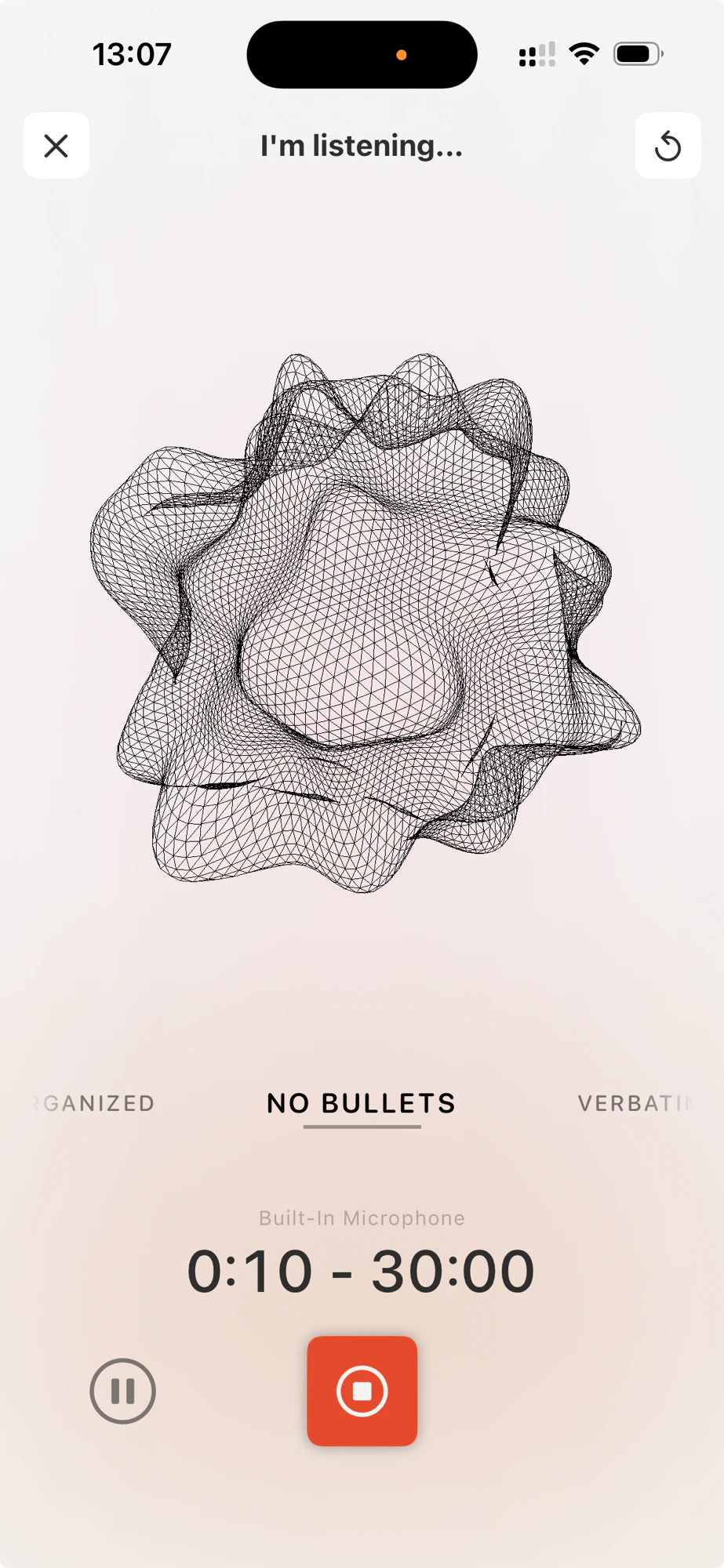
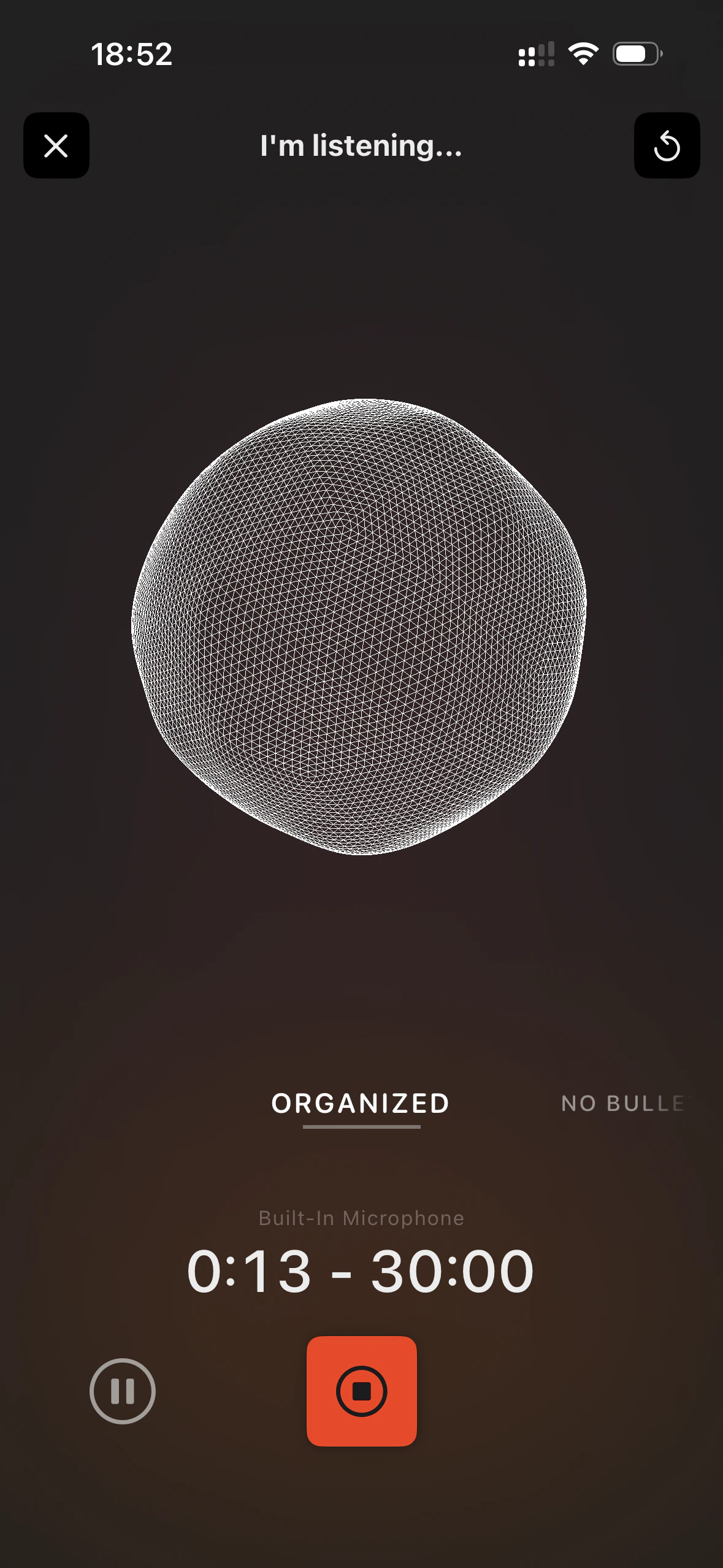
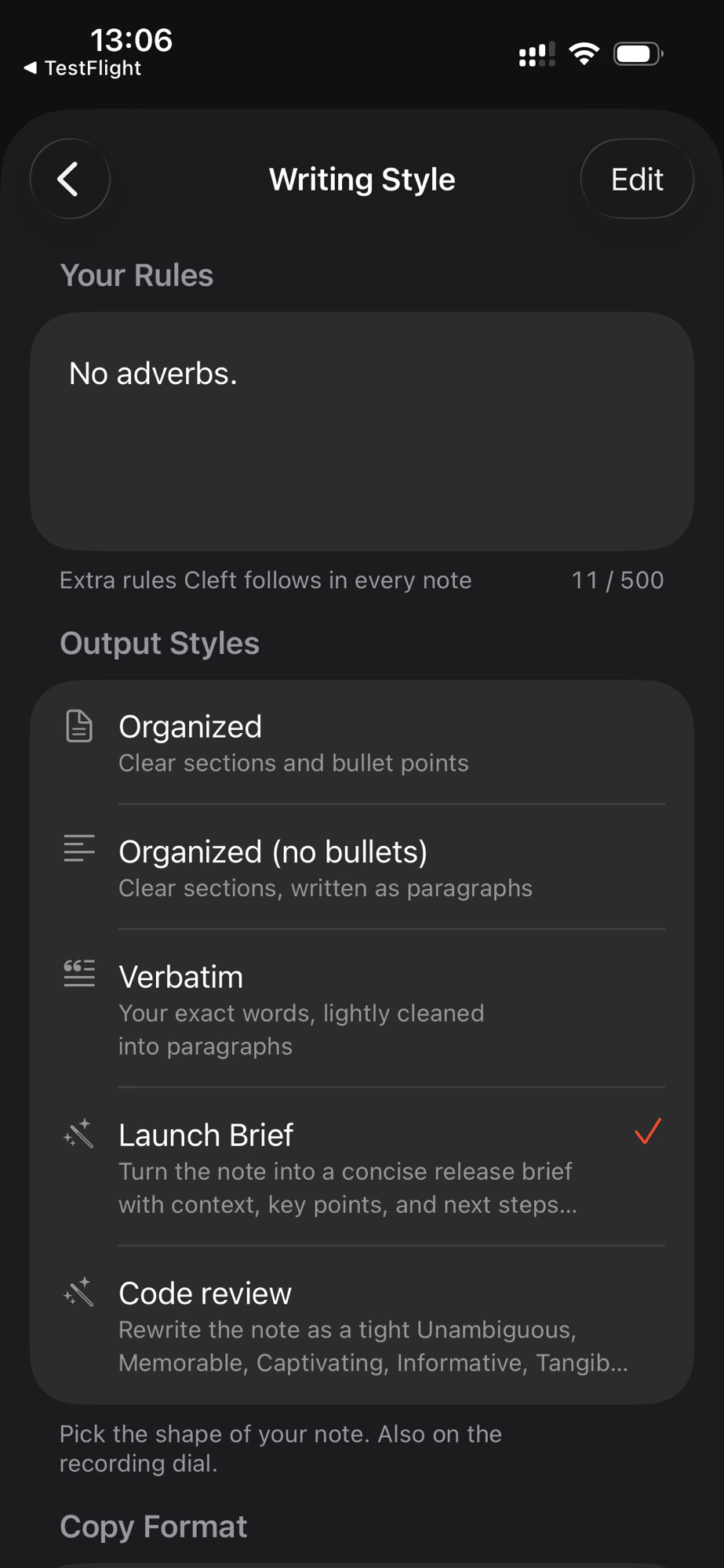
- Pick how Cleft writes each note, right from the recording screen. A style selector sits just above the record button. Swipe or scroll between Organized, Organized (no bullets), Verbatim, and any style you have made, then record. Your choice shapes that note and any note you regenerate later, and it lives in Settings too, under Output Styles.
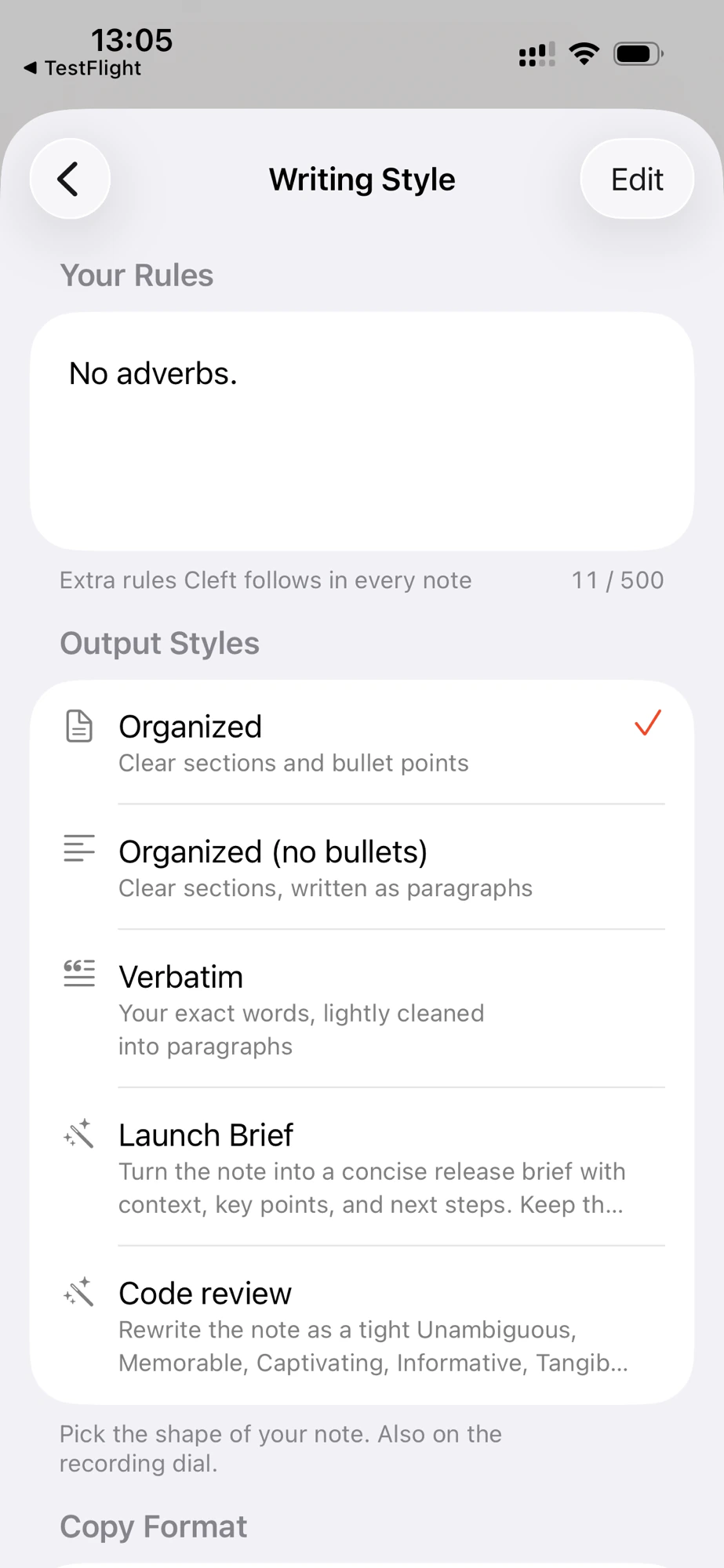
- Make your own note styles. With Plus, create named styles with their own instructions, then drag the whole list, built-in and custom together, into the order you like. That order follows you across your devices.
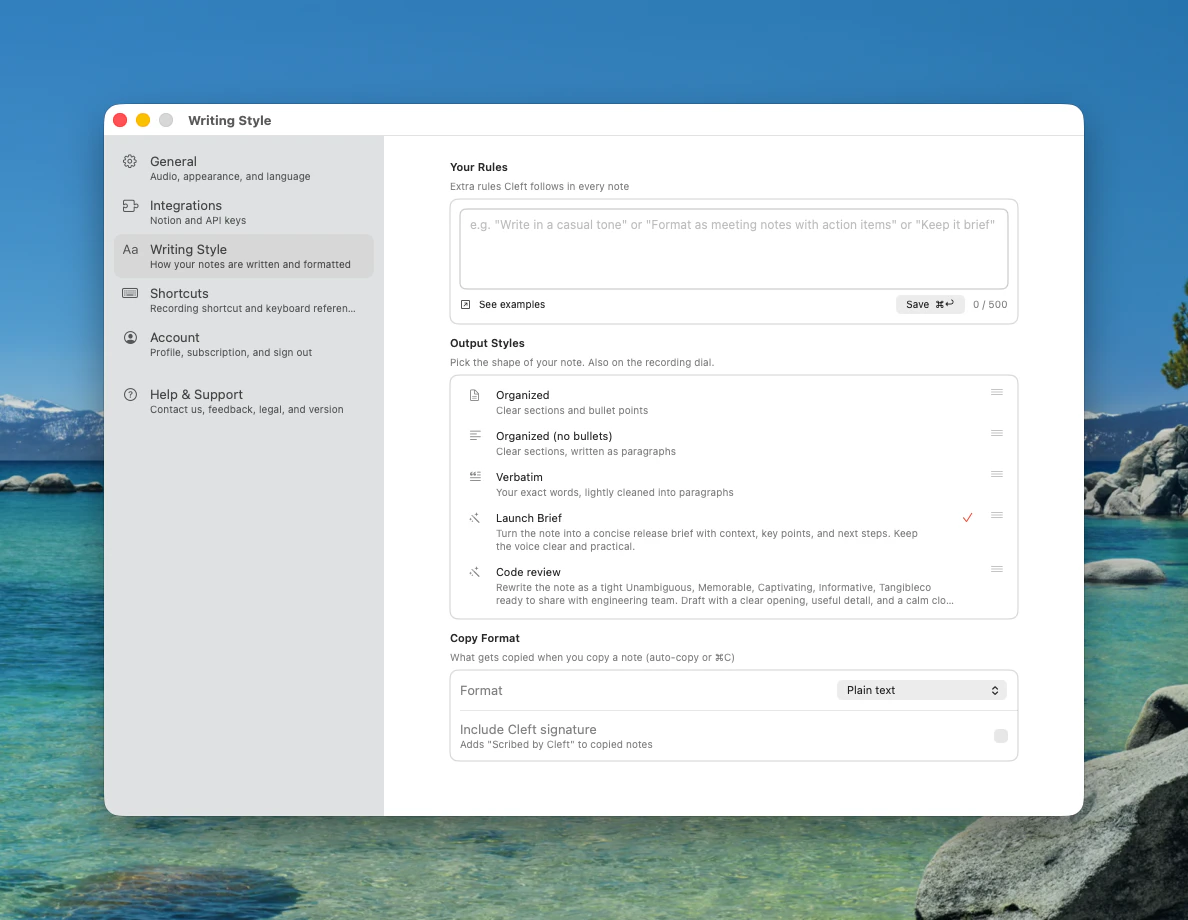
- Set a writing rule Cleft follows every time. Your Rules lets you add a standing instruction like “no adverbs” or “keep it brief”. Everyone gets up to 50 characters; Plus raises it to 500.
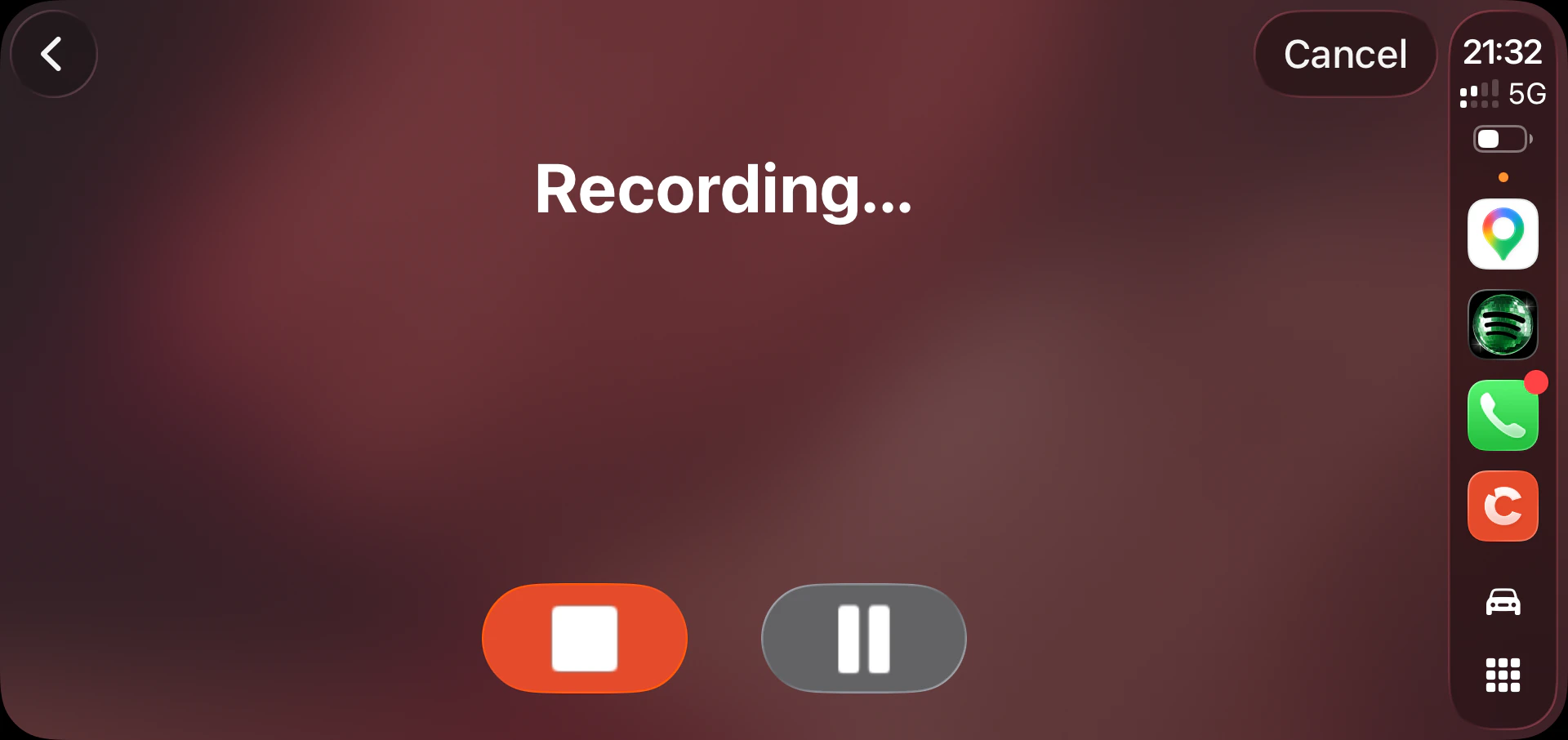
- Choose your note style on Apple Watch and in CarPlay. Dial through your styles with the Digital Crown as you record on your wrist, or tap one on the CarPlay home screen before you set off. Plus members see their own styles in both places.
- Cancel a CarPlay recording you didn’t mean to start. Stop and Pause now have a Cancel control beside them, so a recording you started by mistake is no longer one you have to finish.
- Pick your settings once, see them everywhere. Theme, output style, copy format, note language, your writing rules, Notion auto-send, and your save-to-device choices stay in sync across every iPhone, iPad, and Mac signed into the same iCloud account.
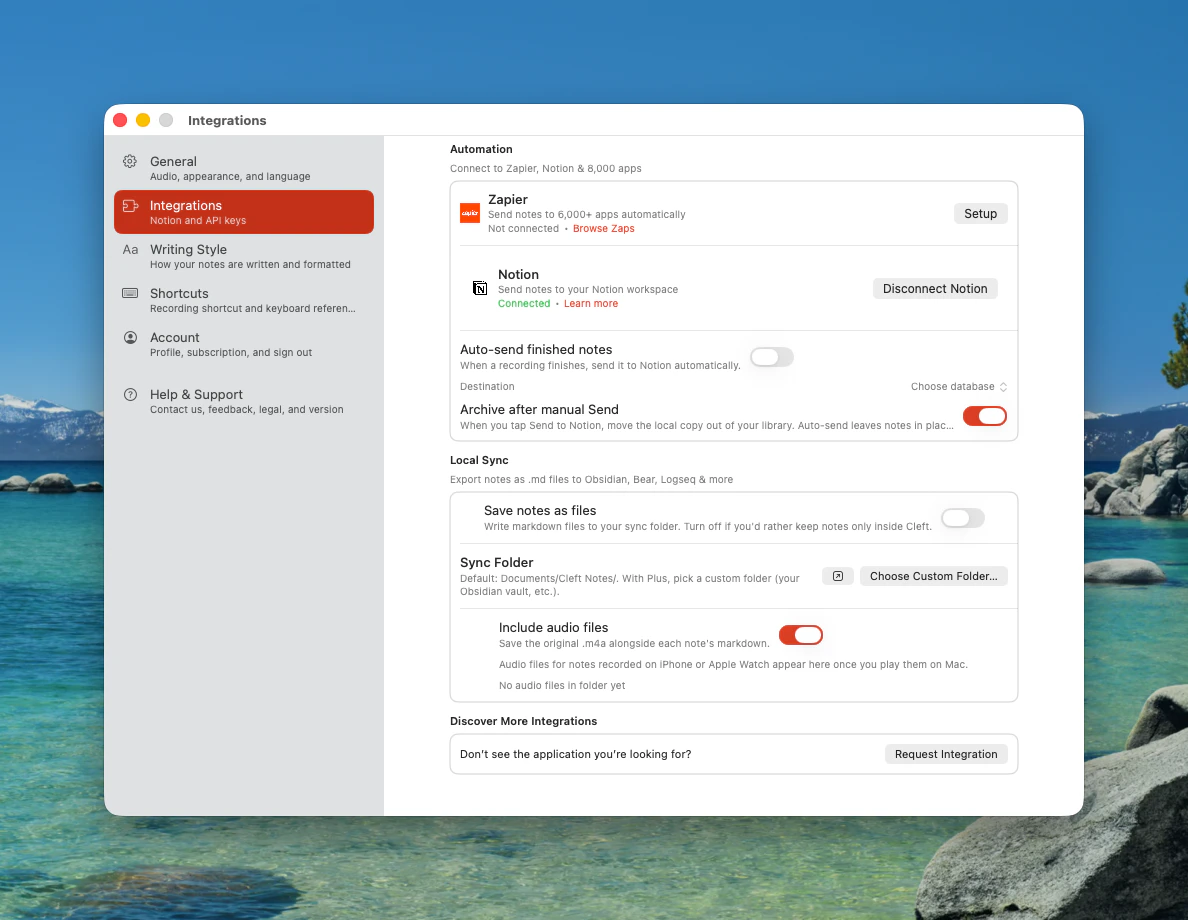
- Every note saves to your device automatically. Saving notes as files on your device is free on Mac, iPhone, and iPad. With Plus, pick the folder yourself: your Obsidian vault, a NotePlan project, a Logseq graph, a Drafts folder, or anywhere you like.
- Keep the voice memo next to the note. Turn on the audio toggle in Settings and the original recording saves right beside the written note. Tap to replay anytime.
- Find your Cleft notes alongside everything else you’ve written. Title, tags, and dates travel with every note, so Obsidian, NotePlan, and Drafts can sort and search them the same way they handle your other notes. A small “made by Cleft” tag inside each file shows where it came from.
- See where Cleft is saving on your Mac. A new Show in Finder button in Settings opens your active save folder in Finder. Works whether you’re on Free or Plus, and whether you stuck with the default folder or picked your own.
- See how much space your voice memos are using. Turn on the audio toggle and Settings shows the number of files and total size at a glance.
- Start recording from anywhere on your Mac with one keystroke. Press ⌥⌘N and Cleft starts recording, even when the app is hidden or in the background. Rebind it (or turn it off) in Settings → General → Shortcut.
Changed
- The output styles have clear, plain names. Three built-in styles, Organized, Organized (no bullets), and Verbatim, each with a one-line description so you know what you’re picking before you pick it.
- Writing settings are easier to tell apart. Your Rules holds the instructions Cleft follows every time; Output Styles picks the shape of the note. The two no longer blur together.
- Cleaner previews in your notes list. Each card shows a short, plain-text gist of the summary at a steady height, so the list scans at a glance. The full summary is still on the note itself.
- Spot your notes at a glance in your folder. Files are now named with the date and a few words from the note (like
2026-05-06-meeting-with-jonny) instead of a long ID number. Older notes get their new name the next time you edit them. - Already saving to a folder? You get a heads-up first. The next time you open Cleft on Mac, iPhone, or iPad, a one-time screen walks you through what’s about to change and offers to open your folder so you can back it up.
- Set up Local Sync right from your iPhone or iPad. Settings on iPhone and iPad now has the same Local Sync controls as Mac. Turn save-to-device on or off, pick your folder, flip the audio companion, and check your storage, all without reaching for your Mac.
- Find your way around Mac Settings at a glance. The sidebar now shows an icon, name, and one-line description for every section. Press ⌘1 through ⌘6 to jump straight to one. About opens from the Cleft Notes menu where Mac users expect it, and a new Help & Support section gathers bug reports, feature requests, What’s New, the roadmap, changelog, Terms, Privacy, Accessibility, and your version info in one place.
- See every keyboard shortcut Cleft responds to in one searchable list. A new Shortcuts section in Mac Settings (⌘4) lists every shortcut, with the global recording shortcut right at the top.
- Cleaner Sync Folder buttons in Settings. One “Choose Custom Folder…” button replaces the two confusing options, and the confirmation screens drop the internal folder name so it’s clearer what’s about to happen.
Fixed
- Apple Watch notes that got stuck now sync reliably. A recording whose transfer froze used to wait forever. Now it recovers on its own once your iPhone is in reach, a tap on Sync re-sends it, and long memos come across too. The watch tells you what’s really happening instead of leaving you on an endless spinner, and a duplicated or interrupted transfer still lands as exactly one note.
- Your edits stay on the right note. Switch to another note while a save is still finishing and your text, images, tags, and Notion actions stay with the note you actually edited, instead of landing on the one you just opened.
- Editing a note no longer drops keystrokes. Your typing stays put when an autosave lands while your cursor is still in the note.
- Text notes survive interruptions. Cleft keeps a draft as you write, so a note you’re typing isn’t lost if something cuts in.
- Open a brand-new note and see the real title right away. Tap into a note you just recorded and the title and transcript show up immediately, instead of flashing placeholder text first.
- Cancel a recording instantly on iPhone. Tap Cancel and you’re back to your notes right away, no half-second wait.
- Silence stays silent. A near-silent recording no longer turns into invented text. You get the Blank Audio note instead.
- A borrowed microphone comes back cleanly. If another app briefly takes the mic, Cleft resumes your recording and lets you know; if it can’t, it ends the recording with a clear reason.
- The first time you open Cleft, granting mic permission won’t slow it down. Step out to Settings, allow the microphone, come back. Cleft picks up where it left off.
- Grant mic permission on Mac and land straight in the recording view. The first time you say yes to the microphone on Mac, Cleft now opens the recording screen right away instead of starting a silent recording with no UI.
- Search snippets read right in emoji-rich notes. Note cards show accurate previews even when your match comes after an emoji.
- The sync icon only shows when a note is actually waiting. Notes that are simply processing no longer wear the same warning as offline or stuck ones.
- Queued notes no longer turn into duplicates. A note you saved offline collapses back to one once the server confirms it, even after a retry or a weak connection.
- Your sync folder shows its real name on iPhone and iPad. Settings now displays the folder you picked in Files (like “Obsidian Vault”) instead of a long internal path that looked broken.
- Cleft tells you if saving to your folder keeps failing. A clear warning in Settings, instead of leaving you to assume your files are landing.
- Your notes look right in any language. Whether you use Cleft in German, Japanese, English, or anything else, Obsidian shows your title and tags correctly.
- Your voice memo saves alongside every new note, right away. Turn on the audio toggle and the recording lands beside the written note the moment you save, not later.
- Notion errors point you straight to the fix. Every Notion error message now names the exact place to go (Settings → Integrations) instead of just saying “check Settings”.
- Plus on Watch and widgets the second you open them. Apple Watch recording and your Home and Lock Screen widgets know you’re a Plus subscriber right away, no brief flicker of the Free experience first.
- Your theme follows you across devices, too. Pick light or dark mode on one device and every iPhone, iPad, and Mac signed into the same iCloud account matches, alongside the rest of your settings.
- Symbols like
<and>stay readable when you share a note. Send a note through Shortcuts or the Share Sheet and angle brackets now arrive intact, instead of turning into a garbled&lt;in the receiving app. - One Save shortcut on Mac, doing the right thing. ⌘Return now saves whatever you’re working on, an open note, a text recording, or your writing style, instead of showing two rows in the File menu.
- Your password manager fills your email at sign-in. iCloud Keychain and other password managers now offer the address you saved instead of making you retype it.
- Entering your sign-in code is more forgiving. Delete from or paste a code into any of the six boxes without focus getting stuck in the wrong place.
Cleft on every device you own
Your notes go with you between iPhone, iPad, Mac, and Android. Each device has its own full copy. Sync keeps them all the same.Public alpha by June 2026. Cleft Plus subscribers get early access through TestFlight on iOS and Mac, and the open testing track on Android.
What’s coming
- Start on one device, finish on another. Begin a recording on your iPhone, keep going on your Mac. Each device has its own full copy of every note, so you can keep working even without internet. They sync back up the moment you reconnect.
- Cleft on Android. A real Android app, not a website wrapper, with the same recording and save-to-your-device features Mac and iPhone get. Transcription happens on your phone, not in the cloud. Your Plus subscription works on every device you use.
Join the beta
The TestFlight beta is a Cleft Plus perk. Apple’s TestFlight rules mean we can’t move free users in and out of the beta build without breaking their notes, so we keep it Plus-only. It’s also one of the ways we say thanks for backing the app. If you’re a Plus subscriber, email [email protected] with subject Beta and your Apple ID. We’ll send a TestFlight invite. You’ll see new features a week or two before they hit the App Store.How we ship
We work in weekly sprints. Every release goes through testing and QA to minimise bugs reaching you, but it’s software, so things slip through. When they do, let us know right away. It’s all the small things. 🎸Share your feedback
We read every piece of feedback. “A preference for this would be sweet” or “this breaks my whole workflow, please fix”. We want to hear it. That’s how Cleft gets better. If something looks odd, doesn’t work like you’d expect, or just feels wrong for how you use the app, tell us. We’re building this together.Report an Issue
Found something broken? Let us know
Suggest a Feature
Got an idea? Send it our way