
How Transcription Works
- When you stop recording, Cleft transcribes your audio locally on your device using the Whisper model
- You see live progress as your words are transcribed in real time
- The transcript is then processed into your finished note based on your Writing Style
Editing a Transcript
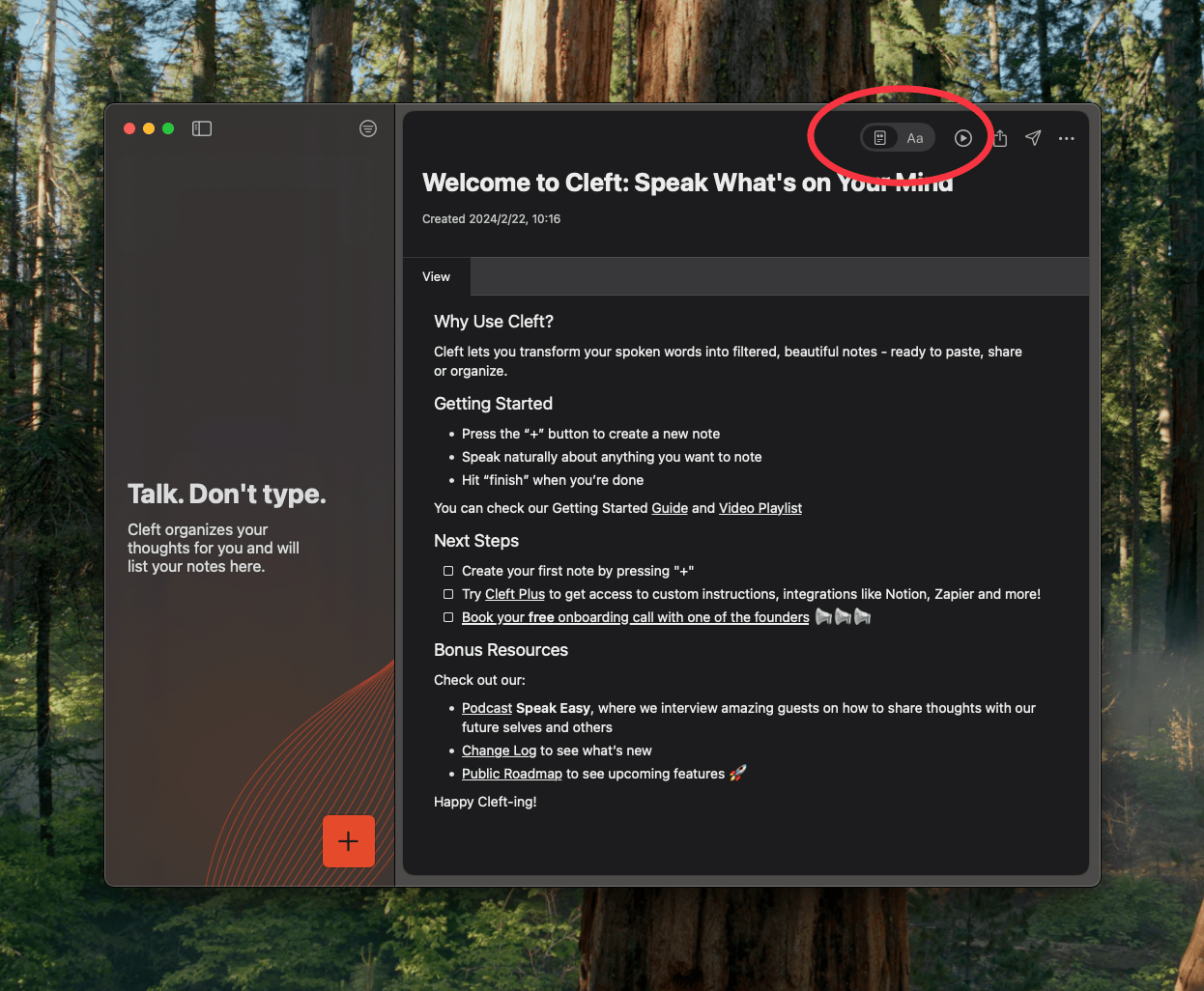
Transcript not quite right? Edit it directly:- Tap the Transcript toggle to view the raw text
- Edit. Fix names, technical terms, or anything the transcription got wrong
- When you’re done, choose to regenerate:
- Transcript only. Updates the transcript text
- Transcript and summary. Rewrites your note based on the corrected transcript