
Mac
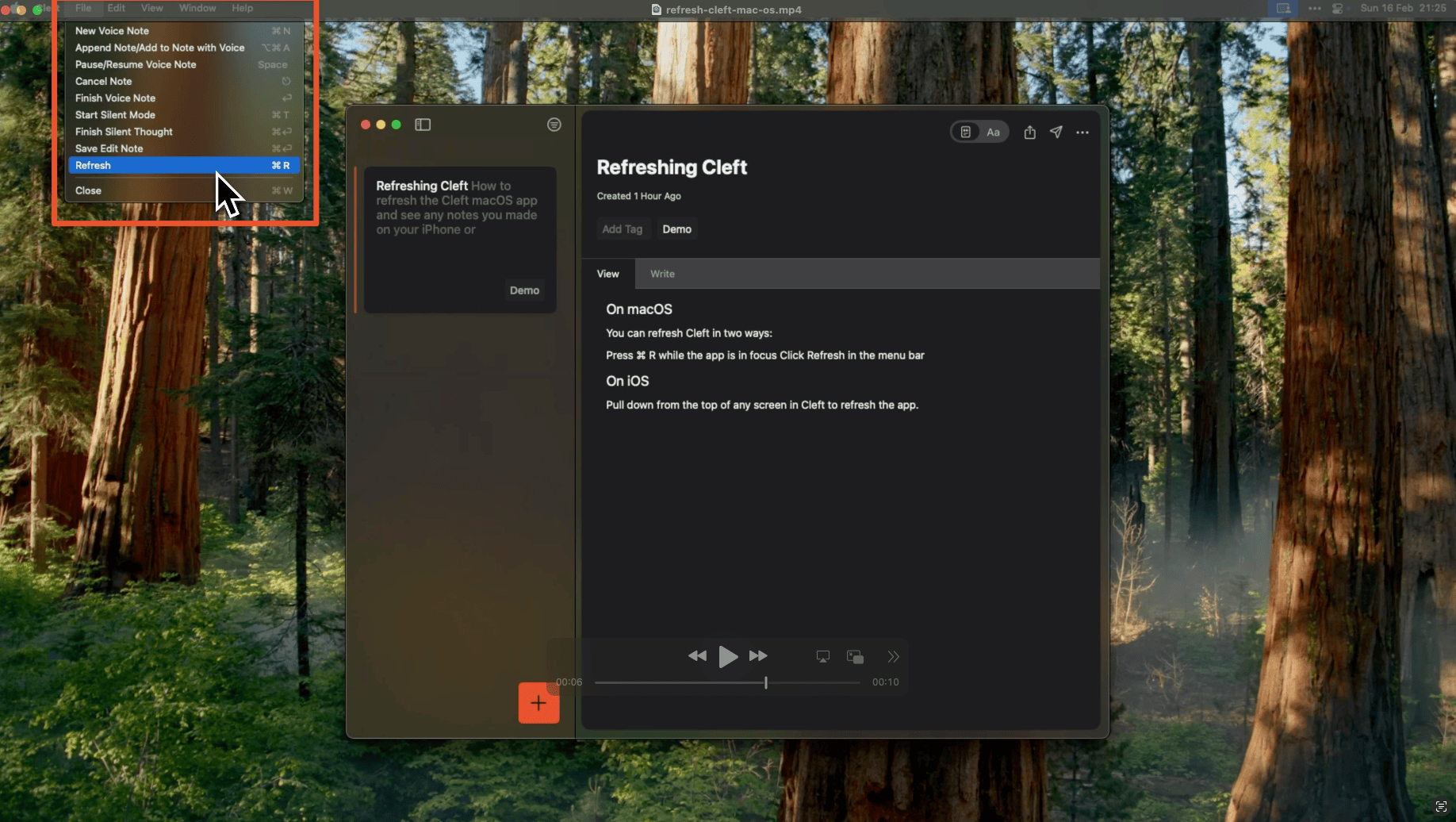
Press⌘ + R or click the sync icon in the toolbar.
iPhone and iPad
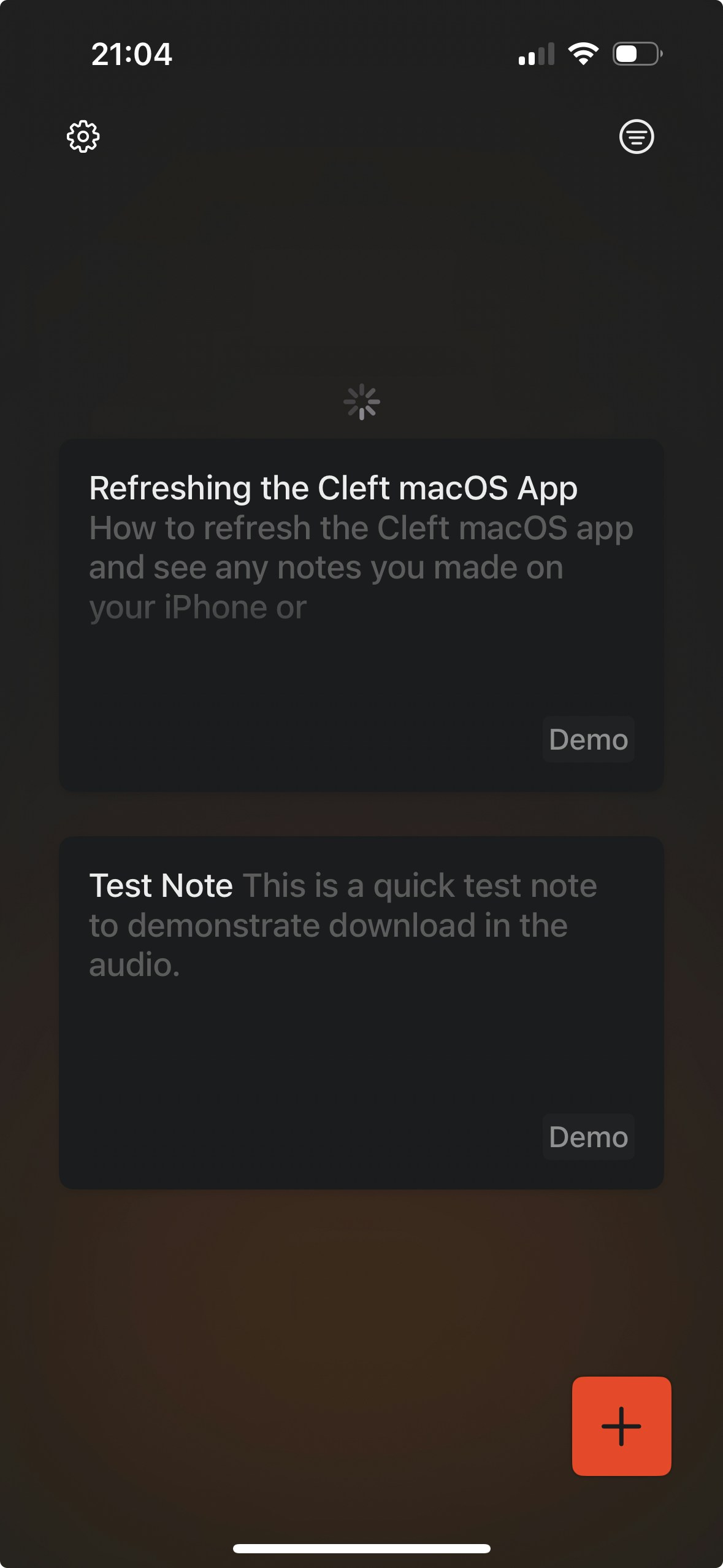
Pull down on the notes list to refresh.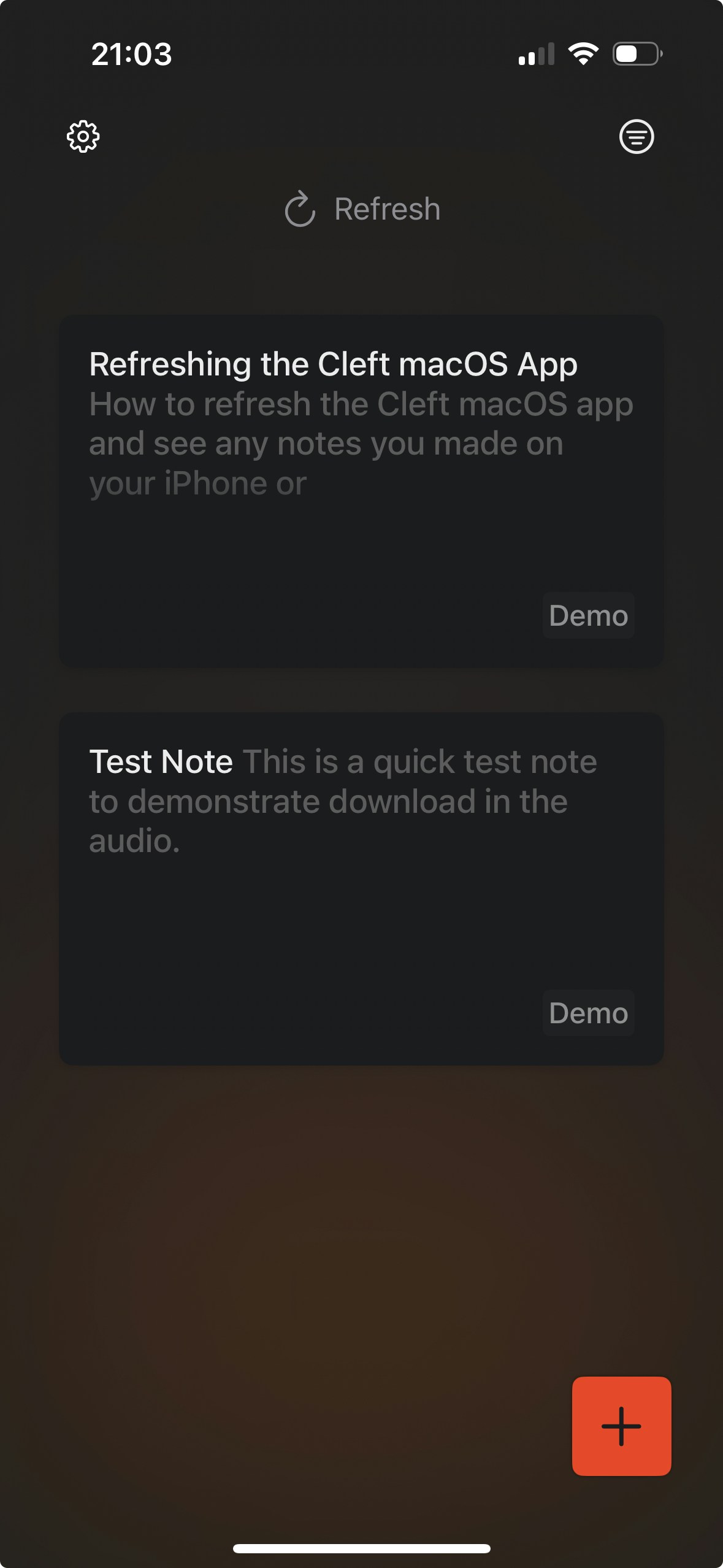
Still Not Syncing?
- Check you’re signed in with the same email on both devices (Settings > Account)
- Make sure you have an internet connection
- Try refreshing on both devices
- If issues persist, check the FAQ for more troubleshooting steps